You need speed.
Whether you’re a student shipping your first app between classes, an engineer sneaking in progress on your side project over lunch, or part of an enterprise team responsible for millions of users, the constraint is the same. You don’t have time to wait on builds. You need feedback instantly. You need to ship while the idea is still fresh.
When builds are slow, momentum dies. When builds are fast, you stay in flow and that’s when great products actually get made.
Our aim is to provide the fastest builds to you no matter what plan you are on. To deliver on this promise we are taking steps to address the unprecedented demand for Expo, mac hardware, and scaling to meet the needs of enterprise engineers and vibe coders alike.
Mac Minis are a hot commodity for aspiring AI automators using OpenClaw, especially the configurations with extra RAM (which itself was already a scarce resource). If you've ever taken a peek at our build server configuration page, you know iOS builds run on well-equipped M4 Mac Minis. With the perfect storm of long lead times for Mac Mini shipments worldwide, a surge of app development across the world from vibe coders, indie devs, local business, and enterprises, it’s only natural to wonder how this might affect Expo’s Build and Workflows queues.
Here is what we are doing to speed up builds and increase our infra:
- First, we've recently added dozens of new M4 Pro and Max Mac Minis to our fleet, we are racking more as we speak and have more ordered and en route.
- We’re taking several measures to make each build faster, which means more builds for everyone.
- We recently deployed compiler-level caching for SDK 54 and 55 projects to improve the speed of your fastlane and gradlew step by up to 30%.
- We’re deploying Gradle caching to improve Android build performance.
- We’re adding prebuilt binaries for commonly-used packages like
react-native-reanimatedandreact-native-screensto practically eliminate the time that it takes to build those artifacts. - SDK 56 ships prebuilt XCFrameworks for our most complex Expo modules on iOS, to speed up your iOS builds.
Our vision is to give every builder the chance to make something real. The first time you use Expo and a build finishes fast you feel it. Then it happens again, and at some point you stop thinking about builds entirely. You trust that things will work and they’ll be fast. That’s the bar for us: infrastructure you don’t have to think about so you can focus on building something beautiful.
The same bar applies to our tools. Our developer tools should help you make the most of each build and make it easier to tap into the capabilities of your own hardware.
Building less often with fingerprint-based workflows
What’s even faster than building on an EAS M4 Max large worker with ccache and prebuilt React Native binaries enabled? How about not building at all?
Even if you don’t need Expo’s OTA Updates to deliver bug fixes over-the-air to your production app, it’s a great fit for making your preview app feedback loop as tight as possible. Most apps don’t need a full rebuild on every code change, since most code changes are JavaScript only. Instead, ship an update to rebuild only the JavaScript and let your existing app install download the new code.
Run eas update:configure to setup your app to use EAS Update and rebuild. You can use a dynamic app config to enable updates just for your preview app (set updates.enabled to false in this case).
You could then update your app manually by running eas update --channel preview whenever you know you didn’t change any native code or dependencies. Or, you can set this up as an EAS workflow that runs automatically on commit and selectively either builds or updates based on the sampling of a native fingerprint, a hash that only changes when your native code changes.
Connect your Expo project to Github, and then add this workflow to the .eas/workflows folder:
See the docs for a full example of this workflow.
Adding EAS Update to your app and using it to update your code whenever possible is a great way to get the most mileage out of each build.
Building locally for development and testing
Running npx expo start to spin up a local development server for running your app on Expo Go or a development build might be the most popular thing to do with the Expo CLI, but the Expo CLI can also build and run your app directly on a simulator or device if you need to in a pinch.
Getting started
When building locally, the Expo CLI taps into your existing Android Studio or Xcode installation to access native development tools. Setting up these tools just right can be a little tricky, so we’ve provided a local build guide with instructions to setup known-good configurations for Android and iOS builds. Note that iOS builds will require a Mac computer.
Local development builds
Once the native tools are installed, you can do the following to build and run your app on an emulator or simulator:
npx expo run:android
or
npx expo run:ios
This makes a debug build of your app and starts a local development server (i.e., what npx expo start does). So, not only were you able to make a build locally, but it’s ready to go with live-reloading as you edit your JavaScript code.
The first time you run this command, it will also run npx expo prebuild to generate your native android and iOS folders. If you add packages with native code or make changes to app.json, you will generally want to run npx expo prebuild --clean to regenerate these folders and then run npx expo run:android|ios to build again. This approximates what EAS would do each time it builds your app.
This setup gets even better if you install expo-dev-client. This is the package that will turn any debug build into a development build, allowing you to open any development server URL. Once the development build is installed on your emulator or simulator, you don’t need to keep rebuilding it as long as your native runtime stays the same. Just run npx expo start and press a to open on Android and i to open on iOS.
Release builds
There are a few things that aren’t as easy to test in a development build, particularly splash screens. You can still get a lot of last-mile testing done with local builds by building a standalone release build:
npx expo run:android --variant release
or
npx expo run:ios --configuration Release
Sharing builds
You can share Android APK builds and iOS simulator builds that were built on your local machine with other developers in your organization via EAS. Run eas upload to upload a build manually and generate a sharable link, or setup EAS as a build cache provider to do this automatically. Other developers can then run eas build:run to download and run the build.
Device builds
npx expo run:android|ios can also run your build on a device connected via USB.
For Android, after connecting your Android phone and ensuring that USB debugging is enabled, run adb devices -l to get the name of the device, and then plug that device name into npx expo run:android --device [device-name].
For iOS, connect your device, ensure developer mode is enabled, and then run xcrun xctrace list devices to get the device UDID. Then run npx expo run:ios --device [udid]. Note that you may have to open your ios folder in Xcode and select your development team to fully complete this setup (the Expo CLI will let you know if this is needed).
If you are making a development build, you’ll be able to keep using that same build even after you disconnect from USB as long as the native runtime doesn’t change. Then you can later run npx expo start and scan the QR code.
Generating signed production builds
EAS credentials management is pretty convenient, and you can get a lot of development and testing done with the simple signing setup that’s needed for running on emulators, simulators, or connected devices, so consider this a “break glass in case of emergency” measure. But, if you need to build locally with your EAS-generated production credentials, there is a way!
First, download the credentials you need via the eas credentials command. It will guide you to what you need for each platform (the upload keystore for Android and the distribution cert for iOS). Then run npx expo prebuild --clean to generate your native projects. If you use multiple app variants, make sure your environment is set to your production variant (if you set this with EAS environment variables, you can run eas env:pull to set these variables locally).
For Android, open up your android folder in Android Studio and go to Build → Generate Signed App Bundle or APK. Provide the keystore that you just downloaded.
For iOS, unzip your credentials you just downloaded and install them in the Keychain. Open up your ios folder in Xcode and check Signing and Capabilities under your Target to make sure signing is setup OK. It might be easier to regenerate the provisioning profile (there’s no harm in doing this). Then run Product → Archive to build.
Conclusion
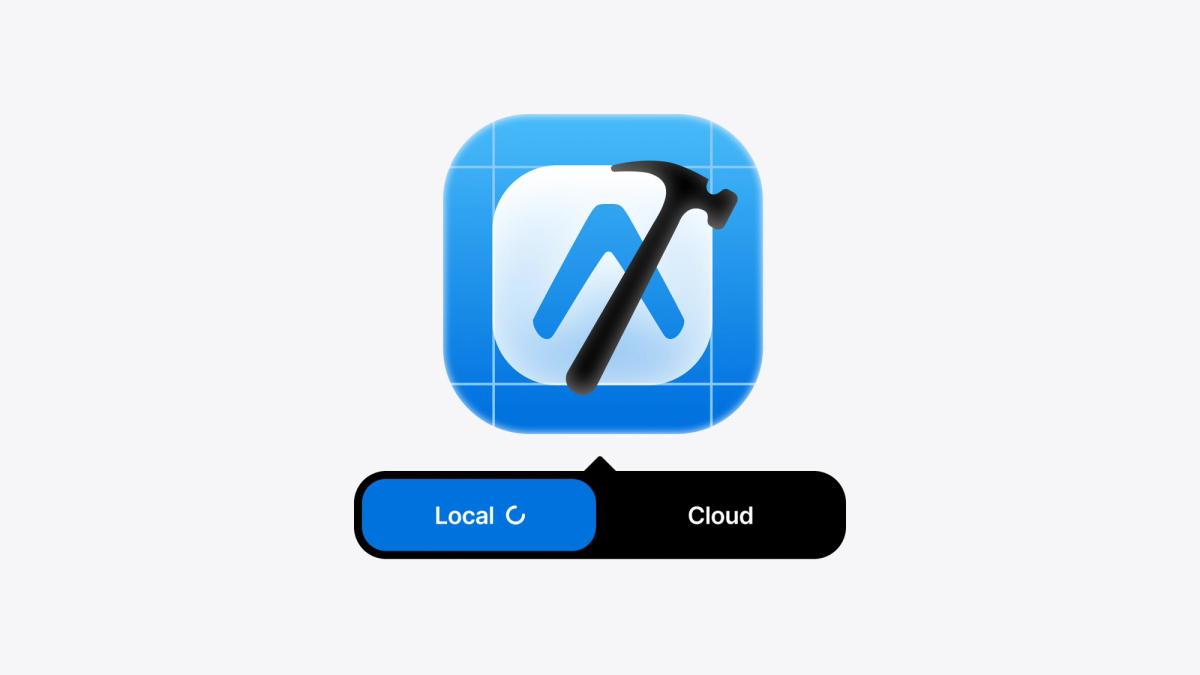
Local builds are a great addition to your repertoire for a lot of reasons, from local native code debugging to network access restrictions and more. They are complementary to cloud EAS Builds and Workflows, helping you get unstuck in a pinch while the rest of your automation continues to run on EAS. And, speaking of automation, it's always a great time to introduce fingerprints and EAS Update to speed up iteration even more by limiting how often and when you even need to rebuild at all.