As I talk with React Native developers, one of the most frequent questions I hear is something along the lines of, “Our app is 5+ years old and quite complex. We started building it without Expo, and now it looks like we’re missing out on a lot of neat capabilities, but migrating at this late stage feels overwhelming. How do we get started migrating to Expo?”
I enjoy answering this question, and not even because I get to talk about Expo tools. I enjoy it because I get to reassure busy developers who are already juggling new features, bug fixes, performance improvements, and more, that this transition doesn’t have to be a Big Bang. To paraphrase Desmond Tutu, you don’t have to eat the entire elephant in one bite.
You can incrementally adopt Expo tools, specifically targeting the features that will mean the most to your team, and generally start turning the ship in just a few pull requests.
Taking inventory: what Expo features mean the most to you?
The first step is rooted in addressing a misconception about what constitutes “an Expo app.” It’s often thought of as an app that conforms to what you get from npx create-expo-app, with out-of-the-box compatibility with development builds, continuous native generation, EAS Build, EAS Update, etc. However, the reality is that an Expo app is an app that uses Expo tools.
Your app has been working for years. You’ve built up tools and processes (perhaps, ahem, your own framework) to address the needs of your users and developers organically, over time, as you need them. You’re now considering Expo tools because you see opportunities to improve or replace parts of that toolchain, but it’s likely that some parts of your current toolchain need more help than others. Our advice for incrementally adopting Expo is to focus on your biggest pain points first:
- Do you want to use the Expo CLI and development builds to streamline your local development experience?
- Do you want to use Expo SDK packages like
expo-routerorexpo-image, or write your own native modules in Kotlin and Swift with the Expo Modules API? - Do you want to significantly reduce complexity of upgrades and native code maintenance via Continuous Native Generation?
- Do you want to ship more frequent production updates with EAS Update?
- Do you want to speed up QA testing with a PR review workflow using EAS Update?
- Do you want to reduce overhead with maintaining build infrastructure or manual build scripts by switching to EAS Build?
With your top priorities in mind, you’re ready to cut a critical path to implementing the highest priority Expo features for your use case. This path will help you achieve quick wins, while setting you up well for features you still might want to adopt further down the line.
Mission: Incremental adoption of Expo
Next, let’s explore what it’s like to add Expo tools one step at a time. We’ve divided this into four phases based on rough time estimates and complexity. It’s important to note that once you’ve completed the prerequisites you can skip ahead to whatever next steps are most relevant to your app.
However, if you’re interested in adding all of the features below, you should know that this sequence front-loads smaller code changes with benefits that can be realized quickly, and back-loads very worthwhile changes that may take longer to implement.
The four steps of incremental adoption are:
- Prerequisites: A few steps to do first before unlocking the other Expo capabilities.
- Quick Wins: Benefits you can realize with a package install and minimal configuration.
- New Workflows: Generally small code changes that open up major improvements to your build, test, and deploy workflows.
- New Mindsets: Significant refactors that shift mental models of how code is organized, unlocking long-term maintainability and usability improvements.
To help visualize this progression, here’s a demonstration code repository starting from a blank React Native Community CLI (RNC CLI) app, and then adding Expo capabilities one pull request at at time. I’ll highlight the pull requests relevant to each step below.
Prerequisites: Add Expo Modules support
All Expo apps have one (and really only one) thing in common: they all have the expo package installed. expo includes the Expo CLI, which enables the npx expo commands. It also includes common libraries shared amongst Expo modules and code to support autolinking Expo modules. With this first step accomplished, the rest of the tools, including development builds, EAS Update, CNG, and more, will be at your disposal.
Many apps can add Expo modules support with a single command:
npx install-expo-modules@latest
This will install the expo package and make some modest changes to your native project files. There are some changes to support autolinking Expo packages and changes to AppDelegate and MainActivity to allow Expo packages to hook into core app lifecycle events (so you don’t have to modify these files yourself anymore).
For some custom native projects, the script doesn’t work automatically. In that case, you can follow the manual instructions.
Either way, you now have an Expo app, and can now start your app for development with the Expo CLI, using:
npx expo run:android
or
npx expo run:ios
From here, you can actually jump ahead to any of the later steps, based on your motivation for adopting Expo tools. There’s really only one prerequisite!
We'll cover this in more depth later, but a quick heads-up: if you’re used to Expo apps having no committed native code folders (such as the way a project starts from npx create-expo-app by default), you might be wondering how you can suddenly have an Expo-enabled app, as you have native folders. The process for generating native code just before build is called Continuous Native Generation (CNG). Many Expo apps use CNG, but it is not mandatory. You may transition to using CNG, but it is also not required to use any of the other benefits of Expo we’ll discuss here, so you may choose to save this transition for later.
Quick Wins
The following quick wins are small code changes that can improve the day-to-day development experience, and should involve minimal changes to your current workflow.
Development builds
Although you could implement any of the other features described here at this point, I wanted to suggest going straight for development builds for a few reasons:
- It’s a quick win for developer experience
- There’s no impact to your production app
Development builds integrate the Expo Go-style app launcher interface into the debug variants of your app, so you can run any JS bundle URL, whether its from your local dev environment or from EAS Update.
Follow these instructions to add development build support to your existing React Native app. Install expo-dev-client and build the debug version of your app again (e.g., npx expo run:android / npx expo run:ios). Going forward, you can keep using that same build, instead of running npx expo start the next time. This will only start the Metro bundler, which your development build can connect to.
For Android and iOS simulators, you can distribute this build to other teammates, so they don’t have to keep building the app. For iOS devices, you will need to sign your app for ad hoc distribution (we’ll discuss how EAS Build can help with this soon). You and your team can potentially avoid interacting with any native tooling for much of your feature development, only rebuilding when your native code or configuration changes.
Use Expo SDK packages
Once you have Expo modules installed, you can use any Expo SDK package. A lot of packages exposing commonly-used device API’s, such as expo-image or expo-video, can be installed and imported like any other React Native package. You can even write your own custom modules using Swift and Kotlin, introducing even more capabilities to your JavaScript, with the Expo Modules API. Here’s a tutorial that demonstrates how to create a native module with Expo:
New Workflows
Once your app supports Expo modules, you can adopt EAS Build, EAS Update, or both. These are still generally small code changes, but represent bigger shifts and potentially significant improvements to your team’s build, test, and deploy workflows.
EAS Build
If you’re interested in reducing the maintenance overhead of your build pipeline and taking advantage of fast EAS build workers, consider transitioning to EAS Build. Migration to EAS build can take place at any time and does not require having an expo as a dependency. Install the EAS CLI (npm install -g eas-cli) and run eas build:configure to get started. This will assign an Expo project ID to your app and set up some default build profiles in an eas.json file, which you can customize based on your needs.
Even though your app may not yet use CNG at this point, it will still work just fine in EAS Build. If EAS Build sees the android / ios folders in your project, it will skip the prebuild step and respect your current native code and configuration.
You can also run an EAS build job on your local machine or CI hardware with eas build --local. Whether you run EAS Build jobs locally or on our cloud workers, you can leverage EAS credentials management. EAS Credentials can automatically generate, store, and reuse Android keystores and iOS certs and provisioning profiles.
EAS Credentials can also help with ad hoc / internal distribution of your iOS device development build, by generating a link anyone on your team can use to add their device to an ad hoc distribution provisioning profile. To begin, you may choose to start using EAS Build just for development builds in order to ensure that everyone on your team can take advantage of the streamlined experience of development builds, no matter how they’re testing your app.
EAS Update
EAS Update allows you to deliver small bug fixes and updates to your users immediately without a full store release by updating only your app’s JavaScript bundle. It takes advantage of how code is organized in your React Native app and how this often can affect your development cadence. Typically, your business layer / end-user features are built in JavaScript or TypeScript, while native code changes are reserved for accessing device API’s and native OS-level primitives. Business logic changes quickly, while native changes usually happen less frequently. So, we can take advantage of this and minimize the number of times we build and deploy new native code, more frequently updating interpreted code by rebuilding just the JS bundle, uploading it, and then having your app download and run it.
Adding EAS Update is a relatively light touch with Expo modules support already installed, which takes care of initializing the expo-updates library so it can update your JS and run the new version the next time your app starts (or sooner, using the useUpdates hook and its companion API’s). Run eas update:configure and it will set things up for you.
Using EAS Update for production updates
Whether or not you use updates for your production app depends on how users engage with your app and how you release code. Updates to interpreted code are generally allowed by the app stores as long as you follow their guidelines for doing so. No one size fits all! We do offer some suggestions on deployment patterns. Even if your production deployment model isn’t a great fit for EAS Update, you may still want to consider using it for testing.
Using EAS Update for testing with PR Previews
Your production app will listen to a single production update channel and download any compatible updates from there, but development builds can run any native-runtime-compatible update by scanning a QR code. This can lead to powerful QA scenarios, where testers are provided with a development build and each change or pull request becomes its own update, which the testers can download by scanning a QR code. QA can test several PR’s in isolation using the exact same app installed on their device.
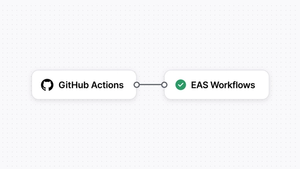
PR previews work by way of a Github Action that runs EAS Update anytime a pull request is created or updated. A QR code linking to the update is then posted by the action to the PR thread. Similar workflows can also be achieved in other continuous integration systems.
EAS Workflows
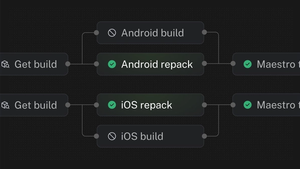
You can trigger EAS Build, Update, and Submit individually, but now you can now run them and many other jobs in EAS Workflows, the React Native-focused-and-optimized CI/CD. Connect your Expo project to your Github project and trigger a workflow on branch merge or PR creation, run them manually via eas workflow:run , or even invoke them on repeating schedules. Use the built-in jobs or create your own custom jobs for invoking other CLI tools.
You could make a workflow that optionally builds or publishes an update depending on whether native code was changed, or a workflow that runs Maestro tests right after build and then posts the results to Slack. Workflows are configured with .yml files in your project's source code using syntax familiar to CI/CD system maintainers.
While EAS Workflows can be used as your entire React Native app CI/CD system, we understand that you may want to gradually migrate over, using your existing CI/CD for some things and calling out to EAS Workflows where it benefits your team the most. You can incrementally adopt EAS Workflows much like you would EAS Build or Update: use the eas workflow:run --wait --json to invoke a workflow from anywhere and read its results.
New Mindsets
The following changes, like others before, can be undertaken after your app has Expo Modules support. They represent shifts in mindsets, unlocking long-term benefits in how code is organized, maintained, upgraded, and extended. They may involve significant refactors, so you may wish to make these changes after you have adopted other features, or at least start these efforts concurrently with quicker wins.
Adopting Continuous Native Generation (CNG)
We’ve saved Continuous Native Generation (CNG) for the end not because it’s a lower priority (quite the contrary- it’s often the first thing many folks think of when they set out to adopt Expo), but because there’s a few good reasons why you might want to save it for a little later in the transition.
Adopting CNG means removing your native code folders from source control and letting the prebuild command generate them based on a template, your package.json, and app.json / app.config.js, including config plugins to modify native project files automatically. It’s potentially a huge win in terms of maintainability, as you no longer have to worry about upgrading entire native project folders, but you’re instead only responsible for what’s unique about your native code and configuration. You can read more about how CNG works here.
However, the rewards of CNG, no matter how tremendous, are also generally realized over a longer time period. The benefits of simplifying your next React Native version upgrade won’t be relevant until the next time you upgrade your project, which could be months away. The size and complexity of transitioning to CNG also depends greatly on how much your native project is customized from the defaults.
Therefore, if you need to prioritize just a few changes, we suggest implementing the other aspects of adopting Expo that are most relevant to your team first before tackling CNG. You can realize so many other benefits of Expo adoption, such as development builds, Expo Router, EAS Build, and EAS Update, in relatively short order, and then take your time on CNG.
To transition to CNG, in general, you’re going to determine how your app deviates from the default native project template, and then make the corresponding updates to your app.json / app.config.js configuration to enable those customizations to be automated. Sometimes this will involve adding config plugins from third party packages or writing your own config plugins or Expo modules. We describe the thought process for adopting CNG in your app here, and you can also check out the diff for adopting CNG in my example project, which includes an example of using a config plugin to add a simple customization that isn’t already available in the standard app.json fields.
Expo Router
Expo Router is also something you can adopt once your app supports Expo Modules. There are just a few instructions to follow to ensure that your Metro config and entry point are setup correctly. File-based routing is a nice win for organizing your navigation hierarchy. Every screen also gets its own URL, enabling automatic deep-linking support for any screen in your app.
If your app has a lot of screens, adopting Expo Router will likely be a significant refactor, as you will be effectively moving each screen to a new location within your codebase. Thus, you may want to take on this step later in your Expo adoption journey. However, Expo Router is built on React Navigation, so whatever navigator features you used previously have equivalent implementations with Expo Router.
Start your adoption process
Large codebases and apps that have been in production use for years have unique challenges. Continuity and stability are of paramount importance, and major changes risk that stability and can keep developers up at night. We’re app developers too and we likewise appreciate a good night’s sleep!
That’s why we have sought to make Expo adoption something you can take on gradually, focusing on features that can help you the most right now. Expo workflows and tools are great for new apps, but some of their greatest potential is realized at the scale of major production apps, so they should be able to take advantage of them on their own terms. And they can!
So, migrating to Expo does not have to be an all-or-nothing proposition, but an a la carte menu where you can pick and choose the features that will help you the most right now while your team continues to deliver features. Check out our docs for more information about how your React Native app can incrementally adopt Expo.