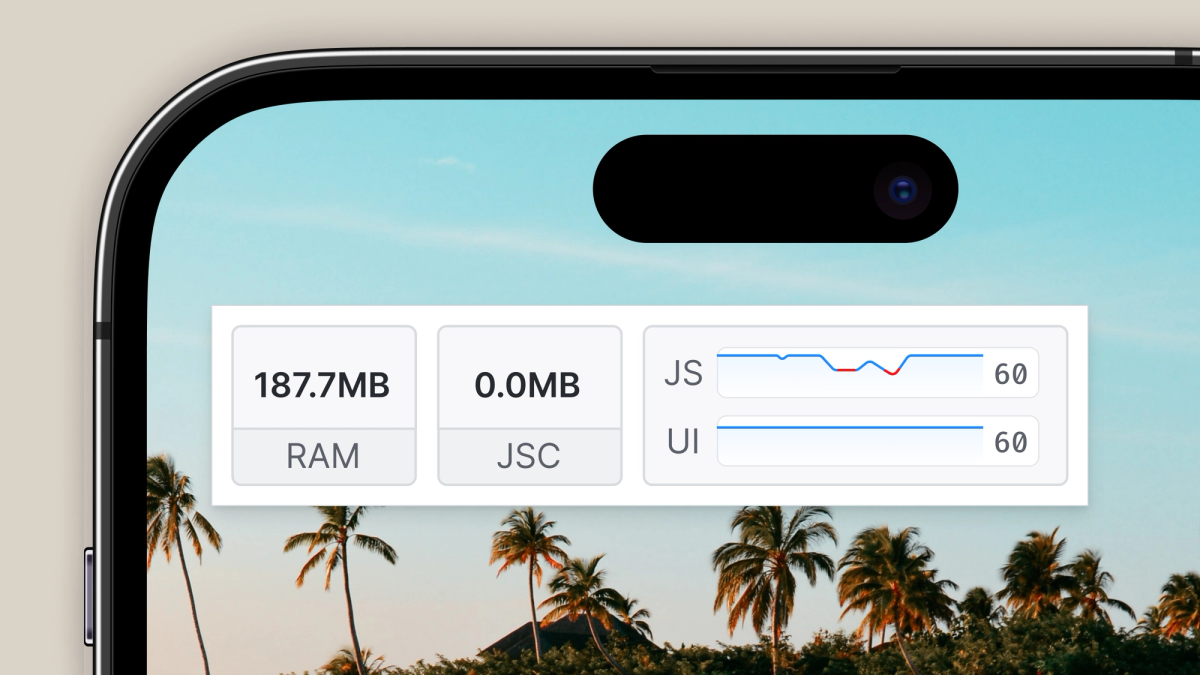
When you build a native app, all application code typically runs on the main/UI thread by default. When you experience lag, the best way to reduce it is to offload business logic—such as computation and networking—from the main thread to multiple background threads.
In Expo native apps, however, this is handled automatically. JavaScript runs on its own thread, and all draw calls are flattened and optimized before being executed on the main thread to render the UI. Most native modules also operate on their own threads and invoke the main thread only to perform the minimal necessary work. This means Expo splits computation across threads as much as possible by default.
If the JavaScript thread ever jams (often referred to as thread blocking), features like scrolling and gestures remain uninterrupted—even while the CPU is playing catch-up. These kinds of “magic tricks” have long been used by the best frontend teams—think Apple—to create buttery smooth interactions while pushing the limits of what’s possible on a device.
React to the limit
On the web, you often perform animations and transitions using CSS and pseudo-classes (like :hover) which are a form of native UI state update that don’t require React or JavaScript.
React Native, on the other hand, is React-native. It manages as much of the application state in React as possible. This means you have more JavaScript, more React, a higher chance of blocking the JavaScript thread. This also means you’re more likely to benefit from following the rules of React and using newer React optimizations such as the React Compiler.
(Even features like React Server Components can be used to optimize native performance, but let’s stay on topic)
How to block the JavaScript thread
The JS thread can jam naturally if you try hard enough. But it’s easy to create a quick estimation of the behavior. Here’s an example component that can jam the main thread for three seconds, preventing any other JavaScript from running during that time on this thread.
Re-renders are obviously much cheaper than this, but they do add up eventually. If this happens you’ll experience lag. Lag is often found in gesture-driven animations such as sticky headers on scroll, or when pushing/popping new screens to a stack—both of which are rarely used in websites (correlation perhaps, or maybe just a coincidence).
So if you’re experiencing lag in your Expo app, then it’s highly likely caused by JS thread-blocking, and first-principles can help us solve this.
Identifying the problem
The first step to solving your problem is knowing where to look. This was historically very hard in React Native.
In 2022 we noticed that debugging was one of the biggest pain points in React Native. At the time, the recommended debugging solution was a proprietary tool called Flipper that often got in the way more than it helped (it also slowed down builds).
We at Expo added support for using Chrome DevTools directly with the Hermes engine for more reliable JS-native debugging in Expo SDK 47. We later followed up by adding features like network inspection.
At this point debugging was getting much easier, but then we teamed up with the team at Meta to make Chrome DevTools the defacto debugging solution for React Native!
Just press J in Expo CLI to open Chrome DevTools and connect it directly to the Hermes engine.
But one of the best new features for optimizing performance is the ability to highlight React renders. This tool is essentially equivalent to React Scan.
Go to: Profiler > [Gear icon] > “Highlight updates when components render”.
Then in your app, simply update the UI and you’ll see renders flash on the screen. If you’re really struggling, you might not even see flashes but instead a solid box around components that are infinitely re-rendering due to some bug.
But now we have a visual clue as to where we should optimize!
How do we optimize the app, where do you even begin? Well since this is a read-only article with no external context to your exact problem, at most I can provide you with a list of proven steps that you can take to optimize your Expo app and reduce lag. I recommend applying these steps before seeking more advanced help.
Step 1: Use TypeScript
You likely are already using TypeScript but if not, I highly recommend using it.
This will ensure you aren’t mutating or hoisting variables in an unexpected way that could cause React to break. It also makes your code easier to read and understand.
Expo has first-class support for TypeScript. Simply run npx expo customize tsconfig.json or convert any file in your app to TypeScript by changing the file extension, then the dev server will install the necessary dependencies and generate a base tsconfig.json.
- Avoid using
anytypes as much as possible. - When ignoring type issues, prefer using
// @ts-expect-errorinstead of// @ts-ignoreas the comment will have an error if the ignored issue goes away. - Set
compilerOptions.stricttotruein yourtsconfig.jsonfor the best results. - Learn more about TypeScript in Expo.
Step 2: Use static JavaScript features
JavaScript has changed a bunch over the years, making it a far more robust and reliable programming language—primarily through ESM language features.
In Expo, you can mix ESM with older syntax, but you should avoid doing so for the best results.
You may know about what to use via organic pattern-recognition that comes standard in the human mind, but it’s also useful to know what not to use!
- Avoid using
varinstead opting to useconstas much as possible andletwhen a variable mutates.varis an anarchy feature that enables “hoisting” where a variable can be used before it’s defined. - Use
importandexportinstead ofrequireandmodule.exports— The ESM import/export syntax can be statically analyzed by Expo CLI and used for graph optimizations such as tree shaking. Ifrequireormodule.exportsare found, then the optimization is cancelled as we cannot safely predict how code may be used. requireis generally fine for assets (e.g.require('./img.png')) as they aren’t really tree shaken and don’t have additional exports.- Avoid using barrel imports. These are files where you re-export other modules to make imports easier. Expo’s tree shaking has support for collapsing these dependencies but it’s a slower optimization and the type of optimization is prone to failure. If any of the re-exported modules uses CJS code then the entire optimization may be cancelled.
Additionally, there are non-standard static JavaScript features that Expo has added to make it easier for you to express how your code should be optimized across platforms and in different runtimes. These include globals such as __DEV__ and process.env.NODE_ENV which can be used to remove code when bundling for production. To learn more about these features, read tree shaking in Expo.
Step 3: Enable ESLint
JavaScript is not reactive by default. That thing where calling setState magically re-renders a function is added by React, with features like hooks and components.
But React has rules, and these rules are not always immediately obvious. This is why React provides an extremely helpful eslint plugin that can warn you when the rules of React™ are being violated. This may not seem important for performance on its own, but trust that we’re building toward something!
You can enable ESLint in Expo projects by running npx expo lint .
This will install and configure ESLint for your project while also adding warnings for other build-time rules that would otherwise fail silently such as destructuring environment variables.
Learn more about using ESLint in Expo CLI.
Step 4: React Compiler
At the forefront of optimization is React compiler which is currently in Beta but generally works great for most apps. Unlike React Server Components, Meta uses React compiler at scale for very important properties such as the Meta Quest Store (React Android) and instagram.com (React DOM), amongst other things.
If you’ve ever looked at some basic React hooks and thought “why am I writing this, isn’t React smart enough to know what to do”—that’s React compiler.
React compiler is a Babel plugin that runs in Metro. This means it runs file-by-file at build-time as opposed to across files during serialization like tree shaking, or at runtime like hooks (but it does have a runtime element (which is sorta just hooks)).
React compiler analyzes your React components to automatically memoize code, making it more reactive to targeted changes and less reactive to unrelated changes.
This means you don’t need to write useCallback or useMemo at all. The compiler goes even further, splitting out JSX components from the render function and memoizing them so parent components don’t extraneously update their children. This is huge.
I’ll give you another example:
If a component has no state then it’s considered a “pure component”. Pure components can be optimized in React by wrapping them with React.memo but React compiler does this automatically. This example is great because I actually forgot about pure components—haven’t thought about React.memo in years—and I can now gladly go back to forgetting about them forever.
Enabling React Compiler
React compiler can only be safely enabled if your project is in a good state. It should be strongly typed (TypeScript), obeying the aforementioned rules of React (ESLint), and using static JavaScript features (ESM). Once that’s done, you can perform a final health check on your codebase by running npx react-compiler-healthcheck@latest.
While React compiler is in beta, you’ll need to enable it manually in Expo. Learn more in the Expo docs.
I highly recommend you enable React compiler so you can mark off “memoization” as a potential bottleneck in your code. This is the best thing you can do to optimize your Expo app as of 2025.
There aren’t many silver-bullet examples of when React compiler will magically improve performance because it works at such a granular level, automating every aspect of your project. But because it’s so detailed, the small improvements stack up creating noticeably faster apps.
Quick tips for React Compiler in Expo
- It only runs on your application code, e.g. not
node_modules. If you make a package that you want optimized you can either do it manually, or create a build pipeline that runs the React compiler babel plugin on your code before distributing it. - If React compiler ever fails, you can use the
"use no memo"string in a React component or at the top of a file to make the compiler skip over it. - Learn more about the rules of React compiler and how it works in Expo.
Step 5: use React 19
Expo SDK 53 ships with React 19 which has many great new features but the best is the use API (not a hook). use can be used as a drop-in replacement for React.useContext (a hook) but unlike useContext the use API can be called conditionally. This means even fewer refactors, less hook calls, and more flexible components that can group together extra logic:
↓↓↓
Conditionally calling useContext is admittedly not a huge win, but it’s worth mentioning since it is a new best practice. Basically just stop using useContext and start thinking of React context as being more like one of the modern React state managers (mobx-state-tree, jotai, etc) where you can just select data when you need it as opposed to tripping over it when you declare conditionals in your components.
Step 6 (Pro): Multi-threading JavaScript
By now any pain is surely mitigated, your app is healthy and maybe even happy. But just because I know my audience is filled with absolutely cracked craftsmen who push Expo to the furthest possible limits, I’m adding this final point.
Even with all the complex multi-threaded theory already baked into Expo/React Native, you may still find yourself running up to the limit of what’s possible with the single JavaScript thread. This is fine, and generally a badge of honor.
Luckily there’s solutions for this too.
On the web we can do multi-threading in one of two ways:
- Moving work to a server—great for tasks ranging from crazy difficult like EAS Build, to more dynamically complex operations like media editing.
- Moving work to the aptly-named “workers”—runs on device, but off the main thread meaning it can’t update the UI directly.
In Expo native apps, we can move work to the server with API Routes and React Server Functions, but we can also use a more integrated version of web workers called “worklets”. Worklets were created by Kzzzf, the original author of React Android (React Native was originally just for iOS).
They’re part of the package react-native-reanimated and enable you to run JavaScript directly in the UI thread with shared JavaScript variables. These are generally most useful when crafting gesture-driven animations that require layout computation to run as many times as possible while the device is also running a full-screen animation.
It works by bundling the JavaScript function marked with a “worklet” directive to a string that is then evaluated off the main JS thread. Type-safety is intrinsically available thanks to the API, and shared values are added as part of React Native Reanimated. Learn more about worklets.
While Meta primarily uses React Native’s Animated API, I highly advise you to move complex animations over to Reanimated. Expo has first-class support for Reanimated, it’s in Expo Go, and the Metro bundling stack we use.
Other libraries such as React Native Vision Camera leverage the worklet system for non-animation functionality such as camera frame processing, and soon you can too! There’s an RFC from the Software Mansion team to make worklets a standalone system that can be more easily used without reanimated. https://github.com/software-mansion/react-native-reanimated/discussions/7264
Closing
All of the steps recommended have some sort of first-class support in Expo Router, and they all build toward a strong codebase that’s easy to maintain, scale, and compose.
Ensure you check back on the JS performance by using the Chrome DevTools integration (Pressing J in Expo CLI) to make sure there are no obvious regressions.
This post is pretty long so I’m limiting the tips strictly to React renders and JavaScript. Once you confidently know that your business logic is following best practices, then you can move on to more advanced optimizations.
Here’s some parting thoughts on performance:
- Use the platform. Switch out heavy JS libraries for native ones, e.g. always use React Native Gesture Handler on native, and never use PanResponder.
- Use more targeted native modules. For example, if you’re making a lot of cache requests, consider using expo-sqlite instead of a more general purpose caching module. Maybe build your own using a native file system library.
- Narrow down your “list performance” pain-points. Almost everything on a smart phone is some sort of list, so there’ll likely never be a silver-bullet list component that solves for all cases. If there was, it’d end up being a webview. Some lists should recycle dynamically sized items, others just need a better data fetching policy. A lot of “native development” really is just building and optimizing list components. That said, the React Native New Architecture does automatically recycle native views meaning list performance could be greatly improved if a new list component were to be built with the New Architecture in mind! 👀