So, you just shipped your app to production. Congrats! Users are installing it, but soon your first bug report comes in. You open the production build on your phone, and yep, there it is. You draft a fix, install your development build, and dig in.
You can only have one version of your app installed on your phone at a time. Sounds reasonable, until you’re uninstalling your production app for the third time this week to debug something in your dev build, then reinstalling it, then uninstalling it again. There has to be a better way.
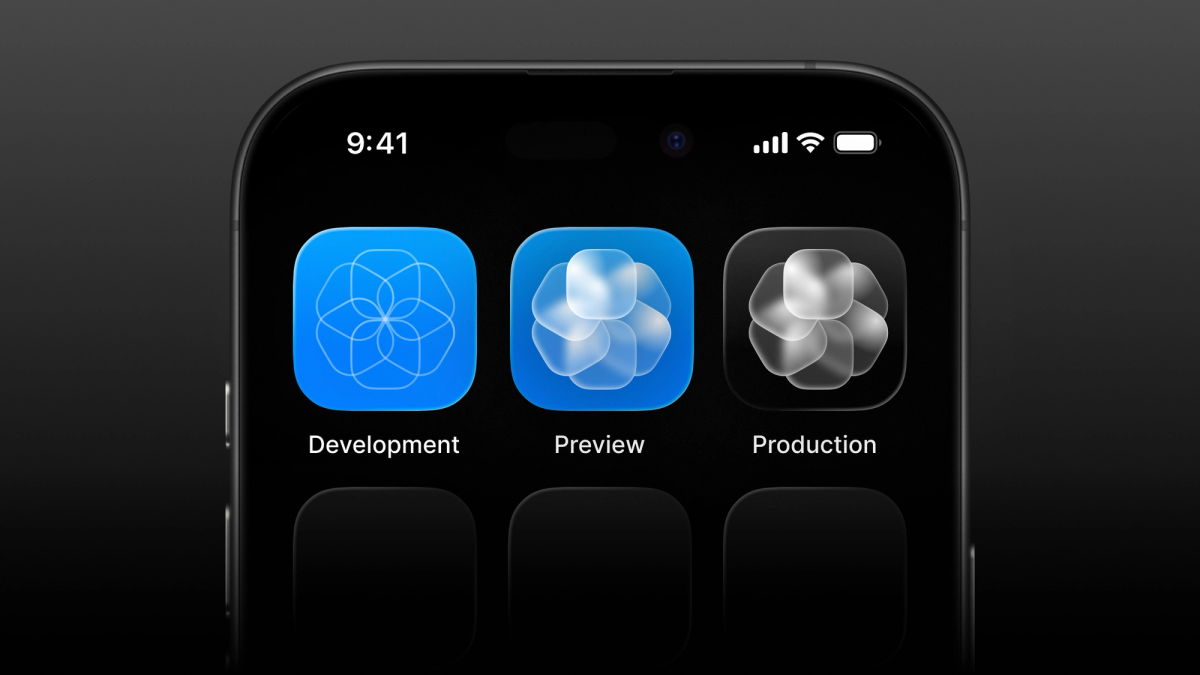
App variants fix this by giving each build its own identifier, so variants (for example, dev, preview, and production) can be installed side by side on one device, each treated as its own app.
For me this is a genuine dev experience upgrade, and it is the first thing I set up on real projects.
What an app variant is made of
Think of every build as having two independent settings, an identity and an environment.
The first is identity, as in the bundle identifier on iOS or package name on Android, such as com.myapp.app. An identity is baked into the native build. It decides what represents a unique app and whether a new install replaces an old one. A device keeps only one app per identifier, so if development and production builds share one, installing either replaces the other. Giving each variant its own identifier lets them stay installed side by side.
Nothing you do at expo start time changes the identity. Because the native identity is baked into the native code of your app, this guide assumes custom builds you create on your machine or with EAS Build. It does not apply to Expo Go, which runs every project under a single identity.
The second is environment. That means the set of variables that gets loaded when your app config is evaluated. EAS has three built-in environments, development, preview, and production, and the environment is where values like an API URL or an analytics key live. Environment decides how the app behaves once it is running.
Step 1: config your app for different variants
Chances are your project has a static app.json today. A static file is great for stable values. Like we already covered, for variants to install next to each other they need identifiers of their own. But the identifier is set in your app config, and a static file can only hold one. So you also need a config that can set its values based on a variable. That is a dynamic config, and I reach for app.config.ts so the config is typed, though app.config.js is fine if you would rather stay in plain JavaScript.
The two config files
When both files exist, Expo reads app.json first, hands it to your dynamic config as { config }, and uses whatever the dynamic config returns. Think of app.json as the base layer and app.config.ts as a thin override on top. Your dynamic config has to export a function for this to work. If it exports a plain object while an app.json exists, the static file is ignored.
Your app.json holds the stable values and the defaults.
And your app.config.ts holds the overrides. A simple example may look like this.
Switching on APP_VARIANT
So, to create an app variant, we need to tell the config which one it is building. For that, we bring in APP_VARIANT, a plain environment variable your config reads. The name is only a convention, so you could call it anything. You can also create more, or different variants if you like. Switch on it to pick the identity.
Here we have put each variant on its own line with a switch, so the helpers stay readable and adding another variant is just another case. The shared part of the ID lives in APP_ID_PREFIX, so each case only sets the suffix and there is one place to change the base if it ever moves.
Note how we spread ...config, which embeds the values from app.json into our dynamic config. If you forget to spread config, you drop everything in app.json. You can see it one level down as well, where setting bundleIdentifier without spreading config.ios first keeps the new ID but loses everything else under ios.
When in doubt, run npx expo config to read the resolved config Expo will use. Add --json for machine-readable output, and if you have jq available, npx expo config --json | jq .name pulls out a single field.
We pick development, preview, and production to match the default build profiles eas build:configure creates. Also, EAS environment variables (where your variables will eventually live) ship with the same default environments. As a sidenote, while you can add as many build profiles as you like, custom environments beyond the built-in three are available on the Production and Enterprise plans.
Both of these concepts we will dig into further down the article.
Why keep both files
You could ship with app.config.ts as the only config file, and plenty of apps do exactly that. The catch is that Expo tooling only writes into a static app.json. eas build:configure and eas update:configure fill values in for you when that file exists, and fall back to asking you to add them by hand when it does not. Some services go a step further and need a static app.json. Expo Launch, for example, will not run without an app.json file, since it writes identity fields like name and bundleIdentifier into your config, which a dynamic config cannot accept.
Defaulting to development
You might have noticed how I let a missing APP_VARIANT fall through to development in the switch. This is not a requirement, but I would rather have production identity only come from asking for it. The commands you run locally, expo start, expo run, and expo prebuild, do not make you pick a variant, so whatever the default is, that is what you get. Locally that is the dev build nearly every time, so it may as well be the default.
APP_VARIANT covers a fixed set of variants, so the switch is exhaustive by design. The default matters more once your config branches on the variant for values beyond the name and identifier. Say you add a getBaseUrl() (or any other environment-specific value you might want here) beside getAppId() and feed its result into your config so each variant has its own API URL. APP_VARIANT is only visible to your config, so the example goes through extra to get the value into application code.
With that in place, the default decides which backend you hit. Falling through to development keeps you on your dev backend. Falling through to production sends you to the real one. Depending on the app, that might fail loudly, like an auth backend turning away a dev access token, or it might quietly succeed and pollute the production environment with test data.
Later we can move APP_VARIANT to EAS environment variables and pull them down locally, at which point it is nearly always set and the default rarely comes up.
Step 2: build each variant on EAS
Your config now reacts to APP_VARIANT, so EAS Build needs to set that variable for each build. The simplest way is an env block per profile in eas.json.
Run eas build --profile development and EAS sets APP_VARIANT=development before it evaluates your config. The dev identity kicks in and the dev build installs next to production without stepping on it. If anything, the development profile did not need the variable, since development is the default from Step 1 anyway. Production has to be set explicitly, and its build profile is where you do it.
Where your variables live
Setting APP_VARIANT inside each eas.json profile is enough to get variants building, and it is a fine place to start. But that env block only applies to eas build (for instance, eas update cannot see the env block in your eas.json). In fact, every other command that evaluates your config, including expo start and expo run on your own machine, never sees it and reads APP_VARIANT from your local shell instead, so for now you set it yourself, inline like APP_VARIANT=development npx expo start, in a package.json script, or in a .env file.
EAS can store those variables for you instead. With EAS environment variables, a variable lives on EAS under an environment rather than in eas.json. This is completely optional, but it is something I think makes the dev experience nicer, because you stop copying the same values between eas.json and your local .env file. You create a variable once per environment.
A build profile then names the environment it should load rather than spelling out each variable.
And your own machine reaches the same values with eas env:pull. You name the environment and it writes those variables into a local .env.local file.
Now expo start and expo run read APP_VARIANT from .env.local without setting it inline (or by manually changing values in .env-files). Your builds read it from the same environment on EAS. There is one place to change a value instead of several.
Building variants on your own machine
Building locally with expo run needs no extra setup once the variable is in your .env.local. The variant you prebuild is whatever APP_VARIANT resolves to, so set it (or pull the environment) first, then regenerate the native projects with prebuild --clean when you switch variants so the new identity is baked in.
In case terms like prebuild or CNG (Continuous Native Generation) are new to you; CNG generates your native projects on demand from your app config, package.json, and other input files instead of committing them to source control. EAS Build works the same way (unless you commit your native projects) and regenerates them from scratch for every build in the cloud. Whether you build locally or on EAS, switching variants never leaves anything stale behind.
The variant you build locally is almost always development. Preview and production are EAS Build’s job. If you do build one locally, use the release configuration so it embeds its JavaScript and config and runs without a dev server, the way a store install would.
Then switch back with a development prebuild --clean before your next dev session, or the CLI keeps pointing its QR codes at whatever variant is on disk.
How the environment reaches a running app
Once you run builds side by side, identity and environment can drift apart, so I want to be precise about when the environment reaches the app.
Identity is fixed at build time, as you saw earlier. When developing locally, keep in mind that, if you’ve generated a local native project with npx expo prebuild or npx expo run:android|ios, expo start takes its launch scheme from whatever native project is on disk, so APP_VARIANT does not affect which installed app opens.
The config your app reads at runtime through expo-constants is where it gets interesting, because where it comes from depends on the build:
- A plain build without
expo-dev-clienthas its config compiled in.Constants.expoConfigis fixed at build time, andAPP_VARIANTonexpo startdoes nothing to it. Only a rebuild changes what the app reports. - A development build (one with
expo-dev-client) downloads its config from the dev server every time it opens the project. NowConstants.expoConfigreflects the environment your server is running under, not the one you compiled with.
That second case is the one to watch. Start your server as preview, open your dev build, and it runs with the preview environment’s values without complaint. The dev menu even reads “MyApp (Preview)”, or whatever name you gave that variant, on a build whose identity is dev, and nothing errors. The fix is to match the server’s variant to the build you open, or once your variables live in an environment, run eas env:pull --environment development before expo start.
One more channel behaves differently. EXPO_PUBLIC_ variables get inlined into your JS bundle at bundle time, so a build serving its JS from your dev server picks up your local environment variables, while a release build bakes them in. Anything without that prefix, APP_VARIANT included, never reaches your JS directly, so to read it at runtime you surface it through your config, usually the extra field shown just below (or in this case, for example, you could name it EXPO_PUBLIC_APP_VARIANT and read it directly). The environment variables guide covers the rest.
Accessing extra values
To see how a development build gets its config from the server, add the variant to the extra field of your config. Then show these values on screen: the variant from expo-constants, process.env.APP_VARIANT, and process.env.EXPO_PUBLIC_APP_VARIANT.
APP_VARIANT renders as undefined because it lacks the EXPO_PUBLIC_ prefix, while EXPO_PUBLIC_APP_VARIANT shows its value.
Restart the server with a different APP_VARIANT (and EXPO_PUBLIC_APP_VARIANT to match) and open the project again, from the QR code on a device or with i in the simulator (a plain reload may not pick up the change). A dev build shows the new value. A preview or production install keeps showing the variant it was compiled as.
Making the QR code open your dev build
With more than one variant installed, the QR code from Expo CLI can open the wrong app. By default the expo-dev-client config plugin adds a generated scheme named exp+<slug> to your native project, built from your app’s slug. The slug is the same across variants, so every variant registers the same scheme and answers the same link. Which one the OS opens is not something you can rely on. For example, it may open the preview build every time, even with the dev build installed last.
The fix is to make the dev build the only app that answers the generated scheme.
After a clean prebuild and rebuild, only the development build registers exp+<slug> and the QR code opens it. Variants built before the change still answer the link, though, so rebuild them too, or take them off the device.
There is one caveat if you build other variants locally with expo run. The CLI takes the link’s scheme from whatever native project you last prebuilt, so building another variant locally can leave your next expo start pointing at the wrong app. Before your next dev session, regenerate the native projects for development.
If your variables live on EAS, run eas env:pull --environment development first and skip the inline variable. If you build every other variant remotely and keep your local native project configured for development, this caveat does not come up.
addGeneratedScheme only touches the generated scheme, not a custom scheme in your app config, and the custom scheme is something I rarely vary anyway. Varying it helps when an external link has to pick between apps built from the same project, as with white-label apps, where each brand answers its own links through a scheme like brandone:// or brandtwo://.
Registering each variant with your services
One chore remains once each variant is its own app, and it comes with the native identity itself. APP_VARIANT can make your config return a different bundle identifier or package name, but it cannot create the external registrations those identifiers need.
Some services and SDKs recognize your app by that identifier. A build may need an ID you registered ahead of time, so each variant needs its own setup, either as a separate app or as another allowed identifier under the same project. The variants guide gives Google Maps and Firebase Cloud Messaging as examples. A good sign is that a service asks for your package name or bundle identifier during setup.
Registering each variant separately is more work. For anything that records or sends production data, like analytics, crashes, or push, it is usually worth it so dev builds do not pollute production.
Giving each variant its own icon
When you have two or three installed side by side, a different icon is the fastest way to avoid tapping the wrong one, and teammates have always appreciated it. With a dynamic config it is one more helper, and the variant images can be as simple as the same icon with a different background color. Mine returns undefined for production, so the icons in app.json flow through untouched, while dev and preview override them with a single flat image.
ios.icon and android.adaptiveIcon take precedence over the top-level icon, which is why the example overrides them as well.
Keeping variants aligned in updates
Everything so far keeps a variant aligned at build time. EAS Update is one more place to keep it aligned, after the app has shipped. The channel is how an update reaches a variant, and the environment you publish with, set with --environment, decides which values it carries.
That channel comes from the build profile, set right next to the environment it already assigns.
With the names kept consistent, the whole chain matches. Your preview variant is built by the preview profile, loads the preview environment, and receives updates on the preview channel, so an update published there lands exactly where you expect.
However, point that at the wrong environment and your preview variant will happily accept an update carrying the development environment’s values, with no complaint. It is the same principle as at build time, keep a variant and its environment matched, but a mistake here reaches people who already have the app. The channel routes the update, the environment decides how it behaves, and it is on you to keep them aligned.
Wrap-up
I know this may look like a lot, but getting started is genuinely straightforward. You add a dynamic config that reads one variable, a build profile per environment, and channels that match, and every build you care about lives on one phone, each honest about which it is. It rarely needs updating, so much so that I now copy the same config into new projects with only a few changes. You feel the benefit every time you switch between builds.
So when a production bug lands while you are mid-feature, you tap over to production, reproduce it, and tap back to where you were, with nothing uninstalled and nothing lost. If you have spent years overwriting one build to check another, this ends that for good.
App variants are an important piece of a dev experience you all deserve.