
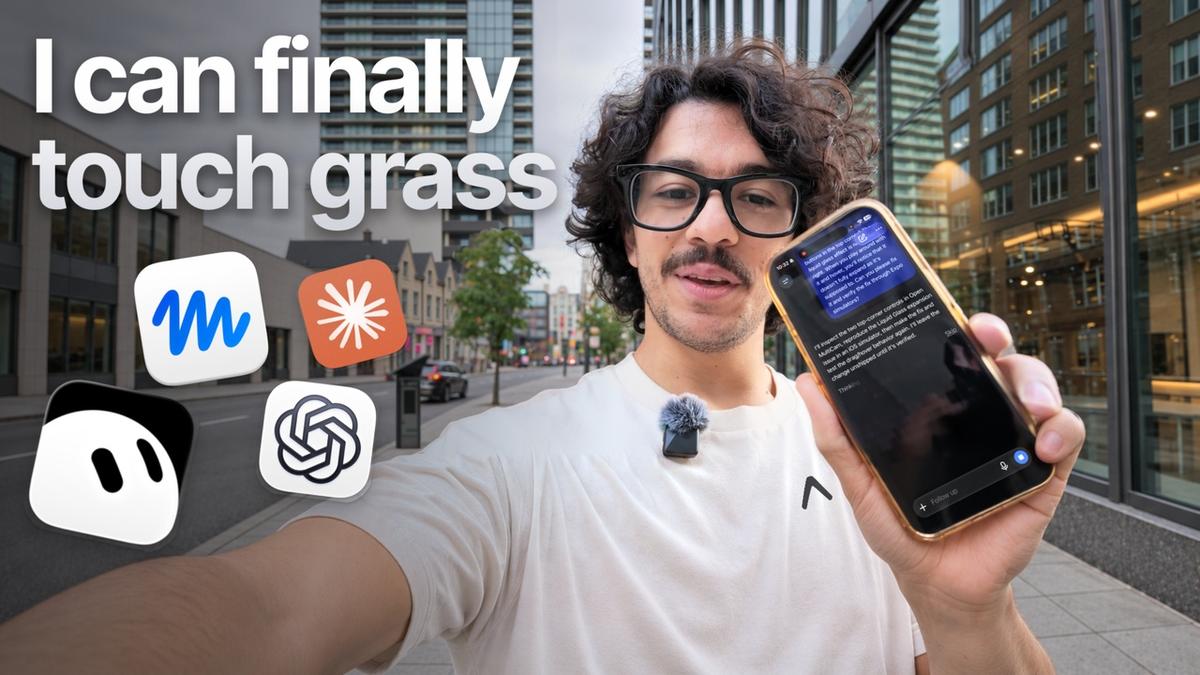
I spotted a UI bug in my app during a walk, fixed it from ChatGPT on my phone, verified it on a cloud simulator, and shipped it to production as an over-the-air update all through the ChatGPT mobile app.
In this post, I'll walk you through how it works and show you how to set up the exact same workflow in your own Expo app, so you can ship changes straight from ChatGPT, Claude, or Grok Bot.
Video version
The bug
The app is OpenMulticam, a camera app I built that records from the front and back iPhone cameras at the same time. While I was using it on a walk, I noticed the two liquid glass buttons in the top bar looked clipped whenever you pressed and dragged them.
Instead of making a mental note to open my Mac later, I switched over to ChatGPT on my phone, turned on the Expo connector, and asked it to look into those two buttons in OpenMulticam and verify the fix in Expo Simulators.
The PR with the fix & proof
A few minutes later, the pull request landed: pull request #15.
If you open it, you'll see three things: the actual style fix, a regression test covering both changes, and side-by-side video proof from Expo Simulators.
The agent ran the exact same drag gesture on two cloud iPhones, one on main and one on the fix branch, and dropped both recordings straight into the PR. You can also view the full recording from the expo.dev dashboard, or from the Expo Services mobile app.
What happens once the PR is merged?
After I reviewed and merged pull request 15, the release moved through two separate channels. First, Expo Update published the fix to a verify channel to load the live over-the-air update on a cloud iPhone in Expo Simulators and confirm the release itself works before anyone else gets it.
Once that check looked good, I told ChatGPT to push it out. A second workflow published the same fix to the production channel, which is what the App Store build listens to. With that, the OpenMulticam bug was fixed worldwide.
What's happening behind the scenes?
At a high level, here's what the workflow looks like:
The blue lines are the one-time connections you set up. The grey arrows are what Expo handles every time you ask for a fix:
- The cloud sandbox checks out your repo at the commit you're working from so the agent can edit code and run checks.
- Expo Workflows runs the two workflow files in your repo, one for
verifyand one forproduction. - Expo Update packages and serves your update to whichever builds listen to that channel.
- Expo Simulators boots a cloud iPhone so the agent (and you) can run and inspect the app.
How to set it up in your codebase
You'll need an Expo app hosted on GitHub, an Expo account with Expo Simulators access (Expo Update is on every plan including Free, and Expo Simulators is on paid plans), and an Apple Developer account for the build on your phone. Once those are ready, the whole setup is three connections and one prompt.
1. Add the Expo connector to your chat app
The connector is the Expo MCP server, authenticated with your Expo account:
- ChatGPT: install the Expo plugin.
- Claude: add Expo from Claude Connectors.
- Grok: open grok.com/connectors, select New Connector, and pick Expo.
Sign in with the Expo account that owns your project.
2. Connect your repository to your Expo project
In expo.dev, open your project and go to Project settings > GitHub. Install the Expo GitHub app if prompted, pick your repository, and connect it (the GitHub tutorial walks through each screen).
This link is how Expo pulls your repository at an exact commit. Without it, the chat can't kick off a workflow or start a build for your project.
3. Give the agent a way to open pull requests
The Expo connector can read your project, run workflows, and spin up simulator sessions, but it doesn't push branches or open pull requests on GitHub. That write access comes from your chat app's own GitHub integration.
Use whatever your chat app already supports natively. If you're on ChatGPT, that's Codex - and this is where a lot of people trip up, because ChatGPT's GitHub integration and Codex are two separate things:
| Tool | What it can do with your repository |
|---|---|
| The GitHub app in ChatGPT | Read, search, and analyze your code. It can't push code or open a pull request. |
| Codex | Work on your repository in the cloud, push a branch, and open a pull request. |
Connect GitHub to Codex and grant it access only to the repositories you want it to touch (OpenAI covers both in Connecting GitHub to ChatGPT and Codex Cloud). Other chat apps, like Grok, have their own GitHub connection. If you're using a client that doesn't have one, a fine-grained GitHub token scoped to that single repo (Contents and Pull requests only) works as a fallback.
4. Paste one prompt into your coding agent
The rest of the chart lives inside your repo. To set it up, open your project in your coding agent and paste this prompt:
The agent checks before overwriting existing settings, pauses when it needs your Apple sign-in for the build, and drops a "Ship a fix from chat" section into AGENTS.md so every future chat session follows the same release rules. It also checks whether you have Expo Skills installed, which teach your agent the current conventions for Expo Update, Expo Workflows, and Expo Simulators.
If you're using Expo Update, here are the two workflow files that go in .eas/workflows/, in case you want to inspect them or paste them in directly:
Limitations
- JavaScript and assets only. Any change to native dependencies, permissions, or native configuration still requires a new build and App Store review.
- iOS out of the box. Both workflows default to iOS. Expo Update and Expo Simulators support Android too - set
platformin both YAML files and add an Android build for theverifychannel to cover both. - No physical camera in the simulator. Cloud iPhones don't have a real camera, so OpenMulticam sessions use a simulated camera feed. Pick verification steps the simulator can render.
Where to start
- Turn on Expo Update with the get started guide, or let the setup prompt configure it for you.
- Try Expo Simulators with the get started docs.
- Explore more agentic workflows. The Issue to PR guide triggers this kind of loop from a GitHub issue, and the Agentic CI guide tests every pull request on a cloud device and posts evidence directly on the PR.
Useful links
- Pull request #15, the fix from this post: https://github.com/rami-maalouf/open-multicam/pull/15
- The Expo plugin for ChatGPT: https://chatgpt.com/plugins/plugin_asdk_app_6aec576a7d8c8191ab1092de040af13a
- The Expo Services app: https://expo.dev/changelog/expo-services-app
- Expo MCP server and connectors: https://docs.expo.dev/mcp/
- Expo Skills: https://docs.expo.dev/skills/
- Connect your GitHub repository to Expo: https://docs.expo.dev/tutorial/eas/using-github/
- Get started with Expo Update: https://docs.expo.dev/eas-update/getting-started/
- Get started with Expo Simulators: https://docs.expo.dev/eas/simulators/get-started/
- Get started with Expo Workflows: https://docs.expo.dev/eas/workflows/get-started/
- Expo Build docs: https://docs.expo.dev/build/introduction/
- Agentic workflows in the Expo docs: https://docs.expo.dev/agentic-workflows/introduction/