We recommend building with Xcode 27 and testing on a device running iOS 27. The package supports iOS 16.4 and later, but some features in this walkthrough need Xcode 27 or iOS 27.
expo-app-intents lets people use your app through Siri and Shortcuts, find its content in Spotlight, and give Apple Intelligence context about what is onscreen. A restaurant app can offer dishes as shortcut parameters. A mail app can expose mail actions and identify the mail a person is reading.
Bringing Apple's App Intents framework to an Expo app involves two challenges. Apple discovers intent declarations when Xcode builds the app, so they must exist in Swift before the app runs. An intent can also run before JavaScript starts, so its invocation needs to survive until your JavaScript code can handle it.
expo-app-intents connects those Swift declarations to JavaScript and stores pending invocations natively. The library is currently in alpha. Its initializer includes templates that show how to build that connection for your own actions and data.
What your app can do
With expo-app-intents, you can:
- Expose actions through Siri and the Shortcuts app, including phrases that prompt people for missing parameters.
- Let people choose current app data, such as a dish from a menu, as an action parameter.
- Adopt Apple's app schemas for supported actions and content, such as mail drafts, so the system can understand their meaning. Primary schema domains support discovery by Apple Intelligence and Siri.
- Make app content searchable in Spotlight and associate it with the SwiftUI or React Native view that displays it, which gives onscreen intelligence its context.
You choose which actions and records to expose. The templates cover a counter, restaurant ordering, and mail drafts. The minimal option creates only the setup module.
How expo-app-intents works
During a build, Xcode's App Intents metadata processor extracts information from concrete Swift types that conform to protocols such as AppIntent, AppEntity, EntityQuery, and AppShortcutsProvider. JavaScript cannot create those declarations at runtime, so you still write the native Swift types yourself.
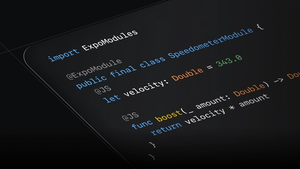
To make adding those files easier, expo-app-intents uses Expo inline modules. Its initializer configures an app-intents/ directory where you can write Swift files that compile into the application target without manual Xcode project changes. From those files, you can import ExpoAppIntents to dispatch invocations and read entity catalogs populated by JavaScript.
This separates the declarations Apple needs during the build from the data and application logic that can change at runtime. Changing a Swift declaration or shortcut phrase requires a new native build. Updating an existing JavaScript handler or publishing new catalog values does not.
Install expo-app-intents
To install expo-app-intents in your project, run:
The init command in the next section writes the config for you. If you set it up by hand, add the expo-app-intents config plugin and enable inline modules for the app-intents directory in your app.json:
If you work with coding agents, use @expo/agent-cli to install the bundled expo-app-intents skill. It lets an agent add App Intents support to your app, even if you have no native development experience:
Get started with the counter template
Start with the counter template to connect a Swift intent to a JavaScript handler and run it through Siri or Shortcuts. This walkthrough targets iOS, and the package requires iOS 16.4 or later. You need a development build because the package is not available in Expo Go.
Each example replaces the previous one. Before you initialize the next example, save any Swift changes you want to keep and remove the existing app-intents/ directory. Also replace the previous example's component on your initial screen with the new one. This fresh start keeps the walkthrough simple. Adding an intent to your own app does not require deleting existing intents, and the initializer preserves existing files so you can integrate additional examples manually.
Run the initializer and select the counter template:
The initializer creates app-intents/, adds the config plugin, and configures inline modules. Inside that directory, IncreaseCounterIntent.swift declares the action. Here is the template with its dialog changed from "Counter increased." to "Opening the counter.":
openAppWhenRun tells the system to open the app. dispatch() queues the invocation without waiting for JavaScript to finish, so this dialog describes opening the app rather than a completed state change.
The generated AppShortcuts.swift supplies the phrase that launches the action:
\(.applicationName) inserts your app name. Keep it in every shortcut phrase. The generated AppIntentsSetup.swift connects this provider to the package so it can request shortcut parameter refreshes.
Now render this component on your initial screen. Mount the handler once so multiple components do not process the same invocations:
useAppIntents() delivers pending invocations when it mounts, then handles live invocations while the app runs. Removing a handled invocation acknowledges it to the native queue. The ID check prevents another delivery from increasing the counter twice while this component stays mounted.
This example keeps the count in React state, so it resets when the component remounts. Scheduling setCount() does not persist the change. For operations that must survive a restart, persist the application change and its handled invocation ID atomically in your own storage before you acknowledge the invocation. That lets a later delivery recognize work that already succeeded. The queue holds only the newest 100 invocations, so drain it as you handle actions.
Build and launch the app after adding the component:
Once the app opens, go to the Shortcuts app on the device, find your app, and run Increase Counter. The app should open and the count should increase by one. You can also say "Increase the counter in [your app name]" to Siri. Keep the handler mounted while you try repeated invocations to see the count accumulate.
Give an intent current app data
The counter has no parameters. The restaurant template adds a required DishEntity, so a person can choose a dish by name. To try it, save any Swift changes you want to keep, remove the app-intents/ directory from the counter walkthrough, and initialize the restaurant example from your project root:
Starting with an empty directory lets the initializer generate AppShortcuts.swift with the restaurant phrases and AppIntentsSetup.swift with the shortcut refresh handler. The generated Swift files now contain the restaurant example in place of the counter.
Replace CounterIntentHandler on your initial screen with RestaurantExample below. It publishes a small menu when it mounts and displays the dish selected by an orderFood invocation:
This example confirms the selected dish in the UI. It does not submit an order. A repeated delivery selects the same dish again. A production order handler needs the persistent deduplication described in the counter example.
The generated DishQuery reads that catalog and converts its records into DishEntity values. This excerpt shows the identifier lookup:
The template also implements suggestions and string matching against dish identifiers, names, and synonyms. Use the same "dish" kind in JavaScript and Swift, with stable, non-empty IDs and non-empty titles.
Catalogs persist natively, so queries can read the last published menu before JavaScript starts. Publishing replaces the catalog and requests a shortcut parameter refresh when values change. Publish after data loads and whenever the menu changes. Publishing an empty loading state would clear the previous menu.
OrderFoodIntent.perform() then dispatches the selected dish with this payload:
Rebuild with npx expo run:ios --device, open the app, and wait for "Menu ready." Say "Order Tiramisu in [your app name]" to Siri. The app should display "Selected dish: Tiramisu." You can also say "Place an order in [your app name]" and choose a dish when Siri asks. These phrases come from the generated AppShortcuts.swift.
Describe actions with an Apple schema
App schema domains describe actions and content that apps share, such as creating a mail draft. Conforming to a schema gives the system defined properties and behavior to work with. Apple's primary domains support Apple Intelligence and Siri. Shortcuts-specific domains are available through the Shortcuts app.
The mail template demonstrates the primary mail domain. Its base intents require iOS 18 or later.
Before you run the command below, save any Swift changes you want to keep and delete the existing app-intents/ directory. Then initialize the complete mail example, including the optional Spotlight and onscreen integration covered in the next section:
The onscreen association in that layer requires Xcode 27 or later and iOS 18.4 or later. Its separate open-draft intent requires iOS 27. Starting fresh lets the initializer generate all the Swift files and entity registration this example needs.
This excerpt from CreateDraftIntent.swift shows the schema annotation and its properties. The full generated file also imports its dependencies and implements perform():
The schema defines the required properties. In the complete template, perform() constructs a MailDraftEntity, dispatches createMailDraft to JavaScript, and returns that entity. JavaScript still needs to save the draft. The sample payload includes the attachment count, not the attachment files themselves.
The mail template doesn't need shortcut phrases for schema-based discovery. Conforming to Apple's mail schemas tells the system which standard actions the app supports and what parameters they accept. Xcode includes that information in the app's metadata at build time, so supported Siri and Apple Intelligence features can discover the actions without an AppShortcut entry. The actions are also available in the Shortcuts app.
Replace RestaurantExample on your initial screen with MailExample below. This small demo reads its saved draft records from the native catalog when the handler runs, then publishes the updated list after each create or delete action. Its UI displays those same records. The template maps each record's title to the subject and subtitle to the body.
The example waits for the catalog read before it changes anything, so the initial empty React state never clears saved records. It publishes the updated catalog before it acknowledges create and delete invocations. Creating a draft with an existing ID replaces that record, and deleting an ID that is already gone has no effect. Both operations tolerate repeated delivery without adding duplicate drafts.
For brevity, this demo keeps only IDs, subjects, and bodies in the compact native catalog. A production mail app should store its complete drafts in its own data store and publish the records that intents need. The openMailDraft branch selects a draft in this UI. It is the JavaScript behavior that the generated iOS 27 open intent requires.
Rebuild with npx expo run:ios --device and launch the app. On a device where Siri supports these mail schema actions, try the following requests, replacing [your app name] with your app's name:
- "Create an email draft in [your app name] with the subject Release notes and the body The release notes are ready for review."
- "Delete the email draft titled Release notes in [your app name]."
These are suggested natural-language requests. You do not register their wording as shortcut phrases. The first request should add "Release notes" to the list and display its body. Once it appears, the handler has also published it to the catalog, so Siri can resolve the second request. The delete intent requires device authentication and confirmation, then dispatches deleteMailDrafts. It does not open the app, so if JavaScript is stopped, open the app afterward to let your handler apply the deletion. The draft should disappear from the list.
Connect content to Spotlight and the screen
Continue with the mail example generated above. The --visual-intelligence option makes MailDraftEntity indexable in Spotlight and adds support for transferring and opening drafts. It also generates AppIntentsSetup.swift with a call to AppEntityIdentifierRegistry.shared.registerIndexed("mailDraft", as: MailDraftEntity.self) inside OnCreate. No manual registration is needed.
Registration connects the mailDraft catalog to Spotlight indexing and makes that kind available for onscreen entity identifiers. A custom indexed entity needs IndexedEntity and AppIntentEntityRecordConvertible conformance. The generated extensions provide both for mail drafts.
MailExample already publishes the drafts it displays under the registered mailDraft kind. The ID generated by the create intent stays the same in the catalog, the list, and the selected draft's AppEntityView. Selecting a draft displays its subject and body inside that view, which associates the visible content with the native entity. There is no separate set of sample records to publish for Spotlight.
For an @expo/ui SwiftUI view, import { appEntityIdentifier } from "expo-app-intents" and apply appEntityIdentifier('mailDraft', draft.id) through its modifiers prop. The association tells the system which entity the view represents. The matching intents and queries define what the system can do with it.
Use register() instead of registerIndexed() when you need onscreen context without catalog-managed Spotlight indexing. To exclude an individual record from that index while keeping it resolvable by intents, publish it with hideInSpotlight: true.
To check search, create another draft with Siri using the subject "Spotlight demo." Wait for it to appear in the app, then search for "Spotlight demo" in Spotlight after indexing completes. On iOS 27, opening the draft result should dispatch openMailDraft. The handler above selects the matching record and displays its body. You can also select that draft from the app's list to display the same entity-associated view. Search visibility and onscreen association are separate capabilities. The view annotation supplies context for supported system actions.
Limitations
expo-app-intentsis in alpha, and its API may change.- It is not available in Expo Go. Use a development build.
- Intent declarations and shortcut phrases live in Swift, so changing them requires a new native build.
- The pending invocation queue holds only the newest 100 invocations.
- Onscreen association requires Xcode 27 or later and iOS 18.4 or later. The open-draft intent requires iOS 27.
Try it in your app
You can use one of the init templates above as a starting point, or start with the minimal template:
Read the expo-app-intents documentation for the full API, platform requirements, and additional examples. The source and templates are in the Expo repository, and this example app shows more advanced usage. If you find issues when you use the templates in your app, please report them on GitHub.