Nearly three out of four desktops in the world are not Macs. With Expo, you could already build an iOS app from any of them through EAS Build. But in the age of agentic development, we are faced with another bottleneck: agents need instant feedback to keep iterating on their code changes. The iOS Simulator only ships with Xcode, and Xcode only runs on macOS, so without a Mac every change you or your agent makes has to be checked on a physical iPhone. EAS Simulator removes that requirement.
Functionally speaking, EAS Simulator runs a simulator session in the cloud and streams it to a browser tab. EAS Simulator is one part of the infrastructure agents need to build mobile apps. What this service unlocks is going to change the way mobile software gets built: any laptop becomes an iOS development machine, any coding agent gets a real device to prove its work on, and anyone with the URL can control the same phone alongside you.
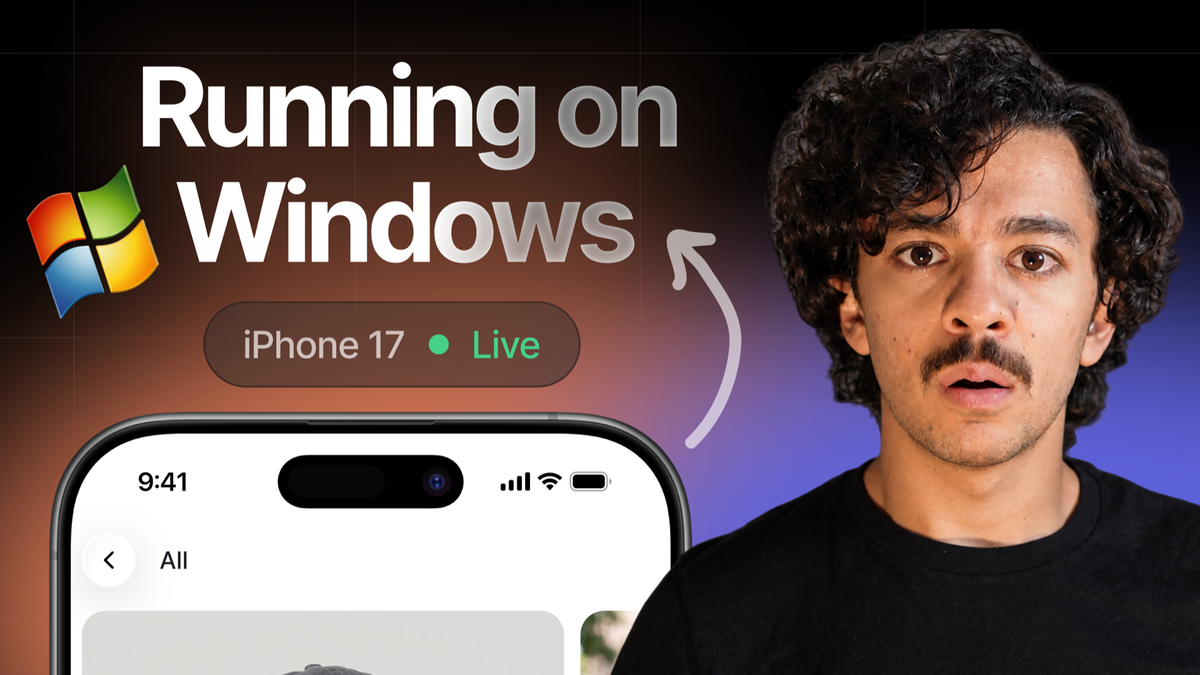
Keith Kurak, one of our engineers, took EAS Simulator somewhere none of us had tried yet: an iOS Simulator with Fast Refresh, on a Windows on ARM laptop. This post covers what Keith showed and the five capabilities I've been using to develop apps.
Prefer watching? The short version is here:
What Keith showed: iOS development from a Windows machine
Here is what Keith posted:
Windows on ARM cannot run Android Studio, and Microsoft dropped Windows Subsystem for Android on the Snapdragon X. That laptop had no simulator or emulator of any kind. Now it has an iPhone in a browser tab, and edits in VS Code land on it through Fast Refresh.
All you need is two commands. You need a development build that targets the simulator, because a release build does not hot reload: its JavaScript is fixed at build time. Then start Metro with a tunnel, and start the session pointing at it:
The command gives you a webPreviewUrl. Open it and your app is running on a cloud iPhone. Edit a file, save, and the change appears on the device. Keith ran this inside WSL. The full walkthrough, including the Expo Go variant, is in the Run and control docs.
That alone changes what you can build from a Windows or Linux machine. But here are five more things EAS Simulator does that you should know about:
1. Test a camera app on a simulator
I am building a camera app called OpenMulticam. It records from several iPhone cameras at once, and testing it has always required a physical device, because a simulator has never had a camera. EAS Simulator's web preview changes that. It has a Camera section in its tools panel, and when you turn it on, the app receives a simulated camera feed.
Press record, stop, and open the take. The whole camera capture pipeline runs on a device in the cloud, and you drive it from a browser tab.
Two things to keep in mind when you try it. The default source is an animated test pattern, and you can also drop a video or a photo from your computer into the panel and use it as the feed. Your app has to use the standard AVFoundation capture APIs for the injection to work, which most camera libraries do.
One limitation to know about: today the camera panel is something you click in the browser. It is not exposed to agents yet, so an agent cannot inject a camera on its own. Everything else in this post, an agent can do.
2. Let your agent verify its own work
A cloud agent or your local coding agent can drive the simulator through agent-device. Argent works too, and so does computer use if you prefer it.
The fastest way to set this up is the eas-simulator skill. Install it into Claude Code, Cursor, or Codex, tell the agent what to check, and it does the rest: it builds the app, starts a cloud session, taps through the screens, and sends back screenshots. When it is done, you review the session replay instead of pulling the branch and testing it yourself.
3. Share the phone with your team by URL
The preview is a website. Send the URL to a coworker and they see what you are working on in real time, and they can interact with the simulator too. You, your coworkers, your cloud agents, and your local agents can all work on the same device at once.
If you only need the shareable view and no agent control, there is a session type for exactly that:
The preview also has a full screen button that strips away everything but the device.
4. Replay every session, including what your agent did
Every session shows up on your project's page on expo.dev.
Open a finished one and you get the full video of what happened on the device, plus a timeline of every interaction. In the session from the video, you can watch the agent tap through the app, testing the features I asked it to test, with a screenshot at each step.
I have started using these links as evidence in pull requests. "Here is the bug, here is the fix, here is the replay" makes for a much better review than "trust me, I ran it."
5. Bring an app from any framework
Your app does not have to use Expo or React Native. The device starts blank, and you can upload any iOS Simulator build or Android APK to it: SwiftUI, Kotlin, Flutter, anything that runs on a simulator.
Where to start
EAS Simulator is a limited-access preview, and we are opening it up from the waitlist in batches.
- Join the waitlist at expo.dev/services/simulators.
- Read the docs. Get started covers session types, and Run and control an app has the Fast Refresh recipe from this post.
- Give it to your agent. Install the eas-simulator skill and ask it to verify something on a real device runtime.
If you would like a full tutorial on setting this up on your own machine, let us know. We are also curious how you would use a cloud simulator. Share your use cases in the #eas-simulator channel of our Discord community.
Frequently asked questions
What is EAS Simulator? A service from Expo that runs a remote iOS Simulator or Android Emulator on EAS infrastructure. You control it from the CLI, a REST API, a coding agent, or a browser. Supported iOS sessions include a live web preview. It is in limited-access preview.
Can you build iOS apps on Windows with Expo? Yes. EAS Build compiles the app on Expo's Mac infrastructure, and EAS Simulator runs the iOS Simulator there too. A development build connected to Metro over a tunnel gives you Fast Refresh in the browser. The CLI runs in WSL.
Can you test camera features in an iOS Simulator? With EAS Simulator's web preview, yes. The Camera section of the tools panel gives the app a simulated camera feed: an animated test pattern by default, or a photo or video you drop in. The app has to use standard AVFoundation capture APIs.
Can an AI agent use EAS Simulator? Yes. Agents drive the device through agent-device or Argent. The eas-simulator skill teaches Claude Code, Cursor, and Codex the full loop: access check, build, session, device control, evidence, cleanup.
Does my app have to use Expo or React Native? No. Any iOS Simulator build or Android APK works.
Can you share an EAS Simulator session with someone? Yes. The web preview is a URL. Anyone with it can watch and interact with the same device at the same time. Use the web-preview-only session type if you do not need agent control.
Useful links
- EAS Simulator docs: https://docs.expo.dev/preview/eas-simulator/introduction/
- Waitlist: https://expo.dev/services/simulators
- Run and control an app: https://docs.expo.dev/preview/eas-simulator/run-and-control/
- eas-simulator skill: https://github.com/expo/skills/tree/main/plugins/expo/skills/eas-simulator
- agent-device: https://docs.expo.dev/agents/agent-device/
- serve-sim, the tool behind the web preview: https://github.com/expo/serve-sim
- Keith's post: https://x.com/llamaluvr/status/2094414188181332015
- OpenMulticam: https://github.com/rami-maalouf/open-multicam