This is a guest post from Frank Calise - he is the maintainer of Ignite and a Senior Software Engineer at Infinite Red.
…
We know that not every project needs—or wants—the full Ignite boilerplate. But Ignite is more than just a boilerplate.
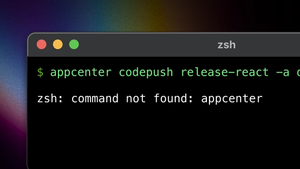
Back in November I saw this tweet from Simon Grimm and it dawned on me that the community did not know about the full power of Ignite:
Here's the secret: Ignite's powerful generators can be used in any React Native project, even one bootstrapped with npx create-expo-app.
When developing React Native applications, maintaining flexibility while maximizing productivity is key. At Infinite Red, we use Ignite as both a foundation for a React Native project and a toolbox for adding new features along the way. Recently we released Ignite X, which added support not only to bootstrap your application with Expo Router, but increased the flexibility for Ignite generators to accommodate a file-based routing system.
Let's dive into how to leverage Ignite CLI's generators in Expo projects, especially with the latest support for expo-router’s file-based routing system!
An intro to generators
You might be asking yourself, “But Frank … what exactly is a generator?”.
Generators in the Ignite CLI are automated code scaffolding tools that quickly create common files like screens, components, or state slices. They help maintain consistency, speed up development and reduce boilerplate by providing pre-configured templates tailored to your project’s needs.
Before we create our first generator template, fire up an app with the wonderful new Expo template via npx create-expo-app MyApp. You are free to create your project with any tool of choice, adding Ignite's generator functionality will be supported.
Now that we have our app ready to go, let’s get to writing code! Generator templates are written in EJS (a JavaScript templating language) and will reside in the ignite/templates, a sibling to app/ and components/. Ignite comes with a handful of templates out of the box, but we’re going to create our own in this tutorial to adapt them to our current project, the new Expo app template.
Create your first template which we’ll use to create new tabs in our application. Name it NAME.tsx.ejs in ignite/templates/tab and add the following contents:
Let’s uncover the sorcery we just wrote (full documentation on Ignite generator templates is located here):
ignite/templates/tab- the directory where the template files will live for creating a new tab in our project.tabbecomes part of the generator command we’ll in just a moment, it instructs the CLI which template to use.NAME.tsx.ejs- the filename of the template.NAMEhere is a placeholder and will be replaced with the command-line argument you pass when executing the generator command.<%= props.pascalCaseName %>Screen-propsis a special object provided by the generator containing ways to manipulate theNAMEyou’ve passed in . If you’re unfamiliar with EJS syntax, these<%= ... %>characters let you output (and properly escape HTML) the result of a JavaScript expression directly into your template.
Now, let’s generate a new tab using our template!
If we check our changes in git, we’ll find a new file located at app/(tabs)/ignite.tsx with the following contents:
With Expo Router, we automatically have a new tab in our tab controller just from locating the file in the (tabs) group. The new tab certainly works, but it’ll never pass the design review. We can rework the template to more closely match the existing tabs, so we get that consistency across all our tab screens. Modify the tab template with the following contents:
Now we can regenerate the screen and see if we have more consistency with the other tab screens, such as the Explore screen that was part of the Expo application we started with.
Much better! Now we can get on with building our our new tab screen.
Front matter patching
Let's add modals to our project. We know from the documentation we’ll need to create the route file in a certain location but also make some updates to app/_layout.tsx to give the screen our proper presentation options.
You might be thinking to yourself: “Self, templates will create new files, but how are we going to update that layout file simultaneously?” The answer: patching! Inside our generator we can provide front matter, a feature implemented by my teammate Kate Kim, which is a way to specify some instructional metadata about a template that will be stripped out in the end result.
We can get to generating modals in just two steps:
- Add a placeholder where we will need to patch our
<Stack.Screen />configuration options inside ofapp/_layout.tsx. Naming is hard and also very opinionated across the internet, so feel free to make it your own and just note it down for your template for the next step.
- Create a new template file
ignite/templates/modal/NAME.tsx.ejs
Notice the front matter in the template file, delineated by the 3 dashes surrounding the syntax. These are the instructions for the patching magic. In simple terms, it says to do the following:
- Open up
app/_layout.tsx - Find our magic string
{/* APP_LAYOUT_ANCHOR */} - Put our desired modal config in place of that (and we replace the anchor, so that it works for the next person who wants to generate a new modal)
Below all of that, as seen in the previous section, is just our JSX template with the core look and feel we want our modals to have.
Now we can generate a surprise modal for our user real quick:
Easily wire up the navigation via router.push('/surprise') and we’re in business!
Combining templates
Projects are full of surprises, though. As you move from one to another or change teams, you’ll find the patterns used and code style might vary from the last you were familiar with. Let’s say your project is now growing and all screens from now on should be the route file to satisfy the file-based routing, but all it does is return a <Page /> from components.
This can be useful when you want to colocate the building blocks of the supporting <Page /> components inside near the parent component that uses them. Remember, each file in our app/ directory will be a route, so we don’t want WorkOrderButton.tsx to live in there, as it isn’t a route we want available in our application.
We can achieve this goal by combining the output of multiple templates:
- Create a route template
ignite/templates/route/NAME.tsx.ejswhich will instruct Expo Router about the new available route
- Create the page template, which can be one or more files that ultimately make up a particular screen. Remember, we’re not limited to generating JSX here, we can generate any file we want. To appease management, let’s include a test file for our
<Page />component to achieve 100% code coverage 🙈.ignite/templates/page/NAMEPage.tsx.ejs
ignite/templates/pageNAMEPage.test.ts.ejs
Now we can generate a route and it’s supporting page component with the following commands:
Which results in the following files:
app/orders/work-orders.tsxcomponents/pages/WorkOrders/WorkOrdersPage.tsxcomponents/pages/WorkOrders/WorkOrdersPage.test.ts
What else can you do with Ignite Generators?
Ignite generators aren’t limited to just screens and routes. You can use them to create state slice files, stores, stub out e2e tests — really any reusable element to a project where you want it done in a consistent way, but it slightly differs from the last time you would have copied and pasted it.
Now that you have this knowledge, we’d love to know how we can make this feature better! Ignite is open-source, so head over to GitHub to discuss enhancements, report issues or even contribute to the project yourself.
Feel free to reach out to Infinite Red on our Community Slack or me directly on GitHub or Bluesky. Most of the content covered here is also available in this repository if that helps you learn the concepts better!