This guest post is by Benny Neugebauer, co-creator of the Programming Tutorials app and the founder of the TypeScript TV channel.
...
When creating an app, the splash screen is one of the first things your users see. It's a prime opportunity to make a great first impression with smooth, engaging animations. In this post, we’ll show you how we integrated an animated splash screen into the Programming Tutorials app using the expo-custom-assets config plugin to bundle our animations as native resources.
Selecting an animation format
Lottie and Rive are two powerful tools that allow developers to create and integrate animations into mobile and web applications. For this tutorial, we’ll be using Rive, a versatile animation tool that includes its own editor and offers a free plan for unlimited personal files. If you're more familiar with Lottie, don't let that be a concern because the process of loading Rive and Lottie files is quite similar.
Managing Animation Files
One of the main challenges when using animation files is ensuring they are bundled correctly and referenced in your app's build. For Android, animation files need to be placed in the android/app/src/main/res/raw directory, while iOS requires adding resource files via Xcode.
Fortunately, the expo-custom-assets config plugin takes care of this process for you. It extends your app’s configuration to bundle your animation files during the Expo Prebuild step.
To get started, install the expo-custom-assets package:
Once installed, you’ll need to configure the plugin in your app config to point it to the location of your assets:
The assetsPaths property specifies where your animation files will be located. Make sure to store your animations in this directory, and give each file a unique name (without considering the extension), as these names will be referenced within your app.
Install the animation runtime library
After linking your custom assets, install a React Native runtime library to play your animations. For Rive, use rive-react-native, and for Lottie files, use lottie-react-native. Note that runtime libraries are native and won't work with Expo Go. Once included, you will need to make builds using expo run:android or expo run:ios if you want to test your app locally.
Let's go and install the rive-react-native library:
The Rive React Native wrapper also requires a minimum target version for iOS. To set this, install the Expo BuildProperties plugin:
Note: if you are using SDK 52 you do not need to install expo-build-properties - this is because the deploymentTarget in SDK 52 is 15.0.Next, configure the minimum iOS version by updating your app config:
Building the views
With the app configuration set up, we can now build our views. First, we'll create a simple view that holds a state to control the animation display. This view will pass the state setter to the animation screen, allowing it to update the state once the animation finishes. When the animation completes, a welcome message for our app will be shown:
Implementing the animation screen
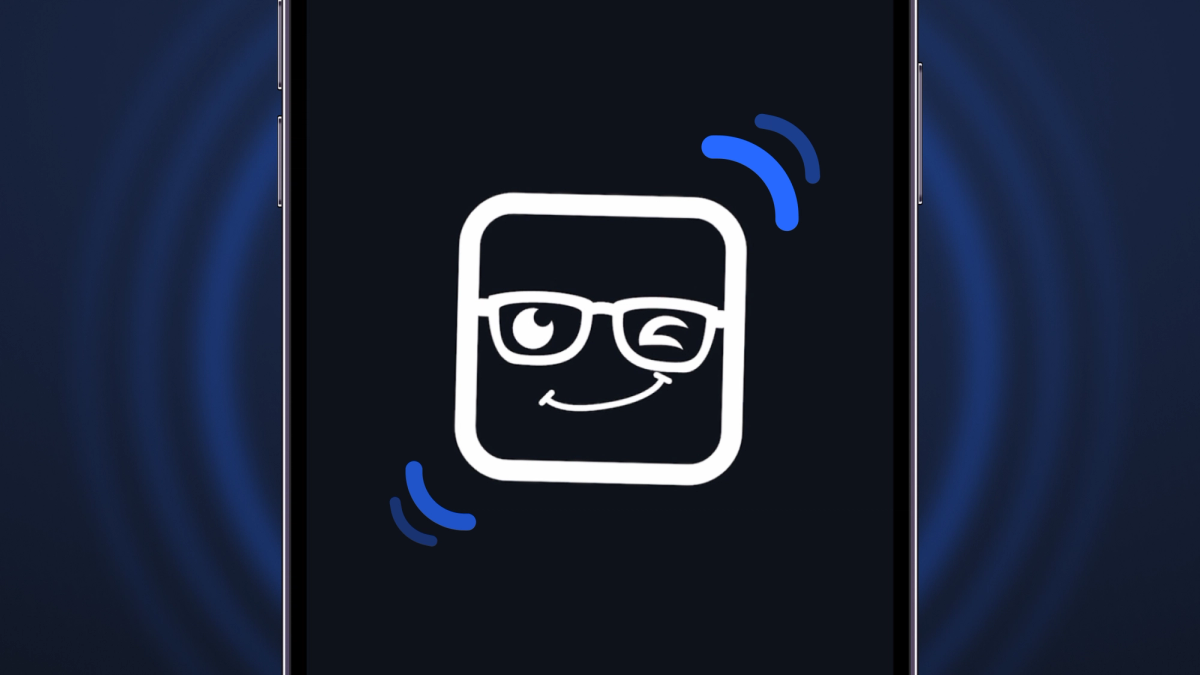
The animation screen is straightforward. It uses the Rive React Native component and references the resource name. In our demo, the resource name nerd_blink points to the animation file located at ./src/resources/nerd_blink.riv. This path is resolved by our expo-custom-assets plugin configuration. A key benefit of this plugin is that it eliminates the need to modify the Metro bundler configuration, so no additional asset extension resolvers are necessary.
The onPause and onStop callbacks are used to update the state and hide the animation once it finishes playing.
Wrapping Up
With these steps, you’ve successfully set up an animated splash screen using the expo-custom-assetsconfig plugin. The plugin simplifies asset linking by automatically bundling and referencing your animation files as native resources, while Rive allows you to create and integrate high-quality animations into your app.
If you found this tutorial helpful, explore more in our Programming Tutorials app, which Rohid and I built using Expo. The app offers free lessons in popular languages like TypeScript, JavaScript, and Python. Whether you're a beginner or looking to refine your skills, the step-by-step tutorials and videos make learning fun and effective!