Staring a new project is both exciting and daunting. It’s usually rather thrilling to start something new (green pastures and all that), but all the choices you need to make at the start of a new project can get pretty overwhelming. It doesn’t help that the decisions you make at the beginning of the project will set the tone for the duration of it, which adds to the pressure of “choosing the right thing”.
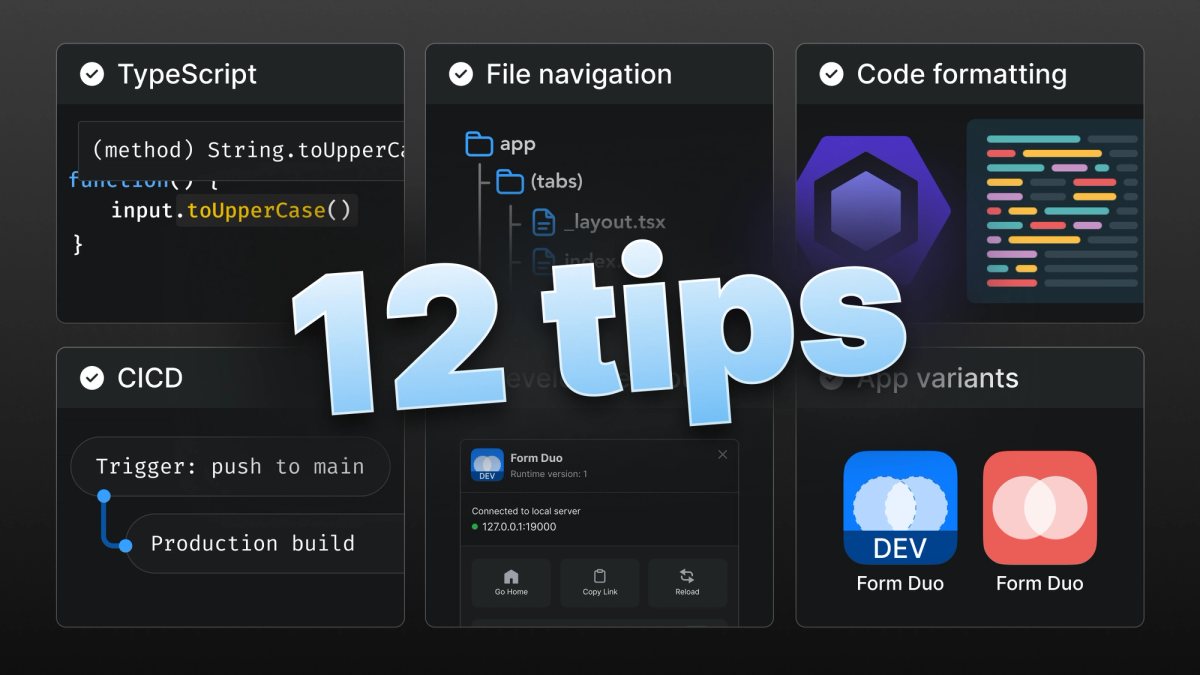
To ease the Paradox of Choice that comes from every single decision having a plethora of options, here are 12 concrete suggestions that are specific to setting up new Expo projects:
1. Use TypeScript
Okay yes, there’s a learning curve, but it’s absolutely worth it. TypeScript is just JavaScript, but with explicit type information. It’ll keep track of the things you can’t: if you’ve forgotten to pass in a prop, whether a variable could be undefined, whether it’s meant to be a string or an object etc. You’ll really feel the benefits of TypeScript after you go through your first TypeScript-enabled refactor.
A new Expo project can be started with the TypeScript template by running:
Then, if you open your project in Visual Studio Code or run bunx tsc in your terminal, you’ll be able to see any TypeScript errors.
Side note: okay I said these are concrete suggestions and I do think Bun is a great package manager to use, but it does have the downside of being experimental on Windows. So if Windows support is important to you, then yarn might be a better option for now:
2. Use file-based navigation
In the world of React Native, this translates to “use Expo Router”. The file-based routing is built on top of React Navigation, meaning that when a file is added to your app directory, it automatically becomes a route in your navigation, but you can still use all the utilities within React Navigation for any fine tuning.
You can use the tabs template to initialize a new project with Expo Router already set up:
As an added bonus, this template comes with TypeScript, so you’re also covering Tip 1 here!
Now if you need to, say, implement deep linking in your app? With Expo Router you'll get deep linking out of the box with hardly any additional configuration required.
3. Use eslint and prettier
Code formatting and linting is a huge productivity boost. Prettier handles code formatting so you don’t have to worry about spacing in your code. And eslint warns about common issues and enforces a consistent code style. It’s genuinely the first thing I set up on every new project. You can follow the instructions in our docs to set up both with a default recommended config in just a few minutes.
4. Use CI/CD
CI (Continuous Integration) - means running checks on any new code and continuously integrating it into your main branch. For more, see why CI/CD matters for mobile.
CD (Continuous Delivery) - means continuously delivering (or preparing to deliver) finished code to production.
For CI, you should check for linting (tip 3), run tests and typescript checks (tip 1) on every push to a branch (and prevent merging code with failed checks).
For CD, you can trigger builds on EAS via our GitHub App.
5. Add an error boundary
An error boundary allows you to catch JavaScript errors from your application and handle them gracefully. This is especially important in React Native apps where an uncaught JavaScript error will cause your application to crash. Adding an error boundary will let you show the user an informative error message and allow them to reload the content - avoiding the native crash all together.
6. One component per file
Every component file should have one named export. This makes the codebase cleaner and easier to parse, also Fast Refresh requires a component to have a name, and be exported from a file with only components being exported.
The filename can be either the same as the component name, or preferable taking account to AI code generation optimisation, a kebab-case of the component name (so MyComponent becomes my-component.tsx).
All of your components should follow a pattern that looks something like this:
7. Use development builds
Expo Go is a sandbox environment, designed for learning and prototyping. It’s the fastest way to get started, but often becomes limiting on production quality apps due to only a fixed set of native code being accessible there. If the app you’re working on is meant for more than just learning or prototyping it’s better to use development builds from as early on as possible, instead of starting off with Expo Go and having to make a switch later.
npx create-expo-app will create an Expo Go compatible app by default. Convert this into a development build by installing the dev client and rebuilding the native app.
8. Use Continuous Native Generation (CNG)
In practice this means: add your ios and android folders to .gitignore: they will always be generated afresh when the native app is built.
Native settings can be configured via config plugins and custom native code can be added via the Expo Modules API.
You can develop complex feature-rich native apps without ever having to open Xcode or Android Studio.
9. Install packages with `npx expo install`
When installing a package, you could install it using your standard package manager, e.g. yarn add expo-image, but if you’re developing an Expo project, it is always better to install via npx expo install. This command will use your preferred package manager (this is decided based on your lockfile, so if you have a yarn.lock it uses yarn, bun.lockb uses bun etc).
The difference is that we maintain a list of package versions that are compatible with the given SDK version. So while yarn add expo-image will always install the latest version of the expo-image package, with npx expo install it installs the latest compatible version.
For example, installing Expo Image on an SDK 49 project gives me expo-image@~1.3.5 :
But on an SDK 50 project it installs expo-image@~1.10.6:
10. Set up app variants for Development and Production
By default, you won’t be able to install your local development build and production build on the same device: if they use the same app ID (something like com.myapp), then the installation is overridden.
To get around this, you can follow the guide in our docs or this Egghead lesson to configure build variants to have different app IDs, e.g. com.myapp.dev for development and com.myapp for production.
11. Enable automatic build versioning
Every mobile app build is uniquely defined by two values:
- an app version starting from 1.0.0
- and a build version (version code) starting from 1
Whereas the app version should be incremented manually (in code after you’ve done a store release with the previous version), the build version can and should be incremented automatically. This is because both Apple and Google stores won’t allow you to upload multiple bundles with the same build version (and on Google Play, the build version must also always increment). If you forget to increment your build version, your store upload will fail and you’ll have no choice but to rebuild your native apps with the incremented build numbers. So incrementing the build versions automatically will save you the time and hassle.
12. Build app upgrade flows into your first release
Remember, there is no built-in mechanism on the Google or Apple App stores to prompt your users to upgrade your app. Once your app is out there, you won’t be able to direct your users to install newer versions unless you explicitly build this into your app.
At the very least you should display your app version and build number somewhere accessible in the app such as the settings or profile page. These values are accessible via Expo Constants as Application.nativeApplicationVersion and Application.nativeBuildVersion. Then when you get questions on a feature not showing up or a bug being fixed, you can double check with the user whether they’re on the latest version of the app.
For an intermediate level, set up Expo Updates: over the air updates for your React Native project. This will enable you to ship small features and bug fixes over the air as needed.
For an advanced level, you can set up an app upgrade prompt to alert your users that a new version of your app is available.
Before you go…
Thank you for making it all the way to the end of the list! I’m sure many of these tips were familiar to you already, but I do hope you found some new tidbits in here.
If you’re new to React Native or Expo and are looking for a tutorial to follow for more experience, check out the introductory Expo Tutorial in our docs!
And please don’t hesitate to reach out to us in our Discord or on Twitter with any questions.
We can’t wait to see what you build!