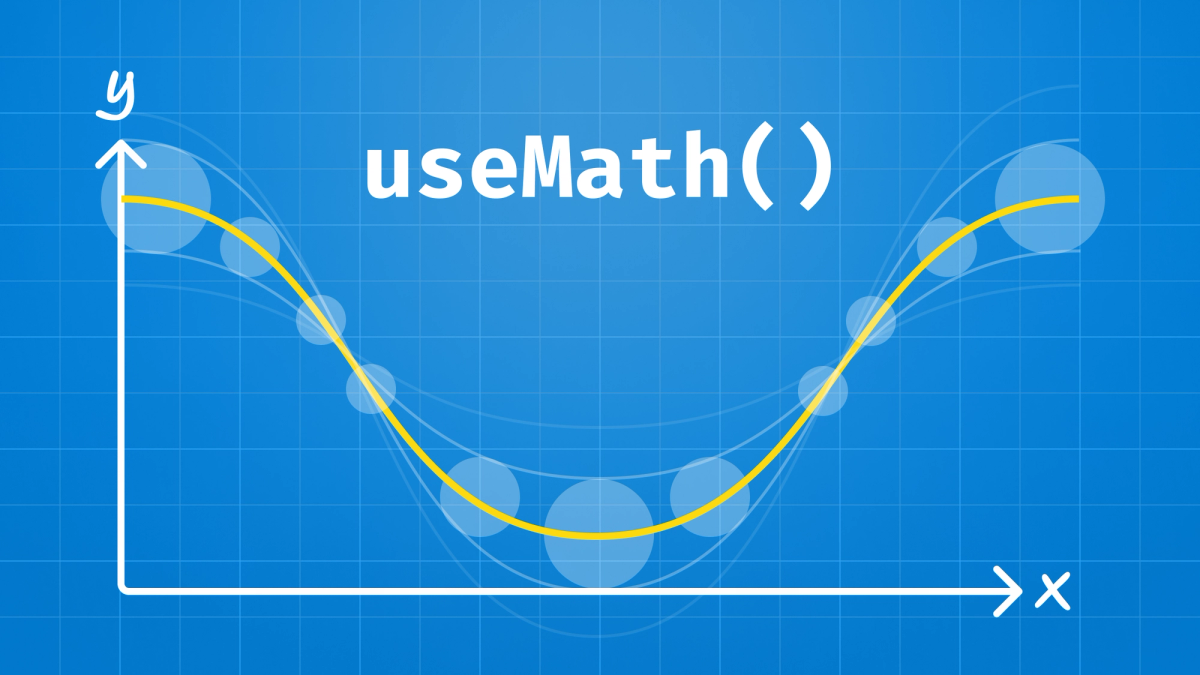
This is a guest post from Heward Mubariz - a freelance, fullstack developer from Germany who caught our eye on twitter with the beautiful animations he's building as part of a #50DaysofReactNativeUI challenge.
...
Mathematics might seem like a rigid and abstract subject to many, but in the world of animations, it’s nothing short of magical. Behind every fluid motion, every perfectly timed bounce, and every seamless transition lies a symphony of mathematical principles.
In this blog, we’ll dive into two fascinating examples of how math plays a crucial role in creating beautiful animations, with a special focus on React Native. Buckle up for a journey where math meets art, and we’ll keep it fun and engaging along the way!
1. Circular layouts: Placing things in a circle
When you're creating a circular layout in an app—like a menu where buttons are arranged in a circle—math helps you place each item exactly where it needs to be. The key to this is understanding how circles work, especially using sine (sin) and cosine (cos) functions from Trigonometry.
Here's an example of the kind of the circle layout once it's come to life:
Understanding the circle
In a circle, every point can be defined by an angle and a distance from the center, which is called the radius. Imagine drawing lines from the center of the circle to each point where you want to place an item. These lines form angles with a horizontal line that runs through the center of the circle.
- Cosine (cos) tells you the horizontal (x) distance from the center to a point on the circle.
- Sine (sin) tells you the vertical (y) distance from the center to that point.
Breaking it down: How to calculate positions
Let’s go through the process step by step:
1. Define the Radius and Center:
- Radius: This is how far away from the center each item should be placed. It determines the size of the circle.
- Center
centerX,centerY: These are the coordinates of the middle of your circle on the screen. Every item will be placed relative to this center.
2. Determine the Angle:
- The circle is 360 degrees, or 2π radians in math terms. If you have n items, the angle between each one is 2π / n.
- For each item, you multiply this base angle by the item’s index to get its specific angle.
3. Calculate the X and Y Positions:
- x = radius * cos(angle) + centerX
- y = radius * sin(angle) + centerY
Here’s why those steps are important:
- Cosine gives you how far along the x-axis (horizontal) the point is.
- Sine gives you how far along the y-axis (vertical) the point is.
- Adding
centerXandcenterYensures the points are placed around the actual center of your circle, not just around the origin(0,0).
Putting it all together in React Native
Here’s how this looks in code:
So simply a group of six icons positioned in a circular formation.
Wait, we’re talking about animations right? So where’s the animation?
Great question! So far, we’ve discussed how to place items around a circle using math. But since we’re talking about animations, let’s dive into how you can animate these circular layouts.
How to animate a circular layout
Animations bring static layouts to life. In the context of a circular layout, you can create several types of animations, such as:
1. How to spin the entire circle:
Imagine a spinning menu, where the entire circle of items rotates around the center. This is perfect for creating a "spin to win" game or a rotating menu.
You can rotate the entire layout using react-native-reanimated package or React Native’s Animated API. By animating the rotation angle over time, you can create a smooth spinning effect.
This code will make the entire circular layout spin continuously. Here's an example:
2. How to animate individual items around the circle:
You might want each item to move or rotate around the circle independently, like planets orbiting the sun. To animate individual items, you can animate the angle used to calculate their positions. As the angle changes over time, each item will move around the circle.
Here, each item moves around the circle as its angle is animated.
3. How to create interactive animations:
You can also make the animation interactive, for example, allowing the user to drag and spin the circle. This would involve adding gesture handling to modify the rotation based on user input.
You can use libraries like Software Mansion’s react-native-gesture-handler to detect user input and animate the circle based on touch gestures, creating a dynamic and interactive experience. For more interactive and real-life examples, be sure to check out my series of open-source animations. These projects feature a variety of circular animations, providing practical examples of how to implement these concepts in your own work:
These examples demonstrate various ways to use mathematics to create stunning and interactive circular animations, from onboarding screens to progress indicators. Explore these repositories to see the power of math and animation in action!
Final thoughts on circular layouts
Math helps you place items in a circle perfectly, and with just a little more effort, you can bring that circle to life with animations. Whether you’re creating a spinning wheel for a game, animating items to move around a circle, or making the layout interactive, understanding how to animate these elements will take your app from functional to fantastic.
So next time you see a smooth spinning circle in an app, remember there’s some clever math and animation magic happening behind the scenes!
2. Animating along a path: Moving an object along a sine wave
In the world of animations, creating smooth and dynamic motion along a predefined path can add a lot of visual appeal to your applications. One fascinating way to achieve this is by animating an object along a sine wave, a mathematical curve that smoothly oscillates up and down, creating a wave-like motion. This technique is particularly effective for simulating natural movements, such as waves, bouncing balls, or any periodic motion.
How it works:
The sine wave is described by the mathematical equation:
y = A * sin(B * x + C) + D
Where:
- A (Amplitude) controls the height of the wave.
- B (Frequency) determines how many wave cycles occur over a given distance.
- C (Phase Shift) shifts the wave horizontally.
- D (Vertical Shift) moves the wave up or down.
In our example, we use SVG to draw the sine wave and then animate a circle (representing an object) along this wave using React Native's react-native-reanimated library. The circle follows the wave's curve, moving back and forth smoothly. Here’s a simplified version of the example:
Mathematical explanation of animated paths
1. Sine Wave Generation:
The generateSineWavePath function generates the SVG path data for the sine wave. It iterates over the width of the screen, calculating the y-coordinate for each x-coordinate based on the sine function.
2. Animating the Circle:
- The
useSharedValuehook is used to create an animated value that controls the progress along the wave. withTimingandwithRepeatcreate a smooth, continuous animation that moves the circle back and forth along the sine wave.interpolateis used to calculate the x and y positions of the circle based on the progress of the animation, ensuring the circle follows the wave’s curve.
Other examples of path animations
1. Bezier Curves:
Animate an object along a cubic or quadratic Bezier curve to create complex, smooth motion paths.
2. Spiral Path Animation:
Animate an object along a spiral path, gradually moving it inward or outward while rotating.
3. Custom SVG Paths:
Draw custom paths in SVG and animate objects along these paths for unique motion effects tailored to your design.
Final thoughts on animating along a path
Animating objects along paths like sine waves adds a dynamic and engaging element to your user interface. By leveraging the power of mathematics and tools like React Native’s react-native-svg and react-native-reanimated libraries, you can create smooth, visually appealing animations that bring your designs to life. Explore these concepts further to enhance the interactivity and appeal of your applications.
Wrapping it up: The power of math in animations
So, what can we take away from this blog? The key takeaway is that mathematics plays a crucial role in crafting smooth, dynamic, and visually appealing animations. Whether you're arranging elements in a circular layout or animating objects along a curved path, the underlying math makes it all possible.
Without a solid understanding of these mathematical principles, creating smooth and responsive animations becomes not just difficult, but sometimes even impossible. Animations aren't just about making things move—they're about creating a seamless and engaging experience that feels natural to the user. And math is the magic behind that seamless experience.
If you’ve been hesitant to dive into the math behind animations, or if math has always seemed too abstract or intimidating, I encourage you to give it a try, especially within the context of animation and development. You'll discover that math isn't just a set of rigid rules—it’s a powerful tool that can bring your creative ideas to life in ways you never thought possible. So, the next time you see a fluid animation on your screen, remember that behind every smooth movement and every perfectly timed transition, there’s a bit of math making the magic happen. Embrace it, and watch your animations—and your apps—reach new levels of excellence.