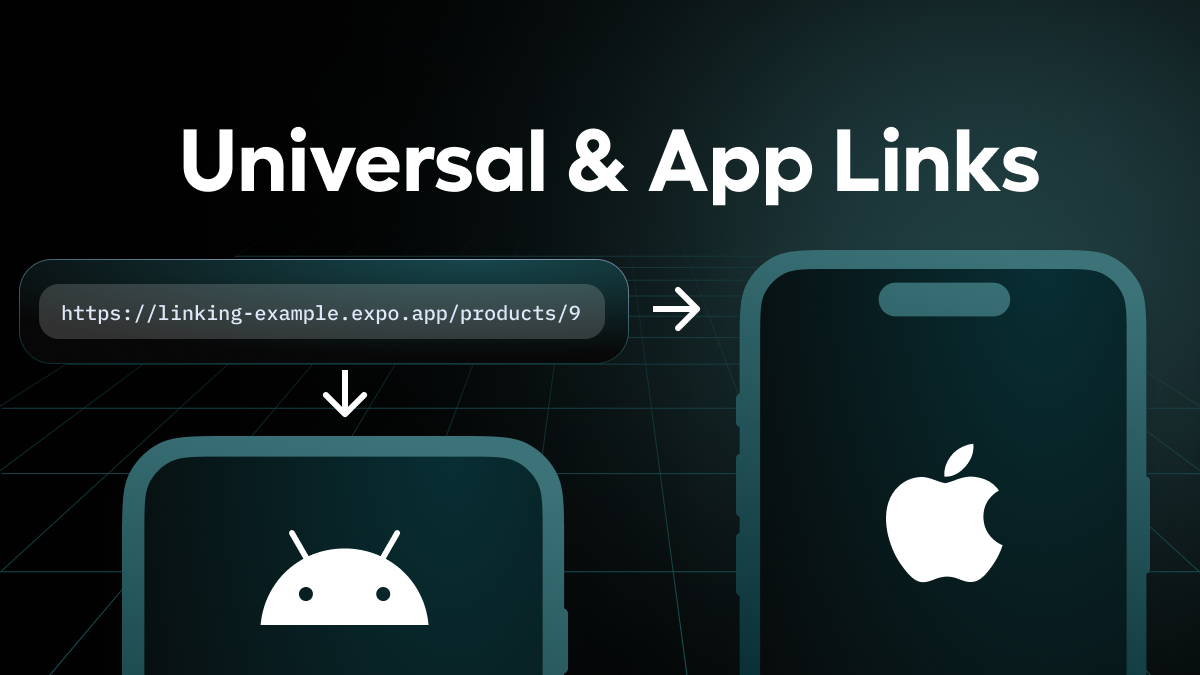
Universal Links (iOS) and App Links (Android) provide a way to deep link into your app from a web URL if the user has the linked app installed. A very desirable feature for many mobile apps, but they can be incredibly tedious and time-consuming to configure due to needing to sync up the web and mobile sides of your product.
If you’re using Expo Router, you’re in luck! Expo Router has been designed from the ground up to support Universal apps. And now with the release of EAS Hosting for seamless web deployments, you can set up Universal Links and App Links in record time.
In this blog post we’ll discuss the value of Universal and App Links with Expo Router and then we’ll go straight into the tutorial, and you’ll learn how to do it for your app! You can also take a look at this video tutorial covering the same content:
Why not use traditional deep links?
In order to deep link into your app, you would have configured a scheme, something like myapp so that myapp:// would deep link into your app.
This is still very useful for testing deep link behavior, but it’s not the best option for users to link into your app for a couple of reasons:
You’re not guaranteed to link into the right app
Unlike URLs on the web, schemes are not guaranteed to be unique. Registering a scheme is a bit like broadcasting that you’re happy to receive any deep linking event with the given name. Say that two apps used the myapp scheme and the user has both installed. On Android, you’d usually see a picker asking “which app would you like to open this with”. On iOS the app that was installed last would be opened with no option to switch between them.
While it you can choose a scheme you're reasonable confident is unique and limit the chances of a collision happening, it is a known attack vector for hackers, so it is worth being mindful of it and close the loophole if it at all possible.
Conversely, when using Universal or App Links, you’re setting up a two way association between the website (where the url uniqueness is guaranteed) and your specific mobile app so you’re guaranteed to link only to your own app.
Custom schemes are often disallowed in email clients
Most popular email clients - Gmail for example - do not allow clicking on custom schemes from an email. So, if you wanted to email your users a link to myapp://products/1 it wouldn’t work since myapp isn’t an allowed scheme.
Conversely, when using Universal or App Links, the sharable link will be a web URL, and you’ll automatically get deep linked into your app if the path defined is in the list of paths to be deep linked to, and the user has the app installed. Otherwise, the web URL is opened in the browser.
Expo Router e-commerce example project
Take a look at this example project with both Universal and App links set up.
The website is deployed via EAS Hosting, and the apps are available for download for at least the next 80 days:
- Android app (EAS Preview build, download and install the APK)
- iOS app (in TestFlight public testing)
After installing the app, click the following links (e.g. from an email, notes app or this blog) to see the linking behavior:
- Home page (opens website): https://linking-example.expo.app
- Product Listing Page (opens app): https://linking-example.expo.app/products
- Product Details Page (opens app): https://linking-example.expo.app/products/1
- Product Details Page with URL params (opens app with a sale): https://linking-example.expo.app/products/1?sale=true
Universal and App link tutorial prerequisites
In this tutorial we will use the Expo Router web project and deploy it with EAS Hosting. This will give us the web URL that is also used for the deep links when the user has the app installed.
An Expo account is needed for build signing and syncing credentials, but there is no requirement for using EAS servers for the builds themselves.
Prerequisites for iOS Universal Links
- an Expo Router project supporting web and iOS
- an Apple developer account
- an Expo account
Prerequisites for Android App Links
- an Expo Router project supporting web and Android
- an Expo account
- (for production) Google Play account
How to set up iOS Universal Links
To configure Universal Links on iOS, we need to set up a two-way association between the deployed website, and your specific app.
1. Find your app identifier
This the unique identifier of your app in App Store Connect, consisting of your Apple team ID and bundle identifier. If you’ve every built your iOS using the EAS CLI before, you should be able to find the identifier in this list.
If you don’t have one, use use the EAS CLI to create one by running eas build:credentials and “Set up all credentials”. This will generate all necessary certificates to build your iOS app, including the app ID.
The bundle ID should match the bundleIdentifier in your app config.
2. Associate Web → App
Next, we’ll add an Apple App Site Association file at /.well-known/apple-app-site-association. In your Expo Router project, create /public folder and inside it a /.well-known folder. Inside that a file called apple-app-site-association .
Replace the appID with your app ID (it is composed of <TEAM_ID>.<APP_ID> ).
Replace the paths with the paths you want to link to. In the above example / would not link to the app, but /products would.
Now build and deploy the website with:
And confirm that the app site association is returned from the configured endpoint, e.g. https://linking-example.expo.app/.well-known/apple-app-site-association
3. Associate App → Web
In your app config, add your deployed URL as an associated domain.
This will be applinks:followed by the URL of your deployed website without the https:
Now you’ll need to rebuild your app with the eas-cli (e.g. eas build --profile preview --platofrm ios to:
- include this associated domain in the native app
- enable associated domains on the app ID
Your next eas build after adding associatedDomains should show something like this, logging that a new capability was added to the app ID:
3. Test your Universal links
Install the latest build you created on your phone (the one that includes the associated domains change).
If everything is configured correctly, you may now click on links to your website (e.g. from an Email or the Notes app) and the configured paths will deep link into your installed app!
Note that the apple-app-site-association is checked when you install the app, so if you ever make any changes to the file, uninstall and re-install the app.
How to set up Android App Links
To configure App Links on Android, we need to set up a two-way association between the deployed website, and your specific app.
1. Find the sha256 cert fingerprints for your Android KeyStore
For the preview build, you will find the KeyStore in the project credentials page.
For the production (Play Store) build, the KeyStore is is stored on Google Play, and you can find the fingerprint under App Signing.
2. Associate Web → App
In your Expo Router project, create file called public/.well-known/assetlinks.json
This is what you’ll need to include as is:
Now add the the packgage_name (this should be the same as the android package name in your app config) and the sha256_cert_fingerprints (you may add both in the same line item if your package_name is the same for preview and production).
Now build and deploy the website with:
And confirm that the assetlinks file is returned from the configured endpoint, e.g. https://linking-example.expo.app/.well-known/assetlinks.json
3. Associate App → Web
In your app config, add an intent filter for android. The following example shows a basic configuration that enables your app to appear in the standard Android dialog as an option for handling any links to the linking-example.expo.app domain.
This is a native change, so you’ll need to rebuild your android app after adding this configuration.
3. Test your App links
Install the latest build you created on your phone.
A quick way to double check that the automatic verification has worked is to press and hold on app icon → choose app info → open by default and you should see "1 verified link".
If everything’s configured correctly, you may now click on links to your website (e.g. from an Email) and the configured paths will deep link into your installed app!
How to link to nested screens
One of the key features of Expo Router is that each screen has an href, e.g. /products which makes matching web URLs to the deep link incredibly straightforward and means you don’t have to configure anything else for the linking to work.
When deep linking to nested screens, you’ll probably want to make use of initialRouteName to ensure the rest of your app is rendered in the background when opened from a cold start.
URL params
Note that URL params are also passed through when using a universal / app link, so, for example, when adding ?name=Kadi to the url param, it can be accessed via the local search params:
Linking without Expo Router for Web
In our example we used Expo Router for the web project so the web and native projects share a codebase and have the same navigation tree. But even if your website is built using a different framework and does not share the navigation structure with the native project, you can still use Universal Linking. The site association file step will be the same: ensure they are served from /.well-known/assetlinks.json and /.well-known/apple-app-site-association as application/json. Only when deep linking to your app from a different web URL, you may want to use the +native-intent to rewrite the incoming URL as needed.
Summary
I hope you enjoyed this guide on how to implement iOS Universal Links and Android App links with Expo Router and EAS Hosting. When I first set them up with Expo Router I could not believe how straightforward it was and I hope you feel the same way.
For more examples of configuring Universal links, see the Apple documentation.
PS! Apple App Site Association file is also used for implementing shared credentials and apple hand-off!
For more examples on configuring App links, see the Android documentation.