Do you like playing games?
My friend, designer Woojae Lee and I absolutely love games. In the summer of 2023, after watching Cyberpunk: Edgerunners on Netflix, we were inspired to create a visually stunning game set in a futuristic city.
Having previously developed dozens of games using React Native, we were confident that we could bring our ambitious vision to life. With excitement, we embarked on the NeonCity project.
What is NeonCity?
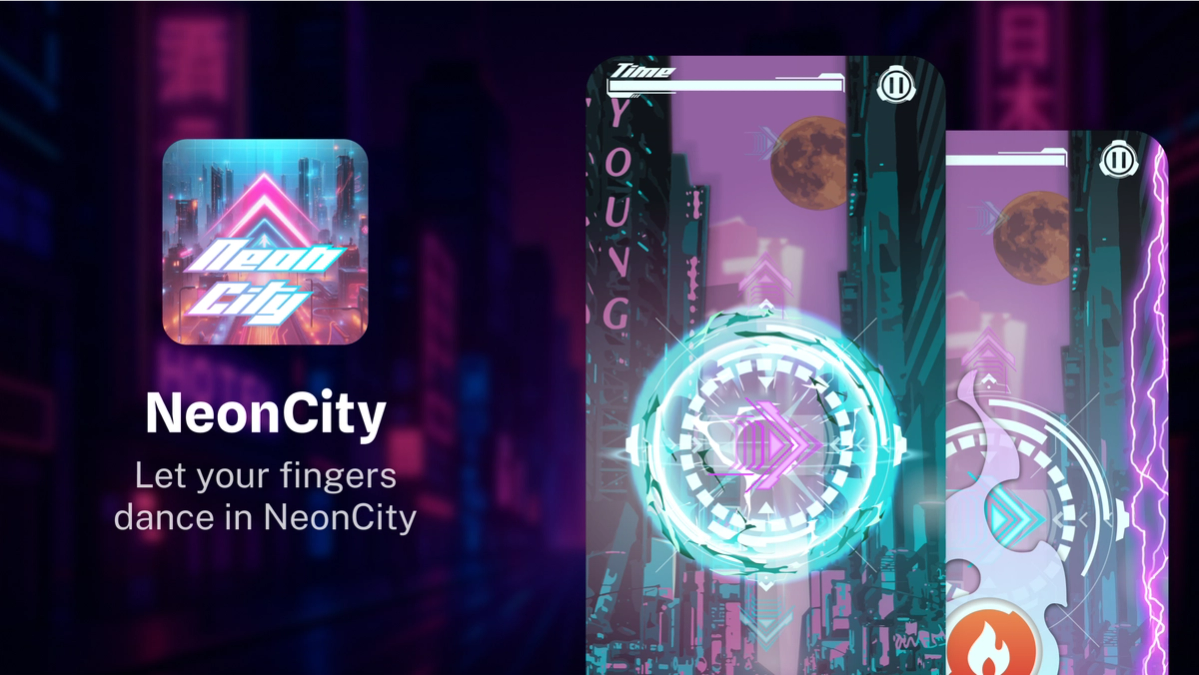
NeonCity is a casual game set in the futuristic city of 2077. Players must perform swipe gestures corresponding to arrows falling from the top of the screen, aiming to achieve the highest score possible within a 1-minute time limit.
Successfully executing consecutive accurate gestures grants combo bonus points, and using score multiplier items allows players to further boost their scores. The fast-paced, urban soundtrack and dazzling visual effects greatly enhance the gaming experience.
Here is a link to the game in the App Store and the Google Play.
The architecture of NeonCity
You can build beautiful, interesting games with React Native and Expo. The following sections hopefully demonstrate the key architectural decisions that will get you there.
The UI
NeonCity UI
To support mobile platforms seamlessly, we used NativeWind to build the UI. NativeWind enabled us to deliver a consistent user experience across platforms while simplifying maintenance.
Gesture detection
Detecting swipe gestures
The game requires detecting swipe gestures in four directions: up, down, left, and right.
Initially, I considered using Fling Gesture, but creating separate gestures for each direction requires more resources. For optimal performance, I created a custom hook using a single Pan Gesture from react-native-gesture-handler. This approach measures gesture start coordinates (onStart) and end coordinates (onEnd) and calculates the gesture angle using trigonometric functions (degBetween) to identify all directions efficiently.
Sprite image technique
In the game, arrows move down continuously descending from the top which requires to add a new arrow on the top per gesture. It might pose performance issues if you build the UI update flow with useState due to frequent re-renders. For optimal performance, I adopted a sprite image technique which involves placing all sprites in a single image and then only displaying the part of the image containing the desired sprite.
What is sprite image technique?
Sprite image technique
Sprite image technique, also known as sprite sheet animation, is a graphical optimization method widely used in game development. Instead of loading multiple individual images separately, all related images (or "sprites") are combined into a single larger image, known as a "sprite sheet."
To display a specific image, only the relevant portion of the sprite sheet is shown by adjusting the viewport. This significantly reduces the number of network requests, decreases memory usage, and improves rendering performance. It allows for smoother animations and rapid visual updates, essential for maintaining consistent high frame rates, especially in fast-paced games like NeonCity.
How to do sprite image technique in React Native styles
To implement the sprite image technique in React Native, I first created a single sprite sheet that contains multiple arrow graphics organized in rows and columns. As you can see from the provided sprite image, each arrow is placed in its own grid cell, clearly marked with row and column indices (e.g., col:0, row:0).
Implementation with useSpriteImage Hook
Using React Native’s styling capabilities with react-native-reanimated, I dynamically cropped the sprite sheet by adjusting the translateX and translateY transform properties to position the sprite sheet so that only the desired sprite is visible within the view bounds.
Here is how I implemented the sprite image technique efficiently using React Native and react-native-reanimated:
How to avoid unnecessary re-renders?
In a traditional React Native implementation, updating UI elements by changing props or state triggers a component re-render, potentially causing performance issues—especially when updating rapidly, like in a game.
By using react-native-reanimated's shared values, we bypass React's rendering cycle. These shared values (colIndex and rowIndex) are updated imperatively through the update() function directly within Reanimated’s UI thread, labeled with 'worklet'. This method efficiently updates UI animations at 60 FPS without triggering React’s reconciliation process.
The useAnimatedStyle hooks then respond automatically to these shared value changes, smoothly adjusting the transform styles (translateX, translateY) without causing a React render. Thus, we achieve seamless sprite animations with optimal performance.
For developers interested in learning how Reanimated works in the codebase, I highly recommend tutorials by:
Game app deployment
I chose Expo for this project primarily because Expo SDK handles many things for React Native developers, such as native code generation with Expo CNG which saves my days and makes it easy to maintain SDK versions. Additionally, EAS Build makes deployment straightforward for both Android and iOS.
- Expo recently introduced M4 Pro-powered workers, significantly improving EAS Build speed by 1.85 times on iOS.
- EAS Build simplifies the deployment processes to the App Store and Play Store.
Expo has proven to be a powerful solution for simultaneously managing mobile app deployment and maintenance.
Outro
To inspire more developers to create amazing apps with React Native and Expo, I made up my mind to make the NeonCity project open-source.
You can check out the source code at the link below.
NeonCity: CityRunner Github repository
Lastly, a heartfelt thanks to those who supported the completion of this project:
- Design: Woojae Lee
- Code Review: Jamon Holmgren
- Graphic Feedback: Yeonggeun Kim
Happy Hacking !