I can see people in Germany making french press coffee with my app. Only moments ago I initialized LogRocket in my pour-over coffee app and released it on the App Store. And I can already see users making coffee.
LogRocket’s comprehensive logging and session replays allow me to understand how users are actually using my app. They even have a metric for what buttons my users are rage tapping **because some elements don’t behave how they expected. It’s a great signal for places I need to iterate and improve.
As an app developer and coffee lover, data like this in one place is valuable. I can see errors in my app, then I can see a full replay of what happened leading up to that issue. But it’s more than that: I can see how my users wish my app behaved - and this insight takes a lot of the guess work out of making the best possible app for my users.
At Expo we’ve been working with the team at LogRocket to make it easy to set up so that you can get these same insights from your Expo apps. In this post, I’ll show you how to set it up in your app, and how to access dashboards right from your Expo dashboard.
What is LogRocket?
LogRocket is one of the top analytics and session replay services for React Native and Expo apps. Their service can track fatal issues and link them to recorded replays so that you can see exactly how an issue occurred.
They provide a lot more than that too. You’ll get user experience analytics, you can track custom events, and they have tools like their Galileo AI which can watch every user session and identify patterns in user behavior.
The value of integrating LogRocket with Expo
LogRocket is now tuned for Expo apps. Recently they created update-specific filters on their dashboard. Now, you can provide an over-the-air update ID from the expo-updates library and pass it to LogRocket when initializing it, which will result in seeing update-specific dashboards on LogRocket with issues and replays.
We’ve also integrated with LogRocket on expo.dev. Now you can link your Expo account and project to your LogRocket organization and project. With this integration you’ll see links to view analytics data on LogRocket on every update and on deployments screens.
If you already use the EAS Insights library to learn about adoption rates of updates, integrating LogRocket can add multiple layers of depth to your understanding about how users behave. Not only can you understand how updates are getting adopted across your user base, you can also see how those users are experiencing your app.
A core part of the iteration loop is getting data and feedback from users before creating the next round of changes, and LogRocket’s data can enrich your understanding of what needs to change and where it’s worth it to experiment.
How to initialize LogRocket in your Expo apps
You can install the LogRocket SDK with the following command:
Then, in your app config, include the LogRocket config plugin:
Finally, initialize LogRocket in your app in a top-level file, like app/_layout.tsx:
In the code above, replace <App ID> with your LogRocket App ID. To learn more about how to use LogRocket with Expo, check out the LogRocket documentation.
Connecting LogRocket on expo.dev
Once you’ve included LogRocket in your app, you can now link your LogRocket account on Expo’s dashboard.
Go to your account settings and click Connect to authenticate with LogRocket:
Then, go to your project settings and click Connect to link your LogRocket project with your project on Expo:
Connect LogRocket to your project
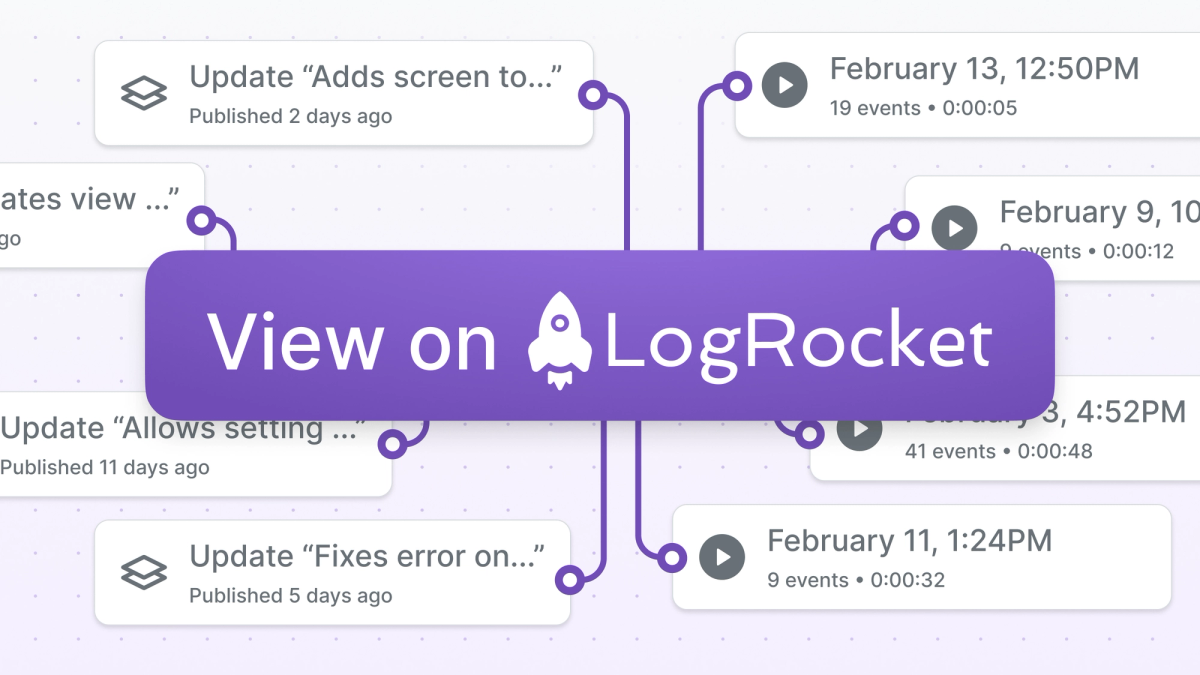
Then, you’ll start to see View on LogRocket buttons in the Expo dashboard in the Deployments and Updates dashboards, along with the last few sessions from your app.
What’s next?
There’s more to come with LogRocket and our dashboard. We’re working on embedding session replays on expo.dev, so that you don’t have to leave our dashboard. We’re also working on exposing more data, like issues, provided by LogRocket.
We hope you’ll check out LogRocket and link your account on the Expo dashboard to start seeing richer data every time you publish a preview update for your team and every time you publish an over-the-air update for all of your users.