In August of 2023 we launched a beta version of Expo Orbit. It’s a macOS menu bar app that speeds up development workflows. At that time you could launch builds and run Snack projects on your devices and simulators. It was inspired by Tophat, the internal tool developed at Shopify. And we were excited to see what a broader audience would think of it.
There was enough interest and feedback to warrant further development so we fixed the bugs, added new capabilities (like the ability to show/hide different types of simulators, drag-and-drop support for installing apps, improved feedback to users when an error occurs...) and in November of 2023 we launched v1.
Initially, we really weren’t sure if people were going to find it useful, so we were excited to start seeing bug reports come in! And then we started getting compliments…
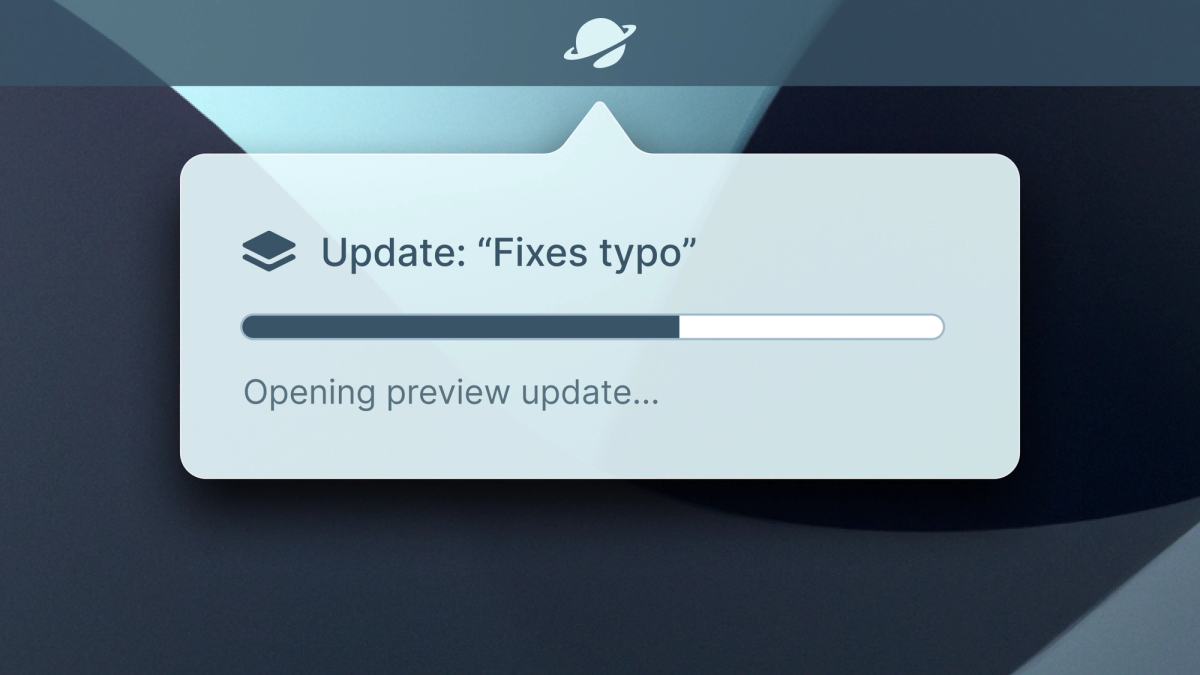
It’s never been easier to launch a build to a device, simulator, or emulator. And starting today, the “Open in Orbit” button is available for updates too — Orbit now supports launching EAS Updates directly into compatible builds in Android Emulators and iOS Simulators. This will help speed up your workflow when testing your changes before promoting your update to end users.
Note: This feature is currently only available for Android Emulators and iOS Simulators and requires Orbit 1.1.0 or greater. If you are using an older version of Orbit, you won’t see this button.
How to run EAS Updates in simulators and emulators
There are a few steps that need to be taken before Orbit is able to launch EAS updates:
1. Open the Orbit app and navigate to an update page
To determine whether we show the “Open in Orbit” buttons on the Expo website, we check if Orbit is running. Open Orbit app and then navigate to the details page for an update that you’d like to preview.
2. Sign in to your account in Orbit
This is required to ensure that you can access the build that will run your update.
3. Verify that you have a compatible build installed or available on EAS
If your project uses expo-dev-client, you must have a non-expired Development Build available on EAS with the same runtime version as the update you are trying to launch. Alternatively, you can build your app locally, install it on the emulator/simulator and click "Launch with deep link” when prompted.
4. Launch your update 🎉
That’s it! You’re now running your update.
What’s next for Orbit?
Our priority moving forward is to support Orbit on Windows and Linux. As a developer, my first experience with React Native was through Expo because I wanted to build an iOS app and I didn’t have a Mac. I know how important this is for many developers out there. We hope to have something to share on this soon.
If you’re interested in learning more about how to use Orbit, join our Expo Orbit livestream on March 12th: