This is a guest post from Hunter, aka HADeveloper - a mechanical engineer turned software developer with 15+ deployed apps. He loves solving problems and sharing coffee.
…
December 1st 2024, Vadim from notJustDev launched #notJustHack2024 with the goal of starting an app from scratch and deploying it to an app store in one month or less.
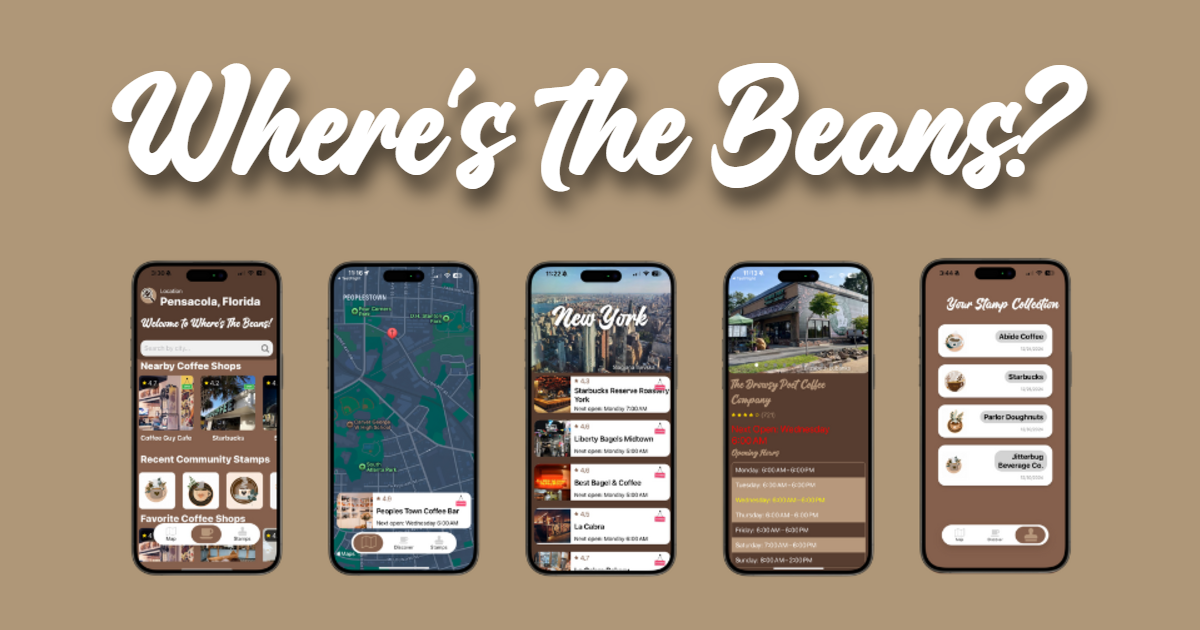
When I learned about the hackathon, I instantly went through my notes app looking for an idea that I could ship in less than a month. The winning idea was a dedicated coffee shop app for finding and interacting with local coffee shops.
The idea came along because of my wife and I’s love for local coffee shops. While we pretty much have all our local coffee shops memorized, we have a hard time navigating Google Maps to find coffee shops in new towns. One of the biggest annoyances is that the Google Maps app treats any business that has “Coffee” mentioned anywhere in the reviews section as a recommendation when searching for “Coffee Shops.”
My idea would be to use the Google Places API to find and filter results to only relevant coffee shops. To add some uniqueness, I decided to add a National Park Stamp book feature to help drive engagement.
Tech stack for building an app in one month
- Expo: Universal app framework that allowed me to deploy to both the Apple App store and Google Play Store and write the backend with Expo API Routes
- Firebase Firestore: Cheap cloud based noSQL database for storing AI generated stamp metadata
- Firebase Storage: Quick and integrated cloud storage for storing the AI generated stamps
- Firebase Functions: Easy to deploy serverless node backend that costs pennies a month to run (API Routes with EAS Hosting coming soon)
- DALL-e-2 API: Image generation api for generating the coffee shop stamps
Application development process
For me the process starts with a pencil, a notebook, and some AI tools to start thinking through features, names, and icons.
Features
The first thing I do when starting an app is to list all the possible features I want the app to have. Then I rank them by priority, which features are required to launch, and which can be in a v2?
Naming
For me, I like to have a name picked out first thing. Usually I go to ChatGPT to find a good name, but the names always end up too forced sounding. This time I just started writing down a bunch of words relating to coffee and settled on “Where’s the Beans?” which is a play on the “Where’s the Beef?” commercial that ran for Wendy’s in the 80’s.
Icon Design
After I found a name, I started on an app icon design. For this, I put in a description of the app into Microsoft Copilot and got it to generate a bunch of different Ideas. I’ll pick a few characteristics that I like from the options and then start a new chat asking exactly what I want in the logo usually including “Flat Icon on a solid background NO TEXT” because AI image generation is horrible with text. Once I have a logo I like, I head over to Pixlr (a free online lite version of Photoshop) to separate the background and foreground layers of the icon to use in different assets. I like this better than Canva because it lets me export images with transparency for free. Once I have the assets separated, I head over to the Expo Splash/ Icon Figma template to generate the app icons and splash screen.
Hit the ground running with Expo Router
The fastest way to start building an app is: npx create-expo-app --template tabs
This will setup all the necessary dependencies to use expo-router. Then open the project in VSCode (or cursor) with code (name of your project folder) .
Before ever starting the server, I go ahead and copy in my icon and splash assets, deleting the old and renaming the new to match. I do this first so Expo Go shows my icon in the recently opened section.
I then run npx expo start to make sure that my environment is setup correctly to use Expo Go on my phone.
Try packages, then go with what you know
The main functionality of the app is to use the Google Places API to find coffee shops, so I need to interface with it somehow.
Package in progress
My research landed me at Expo-Google-Places which I followed for a bit until I realized that I would not be able to get the place photos without a lot of modification to the package (remember, I’m on a deadline).
Just use the most documented solution
In the absence of a dedicated package to use, I decided to use the well documented web api and access it with a firebase cloud function (I used api routes for testing locally, then translated to traditional node with express for deployment to firebase). Going through the API docs, I listed out each feature that I would require, for example, DisplayName, rating, photos, id , businessStatus, currentOpeningHours, latitude and longitude. Google has a well documented api for places here. This code hits the “Search Nearby” endpoint with the specified coordinates from expo-location and returns all 10 results that match type “coffee_shop” and don’t include types "gas_station", "bar" or, "fast_food_restaurant".
💡 Note the rankPreference is “Distance”. The API defaults to “Popularity”, and since Google pages the results before filtering for your type, you may miss some results that were not in the first page of the places by popularity. For example, I would be standing right next to a coffee shop but it would never show up. This was because it was not in the top 60 most popular places within the search radius. When I changed to Distance, it cleared up this issue.
Deploying to the stores
When the goal is to get an app on the stores in a short amount of time, you want to make sure to limit the factors outside of your control. Namely, app store submission. Thankfully I already had business developer accounts on both the Play store and the App store, but I still caught grief from Apple App Review.
EAS Updates are a life saver!
I ended up having to go back and forth with Apple App Review 15 times for the first version of the app. The first few issues were changes that required a rebuild, for example they wanted the location permission request to be very descriptive. However, most of their rejections were due to design differences. I was able to use EAS Updates to push updates to prod and have the app check for updates on launch and apply them without closing the app. This was crucial as I can’t expect Apple to close my app and re-open to see an update. I was able to make the change, reply to their rejection, and then they were able to approve the release without a new binary. To avoid some of those rounds, check the most common rejection reasons before you submit.
Fast app development checklist
- Pick idea from list (I know you have a list...)
- Ideate a name
- Use Bing Copilot to generate an icon “with no text”
- Start a project with
npx create-expo-app --template tabs - Find packages that support your use case
- Fallback to well documented web implementation
- Submit to stores early
- Use EAS Updates for quick production iteration
Oh, and drink lots of coffee. You can use my app to find some.