How to build universal app voice agents with Expo & ElevenLabs
Development••7 minutes read
Thor Schaeff
Guest Author
The future of cross-platform voice agents is rapidly evolving toward smarter, more human-like interactions. Build your own with Expo and ElevenLabs.

In today’s hyper-connected world, building cross-platform voice agents is a great way to create seamless, human-like interactions that meet users where they are—on any device, at any time. Whether you’re developing an app for iOS, Android, or the web, a voice agent that works across platforms eliminates the need for fragmented development and delivers consistent, engaging user experiences.
There are many compelling use cases, for example: personal productivity assistants that help users manage schedules, reminders, or tasks hands-free; customer support agents that offer 24/7 conversational help inside mobile apps, replacing chatbots with natural voice; and language learning companions that provide real-time pronunciation feedback and conversational practice on-the-go.
What’s especially exciting is that today’s voice agents are powered by ultra-realistic voices in many different languages—bringing us closer than ever to frictionless, voice-first experiences in any app.
Get started building a voice agent
Before you get started ripping through each of the steps below, make sure you have done the following:
- Signed up for an ElevenLabs account with an API key.
- Installed Node.js v18 or higher on your machine.
Create a new Expo project
Using create-expo-app, create a new blank Expo project:
$npx create-expo-app@latest --template blank-typescript
Enable microphone permissions
In the app.json file, add the following permissions:
app.json
{"expo": {"scheme": "elevenlabs",// ..."ios": {"infoPlist": {"NSMicrophoneUsageDescription": "This app uses the microphone to record audio."},"supportsTablet": true,"bundleIdentifier": "com.anonymous.elevenlabs-conversational-ai-expo-react-native"}// ...}}
This will allow the React Native web view to prompt for microphone permissions when the conversation is started.
Install your app dependencies
This approach relies on Expo DOM components to make the conversational AI agent work across platforms. There is a couple of dependencies you need to install to make this work.
npx expo install @11labs/reactnpx expo install expo-dev-client # tunnel supportnpx expo install react-native-webview # DOM components supportnpx expo install react-dom react-native-web @expo/metro-runtime # RN web support# Cool client toolsnpx expo install expo-batterynpx expo install expo-brightness
What are Expo DOM components?
Expo offers a novel approach to work with modern web code directly in a native app via the use dom directive. This approach means that you can use our Conversational AI React SDK across all platforms using the same code.
Under the hood, Expo uses react-native-webview to render the web code in a native component. To allow the webview to access the microphone, you need to make sure to use npx expo start --tunnel to start the Expo development server locally so that the webview is served over https.
Create the conversational AI DOM component
Create a new file in the components folder: ./components/ConvAI.tsx and add the following code:
/components/ConvAI.tsx
'use dom';import { useConversation } from '@11labs/react';import { Mic } from 'lucide-react-native';import { useCallback } from 'react';import { View, Pressable, StyleSheet } from 'react-native';import tools from '../utils/tools';async function requestMicrophonePermission() {try {await navigator.mediaDevices.getUserMedia({ audio: true });return true;} catch (error) {console.log(error);console.error('Microphone permission denied');return false;}}export default function ConvAiDOMComponent({platform,get_battery_level,change_brightness,flash_screen,}: {dom?: import('expo/dom').DOMProps;platform: string;get_battery_level: typeof tools.get_battery_level;change_brightness: typeof tools.change_brightness;flash_screen: typeof tools.flash_screen;}) {const conversation = useConversation({onConnect: () => console.log('Connected'),onDisconnect: () => console.log('Disconnected'),onMessage: (message) => {console.log(message);},onError: (error) => console.error('Error:', error),});const startConversation = useCallback(async () => {try {// Request microphone permissionconst hasPermission = await requestMicrophonePermission();if (!hasPermission) {alert('No permission');return;}// Start the conversation with your agentawait conversation.startSession({agentId: 'YOUR_AGENT_ID', // Replace with your agent IDdynamicVariables: {platform,},clientTools: {get_battery_level,change_brightness,flash_screen,},});} catch (error) {console.error('Failed to start conversation:', error);}}, [conversation]);const stopConversation = useCallback(async () => {await conversation.endSession();}, [conversation]);return (<Pressablestyle={[styles.callButton, conversation.status === 'connected' && styles.callButtonActive]}onPress={conversation.status === 'disconnected' ? startConversation : stopConversation}><Viewstyle={[styles.buttonInner,conversation.status === 'connected' && styles.buttonInnerActive,]}><Mic size={32} color="#E2E8F0" strokeWidth={1.5} style={styles.buttonIcon} /></View></Pressable>);}const styles = StyleSheet.create({callButton: {width: 120,height: 120,borderRadius: 60,backgroundColor: 'rgba(255, 255, 255, 0.1)',alignItems: 'center',justifyContent: 'center',marginBottom: 24,},callButtonActive: {backgroundColor: 'rgba(239, 68, 68, 0.2)',},buttonInner: {width: 80,height: 80,borderRadius: 40,backgroundColor: '#3B82F6',alignItems: 'center',justifyContent: 'center',shadowColor: '#3B82F6',shadowOffset: {width: 0,height: 0,},shadowOpacity: 0.5,shadowRadius: 20,elevation: 5,},buttonInnerActive: {backgroundColor: '#EF4444',shadowColor: '#EF4444',},buttonIcon: {transform: [{ translateY: 2 }],},});
Native client tools
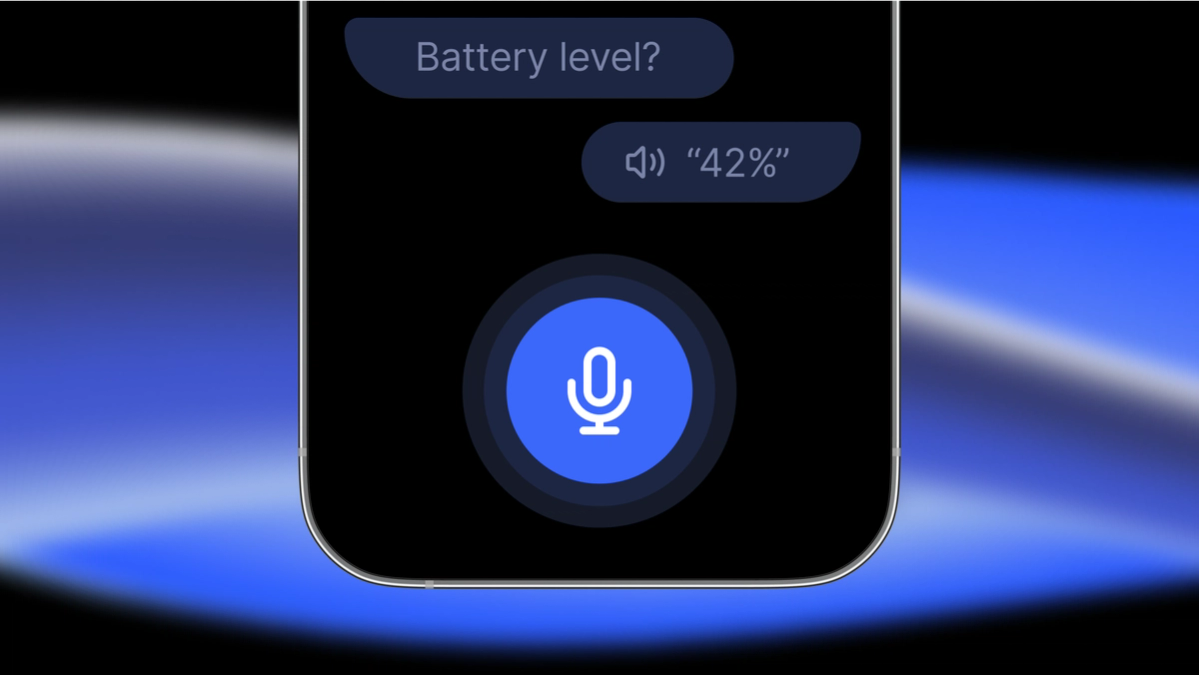
A big part of building conversational AI agents is allowing the agent access and execute functionality dynamically. This can be done via client tools.
In order for DOM components to exectute native actions, you can send type-safe native functions to DOM components by passing asynchronous functions as top-level props to the DOM component.
Create a new file to hold your client tools: ./utils/tools.ts and add the following code:
./utils/tools.ts
import * as Battery from 'expo-battery';import * as Brightness from 'expo-brightness';const get_battery_level = async () => {const batteryLevel = await Battery.getBatteryLevelAsync();console.log('batteryLevel', batteryLevel);if (batteryLevel === -1) {return 'Error: Device does not support retrieving the battery level.';}return batteryLevel;};const change_brightness = ({ brightness }: { brightness: number }) => {console.log('change_brightness', brightness);Brightness.setSystemBrightnessAsync(brightness);return brightness;};const flash_screen = () => {Brightness.setSystemBrightnessAsync(1);setTimeout(() => {Brightness.setSystemBrightnessAsync(0);}, 200);return 'Successfully flashed the screen.';};const tools = {get_battery_level,change_brightness,flash_screen,};export default tools;
Dynamic variables
In addition to the client tools, we’re also injecting the platform (web, iOS, Android) as a dynamic variable both into the first message, and the prompt. To do this, we pass the platform as a top-level prop to the DOM component, and then in our DOM component pass it to the startConversation configuration:
./components/ConvAI.tsx
// ...export default function ConvAiDOMComponent({platform,get_battery_level,change_brightness,flash_screen,}: {dom?: import('expo/dom').DOMProps;platform: string;get_battery_level: typeof tools.get_battery_level;change_brightness: typeof tools.change_brightness;flash_screen: typeof tools.flash_screen;}) {const conversation = useConversation({onConnect: () => console.log('Connected'),onDisconnect: () => console.log('Disconnected'),onMessage: (message) => {console.log(message);},onError: (error) => console.error('Error:', error),});const startConversation = useCallback(async () => {try {// Request microphone permissionconst hasPermission = await requestMicrophonePermission();if (!hasPermission) {alert('No permission');return;}// Start the conversation with your agentawait conversation.startSession({agentId: 'YOUR_AGENT_ID', // Replace with your agent IDdynamicVariables: {platform,},clientTools: {get_battery_level,change_brightness,flash_screen,},});} catch (error) {console.error('Failed to start conversation:', error);}}, [conversation]);//...}// ...
Add the component to your app
Add the component to your app by adding the following code to your ./App.tsx file:
./App.tsx
import { LinearGradient } from 'expo-linear-gradient';import { StatusBar } from 'expo-status-bar';import { View, Text, StyleSheet, SafeAreaView } from 'react-native';import { Platform } from 'react-native';import ConvAiDOMComponent from './components/ConvAI';import tools from './utils/tools';export default function App() {return (<SafeAreaView style={styles.container}><LinearGradient colors={['#0F172A', '#1E293B']} style={StyleSheet.absoluteFill} /><View style={styles.topContent}><Text style={styles.description}>Cross-platform conversational AI agents with ElevenLabs and Expo React Native.</Text><View style={styles.toolsList}><Text style={styles.toolsTitle}>Available Client Tools:</Text><View style={styles.toolItem}><Text style={styles.toolText}>Get battery level</Text><View style={styles.platformTags}><Text style={styles.platformTag}>web</Text><Text style={styles.platformTag}>ios</Text><Text style={styles.platformTag}>android</Text></View></View><View style={styles.toolItem}><Text style={styles.toolText}>Change screen brightness</Text><View style={styles.platformTags}><Text style={styles.platformTag}>ios</Text><Text style={styles.platformTag}>android</Text></View></View><View style={styles.toolItem}><Text style={styles.toolText}>Flash screen</Text><View style={styles.platformTags}><Text style={styles.platformTag}>ios</Text><Text style={styles.platformTag}>android</Text></View></View></View><View style={styles.domComponentContainer}><ConvAiDOMComponentdom={{ style: styles.domComponent }}platform={Platform.OS}get_battery_level={tools.get_battery_level}change_brightness={tools.change_brightness}flash_screen={tools.flash_screen}/></View></View><StatusBar style="light" /></SafeAreaView>);}const styles = StyleSheet.create({container: {flex: 1,},topContent: {paddingTop: 40,paddingHorizontal: 24,alignItems: 'center',},description: {fontFamily: 'Inter-Regular',fontSize: 16,color: '#E2E8F0',textAlign: 'center',maxWidth: 300,lineHeight: 24,marginBottom: 24,},toolsList: {backgroundColor: 'rgba(255, 255, 255, 0.05)',borderRadius: 16,padding: 20,width: '100%',maxWidth: 400,marginBottom: 24,},toolsTitle: {fontFamily: 'Inter-Bold',fontSize: 18,color: '#E2E8F0',marginBottom: 16,},toolItem: {flexDirection: 'row',justifyContent: 'space-between',alignItems: 'center',paddingVertical: 12,borderBottomWidth: 1,borderBottomColor: 'rgba(255, 255, 255, 0.1)',},toolText: {fontFamily: 'Inter-Regular',fontSize: 14,color: '#E2E8F0',},platformTags: {flexDirection: 'row',gap: 8,},platformTag: {fontSize: 12,color: '#94A3B8',backgroundColor: 'rgba(148, 163, 184, 0.1)',paddingHorizontal: 8,paddingVertical: 4,borderRadius: 6,overflow: 'hidden',fontFamily: 'Inter-Regular',},domComponentContainer: {width: 120,height: 120,alignItems: 'center',justifyContent: 'center',marginBottom: 24,},domComponent: {width: 120,height: 120,},});
Agent configuration
The agent configuration is what brings your voice agent to life. Here you can set the agent’s personality, by choosing the best LLM for your use case and specifying the system prompt. You can also configure dynamic variables and tool use, to expand the agent’s capabilities.
- Sign in to ElevenLabs
Go to elevenlabs.io and sign in to your account.
- Create a new agent
Navigate to Conversational AI > Agents and create a new agent from the blank template.
- Set the first message
Set the first message and specify the dynamic variable for the platform.
Hi there, woah, so cool that I'm running on {{platform}}. What can I help you with?
- Set the system prompt
Set the system prompt. You can also include dynamic variables here.
You are a helpful assistant running on {{platform}}. You have access to certain tools that allow you to check the user device battery level and change the display brightness. Use these tools if the user asks about them. Otherwise, just answer the question.
- Set up the client tools
Set up the following client tools:
- Name:
get_battery_level- Description: Gets the device battery level as decimal point percentage.
- Wait for response:
true - Response timeout (seconds): 3
- Name:
change_brightness- Description: Changes the brightness of the device screen.
- Wait for response:
true - Response timeout (seconds): 3
- Parameters:
- Data Type:
number - Identifier:
brightness - Required:
true - Value Type:
LLM Prompt - Description: A number between 0 and 1, inclusive, representing the desired screen brightness.
- Data Type:
- Name:
flash_screen- Description: Quickly flashes the screen on and off.
- Wait for response:
true - Response timeout (seconds): 3
Run the app
Modifying the brightness is not supported within Expo Go, therefore you will need to prebuild the app and then run it on a native device.
- Terminal 1:
- Run
npx expo prebuild --clean
- Run
$npx expo prebuild --clean
- Run
npx expo start --tunnelto start the Expo development server over https.
$npx expo start --tunnel
- Terminal 2:
- Run
npx expo run:ios --deviceto run the app on your iOS device.
- Run
$npx expo run:ios --device
What’s next for Cross-Platform Voice Agents?
The future of cross-platform voice agents is rapidly evolving toward smarter, more human-like interactions. We're seeing advances in context-aware conversations, enabling agents to remember past interactions and adapt to user preferences. Multimodal capabilities are expanding, blending voice with visuals and gestures for richer, immersive interactions. Domain-specific agents tailored for industries like healthcare or education are on the rise, and emotion-aware voice synthesis is making interactions feel more natural and empathetic.
Altogether, voice agents are becoming the intuitive, more accessible user interface, and we're excited to see a lot more of them.