How to build Custom Tabs with Expo Router UI
Development••11 minutes read
Jacob Clausen
Engineering
Learn how to create a fully customized, interactive tab navigation system built with Expo’s new headless tabs’ components!

Jacob Clausen is from Sweden and works as a Senior Developer at Devoteam where he focuses on frontend web and mobile apps built with React Native and Expo. He is driven by a passion for great developer and user experiences. He's also enthusiastic about open source, coffee, and karate.
...
Default tabs are great, but they don’t fit every use case. Sometimes, your app needs a more tailored navigation experience - one that aligns with your app’s design language, provides unique interactions, or accommodates specific requirements.
In Expo SDK 52 a set of headless <Tabs /> components were introduced as an experimental feature. These un-styled components use a Radix-like API, giving us the flexibility to create stunning custom tab layouts with ease, while leveraging the declarative power of Expo Router.
While it’s been possible to create custom tabs and add your own styling and behavior manually before, this new approach offers a great developer experience.
In this blog post, I'll walk you through the following topics:
- Using the new headless tabs’ components, including how they work and some important "gotchas" to keep in mind.
- Building custom components that seamlessly integrate with the flow of the new tab components.
- Adding animations
To explore the concepts and how to build custom tabs with this new approach we’ll build the app displayed in the gif above. Let’s dive in!
Getting started with custom headless tabs
For the sake of getting more familiar with the concepts, let’s just create a brand new Expo project. I’ll be using yarn for this, but feel free to use the package manager of your choice.
yarn create expo-app expo-router-ui-example
This will create an Expo app with the default template, which already includes the default expo-router navigation setup for us. This template ships all the dependencies that we need, but we’ll go ahead and reset the project for us to work from a clean slate.
yarn reset-project
This will move all the template boilerplate to a folder called app-example (feel free to delete it from your project) and leave us with the setup that we need.
Tab components
The expo-router/ui submodule provides four components to help us create custom tab layouts.
<Tabs />Wrapper component which contains the <View> for the tabs.<TabList />The containing <View> for the list of TabTrigger components.<TabTrigger />A trigger component to switch to the specified tab. It is used to define the route using href prop and a name for each tab.<TabSlot />A slot to render the currently selected tab.
A minimal example using these components would look like something like the code below.
import { Text } from 'react-native';import { Tabs, TabList, TabTrigger, TabSlot } from 'expo-router/ui';export default function Layout() {return (<Tabs><TabSlot /><TabList><TabTrigger name="home" href="/"><Text>Home</Text></TabTrigger><TabTrigger name="search" href="/search"><Text>Search</Text></TabTrigger><TabTrigger name="settings" href="/settings"><Text>Settings</Text></TabTrigger></TabList></Tabs>);}
(Don’t forget to create the files search.tsx and settings.tsx in your app directory - index.tsx should already be there.)
Feel free to copy the above code and paste it into your _layout.tsx. This will result in the following:
While this technically works, its default appearance could use some refinement to say the least!
There are also some important structural constraints when using these components:
- A
TabListhas to be an immediate child ofTabs. We cannot directly wrap it in e.g. aView. - A
TabTriggermust be an immediate child ofTabListto define available routes, requiring bothnameandhrefprops. These are referred to as primary TabTriggers. Outside theTabList, aTabTriggercan reference a primary one using only thenameprop, enabling tab switching without additional navigation logic. - The
TabSlotmust be a child ofTabs, but it does not have to be an immediate child. Thus you can wrap in e.g. aView
While these are the general rules, you can achieve alternative nesting structures using the asChild property, which I'll demonstrate as we move forward. (Note: TabSlot doesn't support asChild.)
Thus doing something like this would result in an error:
export default function Layout() {return (<Tabs><TabSlot /><View><TabList style={styles.tabList}><TabTrigger name="home" href="/" /><TabTrigger name="search" href="/search" /><TabTrigger name="settings" href="/settings" /></TabList></View></Tabs>);}
Wrapping the TabList in a View like this will result in the following error: Warning: Error: "Couldn't find any screens for the navigator. Have you defined any screens as its children?"
Stir in some basic styling
I will apply some basic styling to both the TabList and TabTrigger components.
- The
<TabList />, like most other components, is essentially a<View />under the hood. - The
<TabTrigger />is an exception - it's built as a<Pressable />, allowing for interactivity.
This allows us to customize their appearance using the style prop. While we could use NativeWind or other styling solutions, we'll proceed with StyleSheet for now.
Styling these components is an essential first step toward creating a clearer and more distinguishable layout.
The goal for the tabs we’re building is to design a floating tab layout that sits above the screen's content, achieving the desired look.
Here’s the current code:
import { Text, StyleSheet } from "react-native";import { Tabs, TabList, TabTrigger, TabSlot } from "expo-router/ui";export default function Layout() {return (<Tabs><TabSlot /><TabList style={styles.tabList}><TabTrigger name="home" href="/" style={styles.tabTrigger}><Text>Home</Text></TabTrigger><TabTrigger name="search" href="/search" style={styles.tabTrigger}><Text>Search</Text></TabTrigger><TabTrigger name="settings" href="/settings" style={styles.tabTrigger}><Text>Settings</Text></TabTrigger></TabList></Tabs>);}const styles = StyleSheet.create({tabList: {display: "flex",position: "absolute",bottom: 32,alignItems: "center",justifyContent: "center",borderWidth: 1,borderColor: "red",padding: 8,width: "100%",},tabTrigger: {flex: 1,borderWidth: 1,borderColor: "blue",alignItems: "center",justifyContent: "center"}});
Creating custom Tab Buttons
We'll create a new component, which I'll name CustomTabButton. It will be wrapped inside TabTrigger components.
Similar to the <Link /> component that we’re already used to from Expo Router, we can pass an asChild property to the Tabs, TabList, and TabTrigger. This allows their props to be forwarded to their immediate child components.
import * as React from "react";import { Pressable, View, Text, StyleSheet } from "react-native";import { Ionicons } from "@expo/vector-icons";import { TabTriggerSlotProps } from "expo-router/ui";interface CustomTabButtonProps extends React.PropsWithChildren, TabTriggerSlotProps {icon: keyof typeof Ionicons.glyphMap;}export const CustomTabButton = React.forwardRef<View, CustomTabButtonProps>((props, ref) => {return (<Pressableref={ref}{...props}style={[styles.button, props.isFocused && styles.focusedButton]}><Ioniconsname={props.icon}size={24}color={props.isFocused ? "#fff" : "#64748B"}/><Textstyle={[styles.text, props.isFocused && styles.focusedText]}>{props.children}</Text></Pressable>);});CustomTabButton.displayName = "CustomTabButton";const styles = StyleSheet.create({button: {width: 65,height: 65,justifyContent: "center",alignItems: "center",borderRadius: 32.5,borderWidth: 1,borderColor: "#7a7777",backgroundColor: "#fff"},focusedButton: {backgroundColor: "#6366F1"},focusedText: {color: "#fff",fontSize: 12,fontWeight: "500"},text: {color: "#64748B",fontSize: 12,marginTop: 4,fontWeight: "500"}});
After creating the CustomTabButton component, we can head back to our _layout.tsx file and update the TabTrigger components to wrap around the new CustomTabButton component.
Remember to pass the asChild prop to the TabTrigger - without it, interactions won’t be forwarded to the CustomTabButton component.
import { StyleSheet } from "react-native";import { Tabs, TabList, TabTrigger, TabSlot } from "expo-router/ui";import { CustomTabButton } from "@/components/CustomTabButton";export default function Layout() {return (<Tabs><TabSlot /><TabList style={styles.tabList}><TabTrigger name="home" href="/" asChild><CustomTabButton icon="home">Home</CustomTabButton></TabTrigger><TabTrigger name="search" href="/search" asChild><CustomTabButton icon="search">Search</CustomTabButton></TabTrigger><TabTrigger name="settings" href="/settings" asChild><CustomTabButton icon="settings">Settings</CustomTabButton></TabTrigger></TabList></Tabs>);}const styles = StyleSheet.create({tabList: {display: "flex",position: "absolute",bottom: 32,alignItems: "center",justifyContent: "center",borderWidth: 1,borderColor: "red",width: "100%",padding: 8}});
Creating a Toggle Menu Button
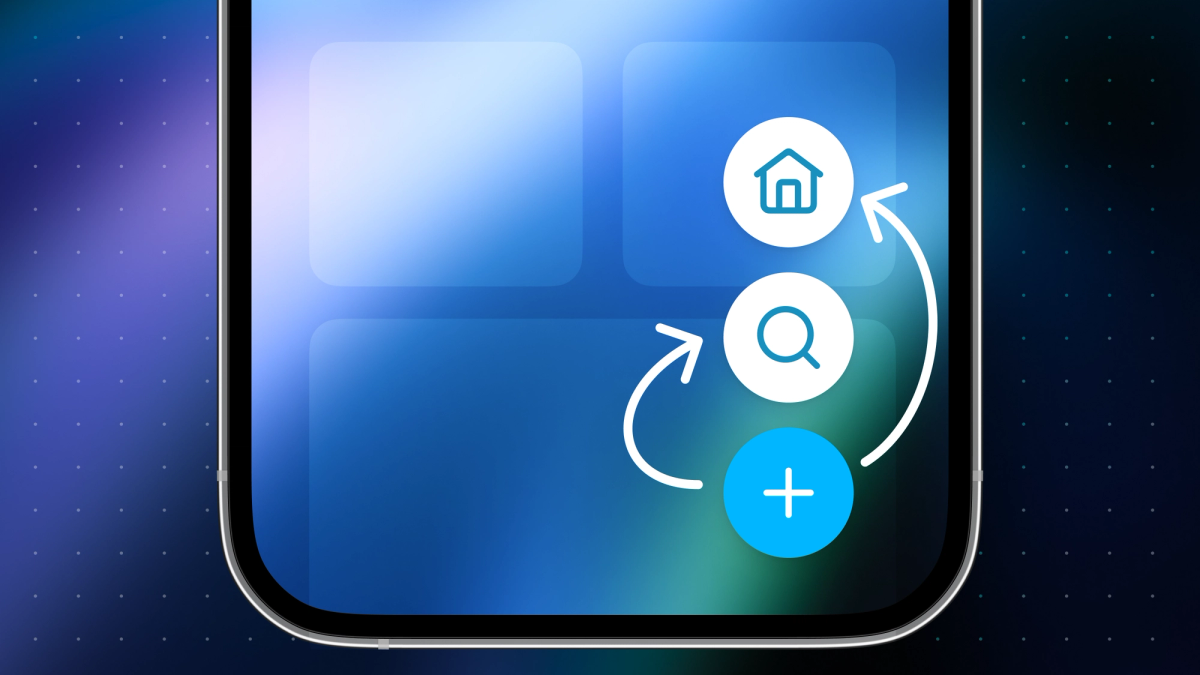
In this example, tab buttons can expand and collapse using another button. Note that this new button won’t act as a TabTrigger.
Let’s go ahead and create the ToggleMenuButton component.
import { View, TouchableOpacity, StyleSheet } from "react-native";import { Ionicons } from "@expo/vector-icons";interface ToggleMenuButtonProps {onPress: () => void;isExpanded: boolean;}export function ToggleMenuButton(props: ToggleMenuButtonProps) {return (<TouchableOpacity style={styles.mainButton} onPress={props.onPress}><View><Ionicons name="menu" size={24} color="#fff" /></View></TouchableOpacity>);}const styles = StyleSheet.create({mainButton: {width: 65,height: 65,borderRadius: 32.5,backgroundColor: "#007AFF",justifyContent: "center",alignItems: "center",zIndex: 10,position: "absolute",bottom: 0,right: 0}});
We'll need to make some additional changes to the _layout.tsx file to position the CustomTabButton components behind the ToggleMenuButton and make it interactable.
- For now, we’ll define the necessary state and callback function for interacting with the
ToggleMenuButtondirectly in this file. These will eventually be outsourced. - Next, we’ll introduce two new props,
isExpandedandindex, and pass them to eachCustomTabButton. - To align with these changes, we’ll also update the styles applied to the
TabList. - And, we’ll add our
ToggleMenuButtonto the layout file.
These adjustments will prepare our layout for the desired expandable and collapsible functionality.
import * as React from "react";import { StyleSheet } from "react-native";import { Tabs, TabList, TabTrigger, TabSlot } from "expo-router/ui";import { ToggleMenuButton } from "@/components/ToggleMenuButton";import { CustomTabButton } from "@/components/CustomTabButton";export default function Layout() {const [isExpanded, setIsExpanded] = React.useState(false);function toggleExpandHandler() {setIsExpanded(!isExpanded);}return (<Tabs><TabSlot /><TabList style={styles.tabList}><TabTrigger name="home" href="/" asChild><CustomTabButton icon="home" isExpanded={isExpanded} index={2}>Home</CustomTabButton></TabTrigger><TabTrigger name="search" href="/search" asChild><CustomTabButton icon="search" isExpanded={isExpanded} index={1}>Search</CustomTabButton></TabTrigger><TabTrigger name="settings" href="/settings" asChild><CustomTabButton icon="settings" isExpanded={isExpanded} index={0}>Settings</CustomTabButton></TabTrigger><ToggleMenuButtononPress={toggleExpandHandler}isExpanded={isExpanded}/></TabList></Tabs>);}const styles = StyleSheet.create({tabList: {position: "absolute",bottom: 32,right: 32,alignItems: "center",justifyContent: "flex-end"}});
Finally, the CustomTabButton component needs a few changes. It will now accept isExpanded and index as props, allowing us to control how they should be positioned.
import * as React from "react";import { Pressable, View, Text, StyleSheet } from "react-native";import { Ionicons } from "@expo/vector-icons";import { TabTriggerSlotProps } from "expo-router/ui";interface CustomTabButtonProps extends React.PropsWithChildren, TabTriggerSlotProps {icon: keyof typeof Ionicons.glyphMap;isExpanded: boolean;index: number;}export const CustomTabButton = React.forwardRef<View, CustomTabButtonProps>((props, ref) => {return (<Pressableref={ref}{...props}style={[styles.button,props.isFocused && styles.focusedButton,props.isExpanded && { bottom: props.index * 80 + 80 },]}><Ioniconsname={props.icon}size={24}color={props.isFocused ? "#fff" : "#64748B"}/><Text style={[styles.text, props.isFocused && styles.focusedText]}>{props.children}</Text></Pressable>);});CustomTabButton.displayName = "CustomTabButton";const styles = StyleSheet.create({button: {width: 65,height: 65,justifyContent: "center",alignItems: "center",borderRadius: 32.5,boxShadow: "0 4px 6px rgba(0, 0, 0, 0.06), 0 2px 4px rgba(0, 0, 0, 0.06)",position: "absolute",bottom: 0,backgroundColor: "#fff"},focusedButton: {backgroundColor: "#6366F1"},focusedText: {color: "#fff",fontSize: 12,fontWeight: "500"},text: {color: "#64748B",fontSize: 12,marginTop: 4,fontWeight: "500"}});
Spice it up with animations
At this point, we have some custom tabs that can be toggled and interacted with. It’s already taking shape!
But, I think in general adding small animations to tab buttons upon interaction can make a huge difference in the overall look and feel. Let’s go ahead and add them!
For animations, I’ll be using the amazing react-native-reanimated package. While I won’t go in-depth on how to create animations in this tutorial, as it’s beyond the scope, I highly recommend checking out the React Native Reanimated documentation - it’s a great resource!
ToggleMenuButton
Let’s begin animating the ToggleMenuButton. I will make it spin once to expand while simultaneously changing from the “burger-menu” icon to a “close”-icon.
import * as React from "react";import { TouchableOpacity, StyleSheet } from "react-native";import { Ionicons } from "@expo/vector-icons";import Animated, {useAnimatedStyle,useSharedValue,withSpring} from "react-native-reanimated";interface ToggleMenuButtonProps {onPress: () => void;isExpanded: boolean;}export function ToggleMenuButton(props: ToggleMenuButtonProps) {const rotation = useSharedValue(0);React.useEffect(() => {if (props.isExpanded) {rotation.value = withSpring(360, {damping: 12,stiffness: 100,mass: 0.6,velocity: 20});} else {rotation.value = withSpring(0, {damping: 12,stiffness: 100,mass: 0.6,velocity: 20});}}, [props.isExpanded, rotation]);const animatedStyle = useAnimatedStyle(() => {return {transform: [{rotate: `${rotation.value}deg`}]};});return (<TouchableOpacity style={styles.mainButton} onPress={props.onPress}><Animated.View style={animatedStyle}><Ioniconsname={props.isExpanded ? "close" : "menu"}size={24}color="#fff"/></Animated.View></TouchableOpacity>);}const styles = StyleSheet.create({mainButton: {width: 65,height: 65,borderRadius: 32.5,backgroundColor: "#007AFF",justifyContent: "center",alignItems: "center",position: "absolute",bottom: 0,right: 0,zIndex: 10}});
Custom Tab Buttons
For the CustomTabButton animations, I want them to "bounce up" into view as the menu expands and then smoothly fade out and disappear behind the ToggleMenuButton when collapsing. Additionally, when interacting with the CustomTabButtons, they should have a subtle scale effect to enhance the user experience.
Let’s get that going!
import * as React from "react";import { Pressable, Text, View, StyleSheet } from "react-native";import { Ionicons } from "@expo/vector-icons";import Animated, {useAnimatedStyle,useSharedValue,withSpring} from "react-native-reanimated";import { TabTriggerSlotProps } from "expo-router/build/ui/TabTrigger";interface CustomTabButtonProps extends React.PropsWithChildren, TabTriggerSlotProps {icon: keyof typeof Ionicons.glyphMap;isExpanded: boolean;index: number;}export const CustomTabButton = React.forwardRef<View, CustomTabButtonProps>((props, ref) => {const translateY = useSharedValue(0);const opacity = useSharedValue(0);const scale = useSharedValue(1);React.useEffect(() => {if (props.isExpanded) {translateY.value = withSpring(-80 * props.index - 80);opacity.value = withSpring(1);} else {translateY.value = withSpring(0);opacity.value = withSpring(0);}}, [props.isExpanded, props.index, translateY, opacity]);const animatedStyle = useAnimatedStyle(() => {return {transform: [{ translateY: translateY.value }, { scale: scale.value }],opacity: opacity.value,position: "absolute",bottom: 0,zIndex: props.index};});return (<Animated.View style={animatedStyle}><Pressableref={ref}{...props}onPressIn={() => {scale.value = withSpring(0.9, { mass: 0.5, stiffness: 150 });}}onPressOut={() => {scale.value = withSpring(1, { mass: 0.5, stiffness: 150 });}}style={[styles.button, props.isFocused && styles.focusedButton]}><Ioniconsname={props.icon}size={24}color={props.isFocused ? "#fff" : "#64748B"}/><Text style={[styles.text, props.isFocused && styles.focusedText]}>{props.children}</Text></Pressable></Animated.View>);});CustomTabButton.displayName = "CustomTabButton";const styles = StyleSheet.create({button: {width: 65,height: 65,justifyContent: "center",alignItems: "center",borderRadius: 32.5,boxShadow: "0 4px 6px rgba(0, 0, 0, 0.06), 0 2px 4px rgba(0, 0, 0, 0.06)",position: "relative",backgroundColor: "#fff"},focusedButton: {backgroundColor: "#6366F1"},focusedText: {color: "#fff",fontSize: 12,fontWeight: "500"},text: {color: "#64748B",fontSize: 12,marginTop: 4,fontWeight: "500"}});
Phew, there we go! We've finally reached a point where we’ve built our custom tabs - fully functional and complete with animations. If you like you can also add a subtle haptic feedback upon interactions as the chef's kiss - a perfect touch to nail the user experience!
A final touch
We placed the state and the callback handler to toggle the buttons directly in the _layout.tsx file.
While this works, it’s not the best approach, as it could lead to unnecessary re-renders of components that should not need to be affected. Let’s explore a better solution to improve this.
CustomTabList
We’ll create a CustomTabList component. Here’s how we’ll approach it:
- The
isExpandedstate will be managed inside theCustomTabList. - Wrap
CustomTabButtoncomponents in aTabTriggerwith thenameprop andasChild. TheseTabTriggercomponents, without anhrefprop, will perform the same action as the primaryTabTriggerwith the matchingnameprop. This same approach enables you to switch tabs from e.g. a screen if you like. - Move the
ToggleMenuButtonto theCustomTabList
import * as React from "react";import { View, StyleSheet } from "react-native";import { TabTrigger } from "expo-router/ui";import { ToggleMenuButton } from "./ToggleMenuButton";import { CustomTabButton } from "./CustomTabButton";export function CustomTabList() {const [isExpanded, setIsExpanded] = React.useState(false);function toggleExpandHandler() {setIsExpanded(!isExpanded);}return (<View style={styles.tabList}><TabTrigger name="home" asChild><CustomTabButton icon="home" isExpanded={isExpanded} index={2}>Home</CustomTabButton></TabTrigger><TabTrigger name="search" asChild><CustomTabButton icon="search" isExpanded={isExpanded} index={1}>Search</CustomTabButton></TabTrigger><TabTrigger name="settings" asChild><CustomTabButton icon="settings" isExpanded={isExpanded} index={0}>Settings</CustomTabButton></TabTrigger><ToggleMenuButton onPress={toggleExpandHandler} isExpanded={isExpanded} /></View>);}const styles = StyleSheet.create({tabList: {bottom: 32,right: 32,alignItems: "flex-end",justifyContent: "flex-end"}});
Layout
In the layout file, we’ll need to make a few adjustments.
- We’ll use our
CustomTablist, and hide theTabListas it’s only purpose now is defining what routes are available as a tab. - We’ll need to remove the
ToggleMenuButton, as it has been outsourced to theCustomTabList. - Additionally, we’ll remove the
CustomTabButtonsand make these primaryTabTriggersself-closing.
import * as React from "react";import { StyleSheet } from "react-native";import { Tabs, TabList, TabTrigger, TabSlot } from "expo-router/ui";import { CustomTabList } from "@/components/CustomTabList";export default function Layout() {return (<Tabs><TabSlot /><CustomTabList /><TabList style={styles.tabList}><TabTrigger name="home" href="/" /><TabTrigger name="search" href="/search" /><TabTrigger name="settings" href="/settings" /></TabList></Tabs>);}const styles = StyleSheet.create({tabList: {display: "none"}});
Perfect! Now we’ve outsourced the state to the CustomTabList component and distributed it to the components that need it. This has helped eliminate unnecessary re-renders when expanding/collapsing the TabButtons in the entire _layout.tsx.
Wrapping up
And there you have it – a fully customized, interactive tab navigation system built with Expo’s new headless tabs’ components! We’ve taken a deep dive into creating something that feels unique, with animations, custom buttons, and all the flexibility you need to build an experience that aligns perfectly with your app's design language.
Honestly, this is just the beginning. The power of this new approach lies in its endless possibilities. With just a little creativity, you can create sophisticated custom layouts. And it’s fun! Whether you’re looking for something simple or complex, this setup gives you the foundation to create a polished, tailored navigation experience that feels great.
I highly recommend you give it a go – dive in, and start experimenting with the ideas we've talked about. There is still of course more to it than I have covered, so I highly recommend checking the docs out too.
Get building, get creative, and most importantly – have fun with it. I can’t wait to see what you come up with!