Using react-native-bottom-tabs allows you to take advantage of native platform primitives to build your tab bar. This creates a seamless integration with the operating system on both iOS and Android, which can make your app look better than ever!
In this blog post we'll take a look at different approaches to tab bar development and then I'll show you how to get started with the React Native Boom Tabs library.
Differences between bottom tab libraries
Here are few of the main differences between approaches:
- JavaScript Bottom Tabs recreate the UI as closely as possible while Native Bottom Tabs use native platform primitives to create the tabs. This makes your tab navigation look and feel like the one from native apps because you are using the same components underneath.
- Native Bottom Tabs adapt to the interface of a given platform for example: tvOS and visionOS show tabs as a sidebar and on iPad they appear at the top.
On top of that here are few features that set the native tab bar apart:
Multi-platform support
Native Bottom tabs adapt to platform appearance on multiple platforms. You always get natively-looking tabs! Here's what I mean:
iOS
Android
iPadOS
visionOS
tvOS
macOS
Automatic scroll to top & content offsetting
iOS TabView automatically scrolls to the top when ScrollView is embedded inside of it. It can also automatically offset the content inside of scroll view by applying contentInsetAdjustmentBehavior="automatic" prop on the ScrollView itself.
Automatic sidebar
Newly introduced in iOS 18+, tab view can now turn in to a side bar on tvOS, iPadOS, and macOS.
Haptic Feedback
Using one prop you can add haptic feedback support to your tab bar on both Android and iOS.
Future proofing
As native tab bars continue to receive updates in the future releases of operating systems your app will automatically inherit those new features!
Multi theme support
Android supports both Material2 and Material3 theme! Allowing you to style your app to your liking. It also supports Material You styling based on user’s system preference.
Real world examples of React Native Bottom Tabs
Here are a couple examples of React Native Bottom tabs that I've built and shared recently:
In this example I'm using Native Bottom Tabs and Expo's DOM components:
How to build with the React Native Bottom Tabs library and Expo Router
Let’s start by creating a new Expo app using the standard template:
This template already uses JavaScript Bottom Tabs which will give us a great place to start the migration to Native Tabs. As you will see most of the code will stay the same 🙂
React Native Bottom Tabs aim to have API parity with JS Tabs to make your migration simple.
In order to get started follow the instructions to install this library.
After installing, let’s go to app/(tabs)/_layout.tsx in order to use Native Bottom Tabs.
Let’s start by replacing the import of Tabs from expo-router to react-native-bottom-tabs. In order to use the library you have to import withLayoutContext from expo-router and wrap createNativeBottomTabNavigator().Navigator using it.
TIP: This is how you can use any third party navigator with Expo Router!
Another change we need to make is how we define icons. With JavaScript Tab Bar users can pass React Native components as icons however with the Native Approach we need to pass the icon file, this can be .png , .jpg , .svg or a remote image URL.
To keep things simple let’s use remote images, however for most apps I would recommend you to use static images placed in the assets folder.
And that’s it! Now you can build and run the app to get Native Bottom Tabs running in your app.
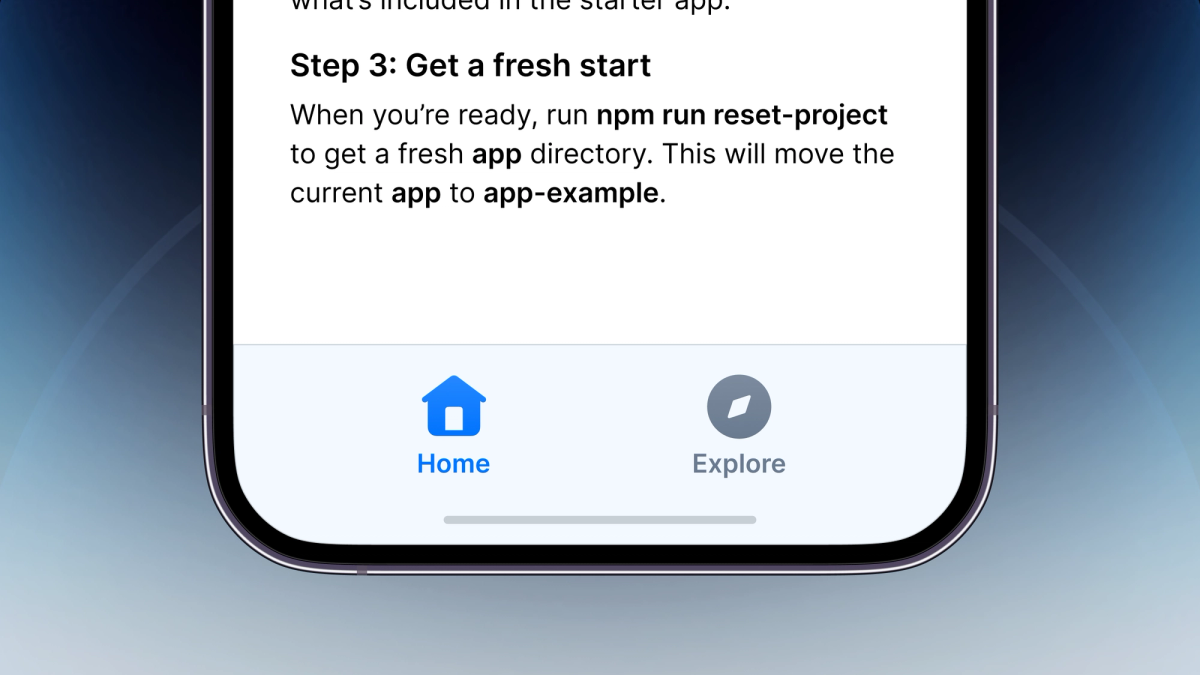
Here is how it looks:
You can checkout the example app here: https://github.com/okwasniewski/ExpoNativeTabs
If you want to quickly start with a new project using Native Tabs you can use @bottom-tabs/expo-template :
What’s next for React Native Bottom Tabs?
The future of this library is definitely exciting! As the API parity with JS Bottom tabs continues to expand we are also planning to introduce Native Headers.
If you don’t need to use stack navigation in one of your tabs you will be able to fallback to headers provided by bottom-tabs. If you have a suggestion for a feature you would like to see, you can open a new discussion and provide feedback here: https://github.com/callstackincubator/react-native-bottom-tabs