This is a guest post from Alfred, aka Appfred - a Norwegian developer that has been making apps for the last 10 years. He loves creating apps that feel great to use and solve both real problems.
...
In less than a week of work I migrated my 7 year old React Native app to Expo. The app Is called Blur, and is a fun party game that gives a group of friends challenges, questions, and mini-games to do! In addition to simple (and complex) React Native components, this app includes an iOS widget, notifications, custom fonts and a good list of dependencies.
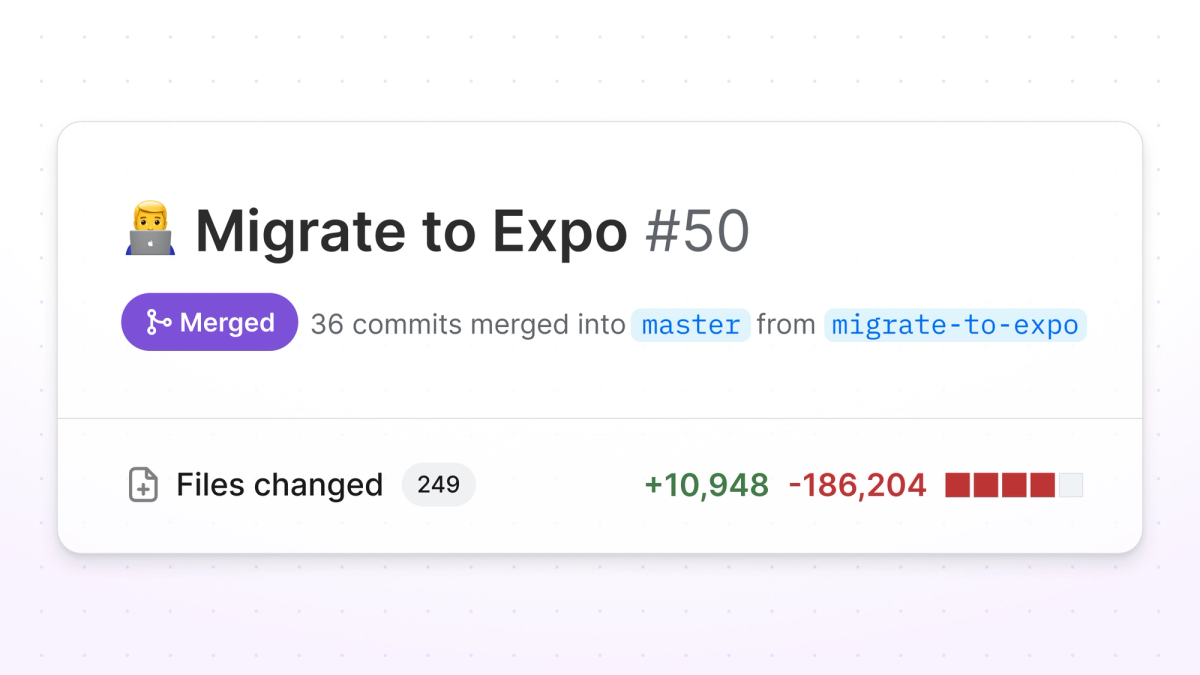
In this blog post I will share the migration process that enabled me to delete over 186k lines from my codebase, and explain what I learned from the experience!
What I migrated from RNC CLI to Expo CLI
Before explaining how I did the migration to Expo, I should start by explaining the reasons why I migrated, and the goals I had when doing so.
I did not do it just for fun, I actually did a fair bit of research before I decided to do the switch. Keep in mind, I am a solo developer, and do everything in my own pace, so these are my personal reasons:
The React Native recommendation
First of all, using React Native frameworks, such as Expo, is now the recommended approach to create new apps. This blog post from the React Native team at Meta includes many arguments as to why using a framework is nice, but this quote resonated the most with me:
We’ve found that you’re either using a framework or you’re building your own framework.
Expo offers a great CI/CD solution
I did not have a good CI/CD pipeline for my app, and have relied on locally building the app each time I wanted to publish an update. I used the Over-the-Air solution “CodePush” from AppCenter instead, which saved me a lot of time, and has effectively been my deployment pipeline for most smaller updates.
Now that AppCenter is set for retirement in a couple months, I really needed something to replace it. I did not want to start dealing with fastlane and essentially “build my own framework”, and figured Expo Application Service (EAS) would be an easy and reliable alternative.
Building and submitting the app with EAS would finally give me a good CI/CD pipeline, and Expo Updates could replace CodePush If I needed even more frequent updates in the future.
Reducing app complexity and upgrade pain
In addition, one of my app dependencies plans to move over to become an Expo Module due to the complexity of maintaining a react native package that relies heavily on native code. In particular, the package react-native-iap which secures my apps monetary income through in app purchases and subscriptions, has announced this decision in a GitHub discussion.
Lastly, I am pretty tired of all the native code hassle when upgrading React Native versions. Tools like react-native-upgrade-helpers are nice, but I always feel like a robot when following along with the native changes, while keeping the native code related to my installed packages intact. It feels like a perfect task for scripting, and Expo’s Continuous Native Generation should solves this nicely. Also, seeing posts like these makes a compelling argument:
From these reasons it became clear that I should invest some time into actually doing this migration to Expo.
Steps for migrating a bare React Native app to Expo
In order for the migration to be successful I came up with these four steps:
- Migrate dependencies to support Expo
- Generate native code with Expo CNG and config plugins
- Use EAS as a CI/CD solution to build and submit the app
- Include all functionality and features as before, including native code like widgets and notifications
In each of the section below you’ll see how I completed each step (including the obstacles I ran into).
Document packages with native code
To be able to do a successful migration and reach my goals, I started by documenting the dependencies of the app - especially looking at the packages that include native code. Why is the native part important here? Thats because some packages with native code require you to do additional steps in the ios/ and android/ folder to correctly set up the packages. When using CNG these changes would be overwritten each time you upgrade expo or install/updates another package with native code.
The solution Expo has created for this is called “Config plugins”. Config plugins are scripts that automatically insert the necessary native code setup for our dependencies, and are called after all the other native generation has happened. We therefore need to examine our installed packages, and look for config plugins.
My process went like this:
- Go through each dependency in
package.json - Look up the package on GitHub and see if it includes any native code
- If it does not include native code, or doe not require any special native setup, go to the next package
- If it has a supported config plugin, write that plugin down, and go to the next package
- If it needs native code setup, and does not include a config plugin, it is sadly not compatible with Expo and CNG. I then needed to find a replacement. Good resources for this are in the reference section of Expo’s docs - just search for npm.
After going though all my dependencies and documenting which packages needed to be changed out for my app to support Expo, I could finally start the migration process.
Install expo and refactor to supported packages
After posting about my migration experience on socials like X and Reddit, it seemed like most people thought I created a new Expo project locally and then just moved the JS files over to this new project. This is actually not how I did it, and my reasoning for it is pretty simple. Since one of my goals was to generate native code with Expo CNG and config plugins, I did not need to create a new project, since all the native code in my current project would “etterhvert” be replaced by the generated native code.
Instead, I started by looking at Expo’s own migration guide, which suggested to start by installing expo-modules. This could easily be done with one simple command: npx install-expo-modules@latest
After the installation, I could verify that my app indeed would run by using the commands from expo: npx expo run:android and npx expo run:ios
Now I could begin to refactor out the packages I found in the last step, and refactor them out. For me this was 5 packages, and luckily, some of them had compatible counterparts with very similar APIs as the ones I was replacing. Other packages required a bit more time to refactor out completely. During the refactoring process I ran the above commands to make sure the app still ran and behaved as expected.
After this refactoring I could actually say that the first goal was reached, and that app was successfully migrated to Expo! However, to get the full benefits from the Expo ecosystem, there were still some goals to accomplish.
Migrate to CNG
If you haven’t heard about Continuous Native Generation (CNG) before, I highly recommend checking out Expo’s own guide on CNG. It is the tool behind the npx expo prebuild --clean command, which recreates your native code in the ios/ and android/ folder. To add native code for packages that need that to work correctly, CNG uses the (previously mentioned) concept of “config plugins”.
While understanding these new concepts took some time, the actual implementation of them were a breeze. I just followed this guide on adopting prebuild, which asked me to do a small update in my App.tsx, adding some stuff to my config files. After following the guide, I had to include all the config plugins I had written down in my documentation step to my app.config.ts file, and then run the prebuild command.
⚠️ Before actually running the first prebuild command you should make a backup of your existing codebase. This way you have a copy of all your files in the project, not only those that are tracked by git. For instance, this is helpful if you have your .keystore files in the project, which you don’t want to delete.While running the app after the prebuild command, I ran into some issues that made the app crash. The error messages seemed very Expo-related, and while searching for fixes I came over another smart tool they have created. The command npx expo-doctor checks for a list of common issues and gives you a report on what may cause issues.
It recommended that I do the following:
- Delete the
ios/andandroid/from git. The contents of these folders are now generated bynpx expo prebuild, and should not be tampered with manually, as these manual changes would be overwritten by the prebuild command. - Use package versions that are tested for my version of expo. The handy command
npx expo install --checkthen automatically sets the correct version in mypackage.json
Finally, my app was up an running again, and I could check of my second goal for the migration process! Not only that, but since I could delete the native folders from git, I could now see that my branch has 186k less lines of code 😅 Pretty nice!
Bonus tip
Let me show you a nice trick I learned while reading more about the app.config.ts file. Since it is just a simple TS file, that has access to env variables like any other TS - by setting the build variant in environment variables you can for instance edit the iOS bundleIdentifier and Android packageName. Magically you can now have separate apps for dev, preview/staging and production. If you also create separate app icons for each build variant, these can be as easily set in the expo config file. Here is how I ended up doing it 👇
Using EAS as my CI/CD
As stated in my reasoning for migrating to expo, since CodePush from AppCenter is retiring I need a new CI/CD solution. This process of integrating to EAS was very straight forward, as I just following these two guides
It would have been even easier if I was releasing my app to the app stores for the first time, as I now had to connect my existing credentials to EAS. However, the eas credentials helped me select the correct credentials, and after opting in to letting Expo manage them automatically I did not have to worry about that anymore.
I filled out my eas.json file with my three environments (development, preview and production), making sure to set the correct app variant environment variable for each of my environments like so:
Adding the flag "autoIncrement": true to my production environment also meant that I could remove the buildNumber and versionCode fields from my app.config.ts file, and let EAS deal with incrementing these correctly in the future.
I really like this feature, because I have wasted so much time uploading a build to the AppStore and Play store, only to find out that I need to bump the version to be able to send it correctly.
Since I build my app locally with CNG in my last step, getting the build to run on EAS almost worked out of the box. And after some more tinkering with the signing and config, I have successfully built my app with EAS. Goal 3, check! ✅
Native widget support
Before migrating my app to Expo, I had a simple app-launcher LockScreen widget for iOS. Before releasing my app again I wanted to make this widget work with Expo and CNG.
Since app extensions like widgets only have access to a very limited amount of RAM, less than what overhead React Native brings to the table, it is currently only possible to write them using pure native code. Thus we meet the first drawback of the methodology behind CNG. We now have to write our native code outside of the ios/ and android/ folder, and then write our own config plugins to connect our native widget code to the folders again.
However, luckily for me, someone has already written such a config plugin! I found this blog post from Evan Bacon, explaining how he added widgets to his game through config plugins. His work resulted in the (somewhat experimental) config plugin: https://github.com/EvanBacon/expo-apple-targets/. Not only can you connect your iOS widgets to your app and sign it correctly, you could use it to connect any Apple Targets, be it Siri intent, App Clips, etc. Even though it is warned as an experimental plugin, it seemed actively maintained, and had after all worked for the exact same purpose of creating a widget.
The plugin helped me get up and running with my widget pretty fast, but I stumbled upon two issues in particular.
First off, I had a lot of troubles setting this up right with EAS. The widget got signed correctly, but now my Onesignal notification service extension would not sign and build on iOS, which it had done previous to adding the widget. After a lot of debugging I found this comment on a Github issue, suggesting changing the order of the plugins in the plugin array on my app.config.ts file. Since the config plugins are simple scripts, they are run one after another in a chain, based on the order in the plugins array in the config file. Changing the order, and letting the Onesignal plugin run after the apple targets plugin fixed my issues. Not an easy bug to catch.
Secondly, since my app is localized for 10 different languages, I had to support some localized text in the menus where you add the widget to your screen. However, after searching around in the issues on the github repository for the plugin, i found a oneliner patch that fixed the issue so I could include a localization file https://github.com/EvanBacon/expo-apple-targets/issues/39#issuecomment-2288555413.
Final thoughts on migrating to Expo
Finally, all my goals had been reached! In about 4 days work I had managed to completely migrate my 7 years old React Native app to the Expo ecosystem! During this process I had migrated dependencies, deleted 186k lines of code from git with CNG, created two new independent environments, and added a robust CI/CD solution as my deployment pipeline. All while keeping all of my features intact!
Before ending this article, I would like to discuss some of my experiences after migrating to Expo. While I have had a great time migrating and using the Expo ecosystem there are some drawbacks I have encountered.
First off, I have noticed that the local build times are longer than what they used to be. Running npx expo prebuild and npx expo run:ios takes a bit longer than what a react-native run-ios used to do. A bit annoying, but seems like a fair tradeoff considering all the stuff these new build tools shields you from the native build tools. And after all, running these commands are only necessary when adding/updating dependencies with native code, how often are you really doing that in your daily workflow?
Secondly, the problem I encountered where the config plugins wrote over each other was a bit worrying. I see this problem becoming more relevant as the plugin ecosystem grows, and is something that library authors have to keep in mind. I like how much easier the config plugin makes it to set up a dependency with custom native code, but if I had ended up needing two config plugins that did not work together regardless of the plugin array order, I would be pretty frustrated.
Lastly, vendor lock in is something to consider in all cases when integrating with external companies. For the scale of my development team (aka just me), I however see it as a non-issue, as I will always need to depend on some other companies to make my app possible. Before I was dependent on CodePush, now I am dependent on Expo. But I am not locked in. Expo’s open source tools are decoupled from EAS. So I can always stop using their services while continuing to build in the Expo ecosystem.
I have been extremely happy with the development experience that Expo has given me, and I hope this article helped you to take your first steps into the Expo journey!
Anyways, feel free to reach out to me on Twitter/X 👋