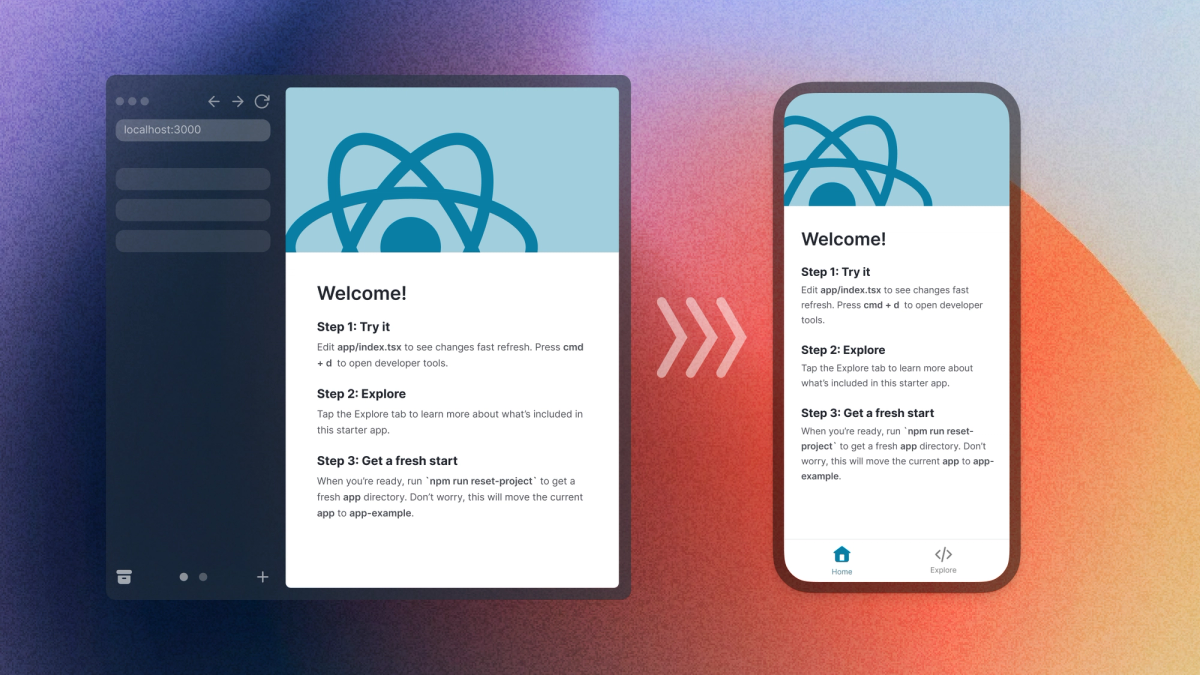
React Native is an excellent choice for web developers with React experience who are looking to create their first mobile app.
While React and React Native share many similarities, significant differences exist when targeting web versus native platforms. This blog aims to highlight and address the most common mistakes and questions developers typically encounter when transitioning from React to React Native.
I hope this will clarify some of the “unknown unknowns” of venturing into a brand new platform, and ease your journey from web to native!
Why choose React Native
Before we address some of the sneaky gotchas waiting to surprise React developers, let’s look at a few reasons why they should choose React Native:
Transferrable skills
With React Native, nearly all your application code will be written in JavaScript (or more often TypeScript). This means that as an experienced React developer, you can continue using many of the same coding patterns and libraries you’re already comfortable with on the web.
It’s really native
Even though you’re writing most of your application code in JavaScript, React Native apps are real native apps under the hood. The React code you write will get mapped to actual native primitives for each platform. This is incredibly important for performance as well as the native look and feel of your app.
Multi-platform code sharing
React Native allows you to build both a native iOS and a native Android app from the same codebase. With Expo Router and API Routers, you will also be able to target web and server. This means a huge amount of code could be shared between platforms.
Why choose Expo
Expo is a React Native Framework - similar to how Next.js is a React Framework
What React Native gives you out of the box is the ability to run React code on native iOS and Android platforms. React Native also ships with the most fundamental components like Text, View, and TextInput. But there’s a huge amount of functionality that almost all production apps need that is not actually included in React Native: navigation, sending push notifications, using the phone camera, persisting data across app launches, or even just building the app for store release. This is by design as exposing every single native capability out of the box would make React Native unmaintainable for the small React team at Meta.
Because key functionality is not included in core, React Native developers have always had to rely on various community libraries and now - almost 10 years in - there is a vast number of community libraries to choose from. This can be quite overwhelming especially at the start of a new project when you don’t know enough to make an informed decision on which libraries to use and which work well together.
Ideally we’d like to have a set of commonly used and well maintained tools together so you wouldn’t have to pick and choose, and this is exactly what Expo helps with.
Expo is a React Native Framework: a collection of tools and services that bridge the gap between what React Native ships with, and everything else needed to build production-ready apps. The Expo SDK is an extended standard library for React Native, providing access to commonly used native APIs that are not included in core (such as camera, video, notifications etc). Expo provides a CLI for creating a new project, and a sandbox app for learning and prototyping, a file-system based navigation system, there’s tools to manage native code, build and deliver your app to the app stores, set up over the air updates, and even build your own native modules. On top of this, you can also use most other open source React Native libraries in addition to the Expo SDK.
Meta are also officially recommending that developers to use a React Native Framework like Expo for newly created apps. The reasoning for this suggestion is straightforward: you’re either using a framework…. or you’re building your own framework. And building your own framework is not a sensible option for the majority of React Native developers.
UI primitives in React vs React Native Native
React Native code looks very similar to React code. But there are some definite differences when it comes to rendering components.
This is how you might render some text on the web:
Here’s how you render the same thing in React Native:
These code examples highlight a very important difference in web React and native React: React Native has no HTML primitives (div, input, form etc). Instead, the equivalent primitive components are exported from the react-native library. Thus, everything you render in React Native will always be wrapped in a component.
Under the hood React Native will render the real native components for each platform, and for the same reason, all text displayed in the UI needs to be wrapped in a Text component. Failing to do so will cause your app to crash.
Here are some of the key the UI primitives included in React Native:
View
Closest web equivalent: div
A View is the React Native equivalent of div in the web and is used in the same way: for layout and styling.
ScrollView
Closest web equivalent: div
On the web, pages are scrollable by default. This is not the case in native. In order to make a page scrollable, it needs to be wrapped in a ScrollView (or another virtualised list like FlatList or SectionList).
Text
Closest web equivalent: p
All text rendered in react native must be wrapped in a Text.
Image
Closest web equivalent: img
The image component lets you render images both form a url as well as from the local file. The API is a bit different from the web, e.g. to load an image from url, you’d do this:
And to render from a local file, it would look like this:
Note that most production apps don’t use the built-in image component from React Native, opting instead to use either FastImage or Expo Image as these libraries include additional features related to styling, caching, and support additional image formats.
FlatList
Closest web equivalent: array.map()
Many web UIs rely on rendering a large list of full screen items - think of your Instagram timeline or the list of emails in your email inbox. On the web you might render these by mapping over an array, but this is to be avoided on native platforms for performance reasons. Instead, we should render these in a FlatList - a virtualized list that has built in optimizations, specifically around delaying rendering data that’s not needed and not re-rendering the list unless the underlying data changes.
TextInput
Closest web equivalent: <input type="text" />
As the name implies, the text input component can be used for any text-based inputs. The main difference between the web input is that you can only use it for text (and numbers). While the Text Input has an onChange callback, you usually use onChangeText where the callback just returns the updated text string.
TouchableOpacity
Closest web equivalent: button
When you want to make parts of your app respond to taps, the usual thing to do is wrap that area in a TouchableOpacity. As the name suggests, the area will automatically get highlighted when pressed and you can configure the amount it gets highlighted by with the activeOpacity prop.
Pressable
Web equivalent: <button />
Similar to TouchableOpacity, the Pressable component is used to create buttons. It is a successor to TouchableOpacity, and provides a higher level of control to the touch actions.
Switch
Web equivalent: <input type="checkbox" />
A switch is a toggle component where you can toggle a value to be true or false. It’s a great example of a UI element that looks different on iOS and Android due to platform-specific implementation.
This was a non-exhaustive list of some of the core components in React Native. For an exhaustive list and more details, see the official React Native docs.
React Native styling
If you know how to write CSS on the web, you’ll be able to learn styling for React Native quite easily. Most of the CSS properties are supported, but there are some differences:
No global styles
All styles are inline and passed to components using a style prop. It is not possible to define any global styles without a styling library. In order to share styles between component you could e.g. create a theme file and import it to each file.
Flexbox, with a twist
Positioning in React Native is done with Flexbox. It behaves close to how it does on the web, but with a few differences:
- all elements have
display: flexby default flexDirectiondefaults to tocolumn(instead ofrow)alignContentdefaults toflex-start(instead ofstretch)flexShrinkdefaults to0(instead of1)- the
flexparameter only supports a single number
Styling libraries
While the built-in inline styles are a good option for styling your React Native app and many React Native apps don’t use a styling library at all, there are libraries are available for developers who desire an alternative styling experience. Some of the more popular styling libraries for React Native include:
- NativeWind - for Tailwind styles in React Native
- Unistyles - a more comprehensive StyleSheet
- Styled Components - for writing styles in CSS syntax
- Tamagui - for a cross platform styling and UI kit
If you'd like to dig deeper, check out the LiveStream we ran a while ago, comparing the different approaches.
Common mistakes to avoid
Once you know, you know! But before you know, you’re likely to fall into some of these common pitfalls, often encountered by devs who are new to React Native:
Do not use array.map to render a full screen list of items
This is a very common pattern on the web. Say you have a list of posts and you want to render them on a page. On the web you would do something like this:
On native, this is not the recommended approach for performance reasons. Instead you are recommended to use a virtualized list component such as a FlatList:
This has important performance enhancements that are necessary for native apps, for example not rendering items that are well outside the device’s viewport. A popular alternative for the built-in FlatList is the even more optimized FlashList.
Do not use the Button element from React Native
React native exposes a Button component that is pretty much unsuitable for 99% of use cases as it provides no styling customization. It's best to forget that it exists.
The way you build buttons in React Native is to wrap the button content inside a TouchableOpacity or Pressable :
Do not use the logical AND (&&) operator in rendering
As mentioned earlier, any strings to be rendered must be wrapped in a Text component. If you accidentally render NaN or 0 , it will have React Native attempt to render this without a text component. And unlike the web, React Native is very unforgiving when it comes to JavaScript exceptions: it will actually cause your app to crash.
Side note: it used to also crash when rendering an empty string ('') outside of a Text, but that thankfully handled in newer versions of React Native.
Best to play it safe and always use ternaries in render when working with React Native: condition ? something : null.
Do not put secrets in your app code
On the web we have a frontend and a backend: a client and a server. It’s understood that you should never have sensitive information in your client-side code as it can easily be accessed by malicious actors via inspecting source code or network traffic.
A React Native app is a client-side app! Even though accessing the app code and network traffic isn’t quite as easy as opening the chrome dev tools, it is still possible, so you should not put any truly sensitive secrets in your application code. Things like your Firebase config, and other client IDs that identify your app to various backend services are fine to store within your app code. But any sensitive api keys and secrets should not.
If your app needs to interact with APIs that require secrets that can’t be included in your frontend code, you can handle this the same way you would if you were building a website: deploy an api and call the api endpoint from your app.
With Expo Router you can write your api code within your React Native codebase and deploy them separately using API Routes.
New native-specific concepts
Here are some new things you’ll need to consider when building a native app vs a website:
Build signing
The iOS and Android platforms both have security features that prevent users from installing apps from unauthorized sources. In order to install an app to a physical device, it needs to be signed using signing credentials.
Build signing works differently on iOS and Android, but the idea is the same: on Android, builds are signed with a Keystore that can be created on your local machine. On iOS you need a Provisioning Profile and Signing Certificate that can only be acquired if you have a paid apple developer account. If you’re building using the EAS CLI, the signing credentials are created and synced automatically.
Side note - when you’re getting started with Expo, you might start out by using Expo Go for development. This gets around the build signing restriction because it’s already a publicly released app. We have this workflow so you could get started exploring and learning quickly without the cumbersome native configuration. Using a sandbox app for development is inherently limited however, because you won’t be able to change any of the native code. For this reason, we recommend using Development Builds for production-level apps.
Deep linking
On the web, linking to a specific page of your website is usually trivial as each page has a specific url. With mobile apps the same idea (we call it deep linking) can be a bit more complicated.
In a mobile app you register a "scheme" which is like the keyword your app listens to, something like myapp:// (notice how this looks the same as http:// and email://? It's because it's the same kind of thing on mobile). Then you have an intent like myapp://my/page and it will open your app and give it my/page (or whatever you add there) as a guide of where to deep link to, but it's up to you to listen to that guide and link to it. How you do it depends on what navigation system you're using. If you're using Expo Router, it's actually built in due to the file-system based routing. If you’re only using React Navigation it's still configurable, but a bit more work.
Learn more about Linking and Universal Linking.
Gestures and touches
If you’re looking to build native-feeling experiences for the mobile platform, you’ll want to utilize gesture-based interactions such swipe, long press, pinch to zoom etc.
React Native’s built-in Touchable and Pressable elements have props such as onLongPress and React Native Gesture Handler is often used when building more complex gesture interactions for React Native apps.
Haptics
Haptics refer to the little vibration your phone makes in response to certain interactions. It’s important to use haptic feedback sparingly, but it really enhances the experience of using of your app and makes it feel more native. For example liking a post on X, swiping a post on the Gmail app, or pressing and holding on an app icon on the home screen all trigger haptic feedback.
Try adding some haptic feedback to a key action in your app, like when adding a product to your shopping cart, or liking a post.
On-screen keyboard
If your mobile app handles any kind of text input, you’ll need to deal with the mobile keyboard. Some things to consider here:
- ensure that the text input remains visible when the keyboard is open, instead of the keyboard getting overlayed - using KeyboardAvoidingView
- the keyboard will open automatically when you focus on a text input, but you can also show and hide the keyboard programmatically
- use the keyboardShouldPersistTaps prop on ScrollView to handle how the keyboard should act when tapping outside it (should it close or not)
- use the keyboardType prop on the TextInput to determine what kind of keyboard to display, e.g. numpad. Other useful props that configure the keyboard layout include: autoCapitalize, autoComplete, autoCorrect and returnKeyType
Animations
CSS animations don’t exist in React Native. Instead we have Layout Animation (experimental on Android, use with caution) and the Animated API.
In most cases if you’re building your own animations, you’ll want to use the Reanimated library. It’s a React Hooks based animation library for React Native and the API usually feels more approachable than React Native’s built-in Animated API.
Pixel density
Pixel density is a measure of how many pixels make up a display point. Have you noticed that when defining styles in React Native, we’re not using px or em or rem? That’s because the only unit you can use is dp - a display point. And how many pixels make up a display point varies widely across devices. You can access the device’s pixel density using PixelRatio.
This is especially important when rendering images. You want images to look crisp in the UI, but you also want to only render images that are sized as close as possible to the area where they’re actually rendered in. So e.g. if you render an image with with: 100; height: 100 on a modern iPhone which has a pixel density of 3, the image needs to be 300x300 pixels. However a low end android phone may have a pixel density of 1.5 meaning you need a 150x150 pixel image there. Rendering a larger image on a smaller area will work, but is memory intensive (and doing it a lot may cause performance issues and crashes). However displaying an image that’s too small on a larger area will look pixelated.
So ideally for network images you’d want to resize the image on the server based on the size needed for the closest possible fit, and for static images included in your app bundle, you can use the @2x and @3x suffixes to provide images for different screen densities.
Deploying to the App and Play Store
The way apps get deployed to users is very different from the web.
A major thing to bear in mind is that when you release a new version of you app, it will not be automatically delivered to all users. Neither Apple or Google provide a mechanism to force users to upgrade, so you need to either build this functionality in for yourself, or make sure any changes you make are backwards compatible.
To release your apps to users, you need a paid Google Play Console (one-time $25 fee) and Apple Developer (yearly $99 fee) accounts, and to set up your store listing page including app screenshots. Note that your app signing credentials will be tied to the specific account forever, so you won’t be able to publish the same app under a different account unless you change the signing credentials, though transferring apps is possible.
The native app bundle you submit to the app stores is different from the build you use for development: it uses different signing credentials and is an optimized build that is not directly installable on devices without going through the stores. Our guide to submitting to both stores walks through the full process. Learn more about the different types of builds in our EAS video course or text-based tutorial.
Then, for every release you need to upload the app bundle and submit it for review. There are various guidelines and checks, both manual and automated, that your app will go through every time you do a release. A review may take anywhere from a couple of hours to several days. If you app requires login for example, you’ll have to provide working credentials for the reviewer to use.
Your app may be rejected for various reasons (and iOS reviews tend to be more strict than Android), for example the first time I submitted the React Conf app on iOS it was rejected because the app includes native code to change the app icon, but the reviewer couldn’t find that feature. I replied to the reviewer, explaining how to access it via the quick action and the app was finally approved after a couple of hours. Your app would also get rejected if it crashes on launch, if the reviewer can’t log in, if your usage descriptions are not descriptive enough, and many other reasons. The fix is usually to either reply to the reviewer to explain something they missed, or to fix the code in-app and re-submit a new version for review.
Once your app is in the stores however, you can use over the air updates such as with EAS Update to deliver bug fixes without going through the review process as long as any changes pushed abide by the store guidelines.
Incremental adoption with DOM components
If you have an existing website you’re looking to migrate to React Native, it is also possible to do this incrementally on a per-component basis using DOM components. DOM components are a new feature in SDK 52 that allow you to add web code in your React Native app via the 'use dom' directive. Under the hood it creates a mini web view for the component so you are able to use any web-only code. This is especially handy for incrementally migrating complex features such as charts which might take a long time to translate to React Native.
What makes DOM components especially powerful is being able to pass in native actions as well and refs (via the useDOMImperativeHandle). This means you can call native functions (e.g. triggering haptic feedback or scheduling push notifications) from inside a DOM component, making them a well-integrated part of your app.
Common community libraries to use
As mentioned earlier, React Native ships with just the base essential primitives for app building, and that all real-world apps rely on many third party libraries. In many cases, React Native even ships with a utility, but most real world apps end up using a community alternative. Here's a list of common libraries and alternatives to built-in's that "everyone" tends to use:
Image
Though React Native includes an Image component, most real world apps use expo-image or react-native-fast-image as they support more image types and options and have better caching support.
Lists
For generic use-cases, the built-in FlatList and SectionList are more than good enough. But when it comes to rendering very large or very complex lists of items, you may end up encountering bottlenecks that the build-in component is not able to navigate smoothly. So for large lists that need a performance boost, many users switch to FlashList or LegendList.
Safe Area
All modern iOS and android apps allow drawing under the system bars, which makes for a nice full-screen experience, but you'd want to make sure your app content takes the height of these into account to prevent a cramped UI or overlapping text. That's that SafeAreaView is for, it will add top and bottom padding automatically based on the device you're running on. The SafeAreaView in core had only iOS support and will be removed in future versions of React Native. The official recommendation is to use react-native-safe-area-context instead.
Animations
React Native ships with a feature-rich Animated API for animations. However most real-world apps end up using Software Mansion's Reanimated library. Thanks to its hooks-based API it is much more straightforward to use in React code, and it includes many utilities and performance features that aren't in the built-in animation library.
Gestures
The built-in gestures system is somewhat limited, so if you need to do any gesture-based features (like detecting taps, swipes, pinches) you'll want to use React Native Gesture Handler which integrates really well with Reanimated so the two are almost always used together.
Storage
React Native's equivalent of localstorage - Async Storage used to be part of React Native Core, but was moved out to a community package a while ago. Even so, there are commonly used alternatives such as MMKV.
For libraries more, check out React Native Directory for a comprehensive list of community packages for React Native.
Out of Tree Platforms
The core React Native package lets us use React code to build native iOS and Android apps. But there are additional platforms you could build for:
- Apple TV and Android TV with react-native-tvos
- Windows, with react-native-windows
- MacOS, with react-native-macos
- visionOS with react-native-visionos
- Web with react-native-web
These are called Out of Tree platforms which are not built or maintained by Meta, but use the core React Native primitives to build React Native to other platforms. Note that it is not the intent to have one codebase that builds for all of these targets. Instead you would have separate codebases, but be able to code share React Native primitives and general JavaScript logic.
Building with AI
AI coding tools have become part of many developers' everyday workflows, and the Expo ecosystem has first-class support for them.
Expo MCP Server
The Expo MCP is a remote MCP server that integrates AI tools like Claude Code, Cursor, and VS Code Copilot with your Expo project. It teaches your AI assistant about the Expo SDK, guides it to install the right packages with compatible versions, and if you're using a multimodal AI tool it can even take screenshots of your running simulator and interact with your app to verify that things look and work correctly.
LLMs-optimized docs
Expo provides its documentation in a “for LLMS” page following the llms.txt standard. This means AI tools can pull in up-to-date Expo documentation as context, resulting in more accurate answers when you're asking your AI assistant about Expo APIs, EAS, or the current SDK. The Expo docs also have a built-in AI search alongside the regular search so you can get answers in natural language directly.
Skills
The Expo Skills repo is a collection of official AI agent skills from the Expo team for building, deploying, and debugging Expo apps. These are designed primarily for Claude Code but work with other AI agents too. Skills cover topics like app design, upgrading Expo, deployment, and more, plus they're auto-discovered by your AI tool based on what you're working on.
Time to start building
This is a fairly exhaustive list of things to look forward to and look out for when attempting to build your first React Native application. And if you've made it this far then you must be serious. In which case I recommend taking a look at our getting started tutorials.
Also, I co-hosted a livestream to discuss everything from this blog post. I think it would be great if you spent some time dabbling with your first React Native app, and then check out the stream to see a lot of relatable questions get answered: