Imagine reviewing new features without switching branches or manually rebuilding the app. With a compatible development build already installed, each pull request can become a preview you can load directly inside the app via a QR code.
Most changes are delivered as previewable updates. If native changes are involved, a new build is created first (and the update is applied to it) so the way your team reviews the feature never changes.
No dev server. No setup. Just previews that designers, QA, and product can experience early and in the feedback loop.
Beto Moedano, a fellow Expo colleague, recently published an excellent video walking through this idea using EAS together with GitHub Actions. If you haven’t checked it out yet, I warmly recommend that you do!
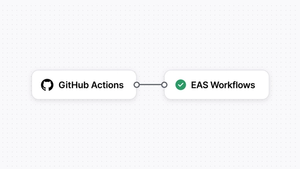
In this article, we'll look at a similar flow, but built on top of Expo’s CI/CD solution: Workflows. They give us a clean, streamlined way to automate the whole process from pull request to install-ready preview, making instant collaboration a natural part of the development cycle.
Workflow responsibilities
To make this workflow feel seamless for your team, the automation needs to handle a few key responsibilities:
- Determine whether we have compatible development builds for Android, iOS, and the iOS simulator.
- If a build is not compatible (more on this later), the workflow will generate new development builds as needed.
- If compatible builds already exist, the workflow will omit the building step and re-use the existing, compatible build.
- Publish an over-the-air update targeted to the development builds - whether they already existed or were just created.
- Post a comment on the pull request that includes:
- links to the compatible builds
- direct access to updates that you can run immediately if you already have a compatible development build installed by scanning a QR code, or select from your dev client
Getting started with EAS Workflows in a new Expo project
There are a few prerequisites before you can start using Workflows. For the sake of this tutorial we will start with a brand new project.
Make sure you have the EAS CLI installed and that you’re logged in to your Expo account:
Next, configure your project for EAS Build:
This command generates an eas.json in the root of your project and sets up common build profiles. It also links your project to Expo by adding a projectId to your configuration (expo.extra.projectId in app.json). You can read more about this in the EAS Build documentation.
While we’re here, let’s add a dedicated build profile for running the app on the iOS simulator:
Setting up development builds
To take full advantage of this streamlined development workflow (and to give both developers and QA a great experience) you’ll need to use development builds. Make sure your project has expo-dev-client installed:
The expo-dev-client adds helpful development tools to your debug builds, including a customizable launcher UI. This UI is what lets you load feature previews created from pull requests - directly inside the app. Once those updates exist, team mates can review new features without running the project locally or connecting to a development server. They simply pick the update (or scan a QR code) from their development build and start testing.
Connecting your Expo project to GitHub for automated workflows
Although Workflows can be triggered manually from the terminal, they really shine when they're integrated into your day-to-day development process with GitHub. For example, you can trigger a workflow automatically whenever you push a commit or open a pull request.
To link your GitHub repo to your EAS project:
- Make sure you have a GitHub repository for your app
- Navigate to your project's GitHub settings.
- Follow the prompts to install the GitHub app.
- Select the repository that matches your Expo project and connect it.
Configuring EAS Update for faster internal releases
Once this is set up, the next step is to configure EAS Update. EAS Update lets you push critical fixes, improvements, or even new features instantly - something your users benefit from immediately. It also happens to be a great way to speed up internal iteration for developers and QA teams.
Run the following command in your terminal to get started:
This command will:
- Install
expo-updatesas a dependency in your project - Add a
channelto youreas.jsonbuild profiles - Add an
updatesobject to yourapp.json
The command you just ran added the channel property, which EAS Update uses to determine where updates should be published. Beyond that, I’ve removed the channel for the development-simulator build profile, so that it inherits the development channel.
If you want to explore more configuration options, you can refer to the documentation here.
Understanding compatible builds vs incompatible builds
Before we automate anything, it’s important to understand why some updates can be applied instantly and others require a brand new development build. This distinction is what makes fast iteration possible.
Every native build has a native fingerprint - a snapshot of the parts of your project that affect the native layer.
In the Workflow we’re about to build, we’ll determine whether a compatible development build already exists by comparing fingerprints. This allows the workflow to determine whether it can reuse an existing development build or needs to create a new one before publishing the update.
- Compatible build = you can publish an update instantly. No reinstall, no rebuild, no waiting. QA and teammates can try the feature within a few moments, even without a running development server. This is the sweet spot for iteration speed.
- Incompatible build = a new dev build is required. This happens when you change something that affects the native layer - adding a new library with native code, modifying app configuration, etc.
So, if the native layer hasn’t changed, your team can preview the feature on the existing development build. If it has, the workflow creates a new development build and then publishes the update, so previewing continues as part of the same pull request.
This is one of the reasons EAS Update is so powerful for collaboration: most feature work - UI polishing, logic tweaks, copy, styling, navigation changes - does not require a new native build. Teams can iterate visually and interactively without losing time to builds or setup.
How the workflow checks compatibility and publishes updates
The Workflow you’ll create next automates this decision-making. It checks the fingerprint for Android, iOS, and the iOS simulator, then chooses the fastest path:
- Reuse existing dev builds when compatible
- Generate new dev builds only when required
- Always deliver a preview update
With this in place, your team gets a reliable and predictable way to test work-in-progress - instantly when possible, automatically rebuilt when necessary.
Creating an EAS Workflow to generate builds or publish updates
Next, let’s create a workflow file in the project. All workflows live inside a .eas/workflows directory, which is where EAS looks for automation. This keeps your workflow definitions organized and version-controlled alongside the rest of your code.
For this example, we’ll create a workflow named create-dev-build-or-update.yml, which will handle checking build compatibility, generating new development builds when needed, and publishing updates.
You can either create the directories and file manually, or generate them by running this command from the root of your project.
The workflow file itself is a YAML file, and if you’ve used GitHub Actions before, the syntax will feel familiar. EAS Workflows let you define completely custom jobs, but they also include a generous set of pre-packaged ones that cover many common tasks.
These pre-packaged jobs provide ready-to-use building blocks for things like building, submitting, and testing your app. They give you a consistent, well-tested foundation without requiring you to write every step from scratch.
For this workflow, we’ll use a combination of the following:
It may look like a lot of moving parts at first, but each job is designed to be straightforward and easy to use.
The goal of this workflow is simple: give your team a reliable, low-friction way to try feature work directly in the app.
With this workflow in place, every pull request automatically delivers install-ready previews to your team, whether they require new builds or can be delivered instantly through EAS Update.
Before we can move on and trigger our EAS Workflow, you’ll need to run your initial builds with the EAS CLI. This step gathers the necessary credentials and fully links your project to EAS.
If you’re starting from a brand-new project, EAS Build will automatically add a few fields to your app.json. To avoid any fingerprint mismatches between your initial build and the first time you run your workflow, make sure the following fields are already defined in app.json:
For example:
With these changes added, go ahead and commit and push them to your repository and trigger your initial build.
Start taking advantage of GitHub events
Because your project is linked to a GitHub repository, you can immediately start taking advantage of GitHub events - such as on: pull_request. That’s how this workflow is configured. It will run on pull requests from any branch (which you can customize to fit your team’s needs). So go ahead and create a new feature branch, make a change, open a PR, and the EAS Workflow will kick off automatically.
Once it’s running, you can follow the entire process in the Expo dashboard. The dashboard gives you a visual workflow graph and detailed logs for each step, making it easy to understand exactly what’s happening - even when your workflow branches into different paths based on build compatibility.
When the workflow completes, you’ll see a comment added to the pull request with direct links to the generated development builds or the published updates. You can scan the QR code with your device to load the preview instantly, or open it directly from your development client if you already have a compatible build installed, even if they’re not running a dev server or connected to your local environment. This alone cuts time from a typical review cycle.
Loading preview updates inside your development build
If you already have a development build installed on your device or simulator/emulator, you can access preview updates instantly from the “Updates”-tab. Make sure you're signed in with your Expo account - once logged in, you'll see the list of available preview updates for that project. Tap one, and the app will load that update so you can try the feature right away.
You can also open the same preview by scanning the QR code from the GitHub pull request comment, as long as you have a compatible development build installed on your device.
Login to get a list of updates, or scan a QR code to instantly launch it on your device
How this workflow improves collaboration across your team
This is where the value really shows up in day-to-day collaboration: preview updates become a shared artifact - something the entire team can try, react to, and iterate on in real time. Instead of screenshots, recordings, or long explanations, team mates can experience the feature directly on their own device in the context of the actual app.
Developers get faster feedback, designers can validate flows earlier, product owners can make decisions based on how something feels. And QA can begin reviewing before anything is merged.
Most changes will be previewed through EAS Update without requiring a fresh installation. When native changes are required, the workflow handles creating a new development build so the process remains predictable and uninterrupted. Either way, the result is the same: less waiting, fewer miscommunications, and more opportunities to refine ideas before they land in your main branch.
By treating PRs as install-ready previews rather than static code changes, teams unlock a faster, more collaborative workflow. One that makes iteration feel continuous, and turns feedback from a bottleneck into a natural part of building great mobile experiences.