
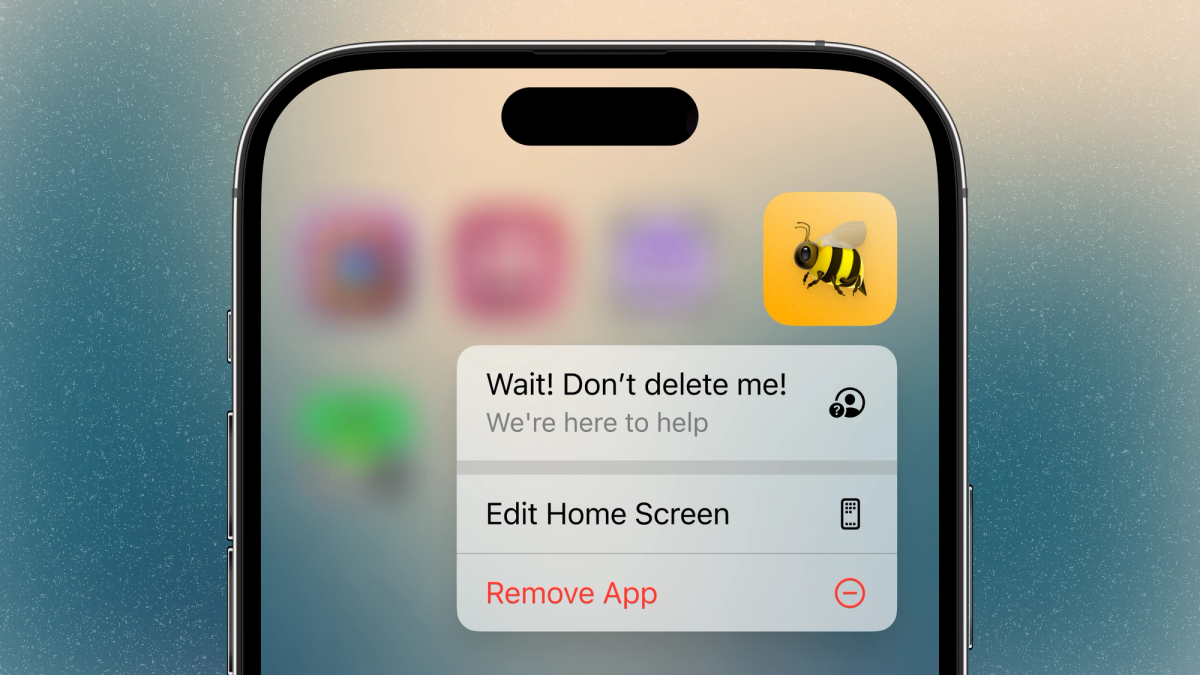
Constant feedback is vital to keeping users interested in and engaged with your app. Perhaps the most valuable-yet-elusive feedback is from a user who is about to delete your app. If you could just fix whatever lead them to conclude that your app should no longer be on their home screen, maybe you could prevent many other users from churning. But, once someone has held their thumb down on your app icon long enough to bring up that menu with that big red button, it’s too late to ask them to change their mind. Or, is it?
Superlocal CEO Alex Kehr was not content to just give up here, and instead ingeniously inserted a shortcut for the user to contact him directly in the shortcut menu that appears with the “Remove App” button:
Here, Alex is using the iOS Home Screen Quick Actions feature. Similarly, Android has App Shortcuts. At first, this may look like some advanced native code wizardry, but it’s actually quite simple to tap into this functionality in your Expo CNG app without writing any native code, only adding a bit of JavaScript and configuration via the expo-quick-actions module and config plugin.
Modules and config plugins?
Before we dive into the code, let’s quickly go through two key concepts powering expo-quick-actions:
Native modules are packages created with the Expo Modules API that can call into native Swift (iOS) and Kotlin (Android) code from your JavaScript or TypeScript code in your app. They are the easiest way to give your JS access to any API provided by Apple or Google. expo-quick-actions uses the Expo Modules API to wrap the iOS Quick Actions and Android App Shortcuts API's into a cross-platform JavaScript interface. All you need to do is add it to your package.json, and the native code is linked automatically during your next build.
Config plugins are JavaScript functions that do anything else that’s needed to customize native Android and iOS project files that’s not already handled by writing native code in an Expo Module. You may have seen installation instructions for a React Native package that said something along the lines of “install the package, then open up Xcode and modify Info.plist”, or “make these changes to AndroidManifest.xml.” If you’re using CNG, you don’t modify your ios and android folders directly; instead, config plugins do it for you. Add the config plugin to your app.json or app.config.js, and it will make those modifications to the native files automatically during the Prebuild step on EAS Build, or whenever you run npx expo prebuild.
Config plugins can do virtually anything that might otherwise require manual changes to your ios or android project folders. They can even be used to add widgets or companion watchOS apps to your project. expo-quick-actions uses a config plugin to setup special build-time features for quick actions and shortcuts, such as defining custom icons to show up in the long-press menu or, on iOS, adding items to the menu before your app is even run for the first time.
How to add the “don’t delete me!” menu option with expo-quick actions
Adding the package
Assuming you already have an existing SDK 50 Expo project you’d like to add this quick action / app shortcut to (if not, here’s how to get started), first install expo-quick-actions:
Since this package contains native code, you’ll need to build a new development build. The standard development build profile you get when first setting up EAS Build with eas build:configure can do this, though, if you’ve customized your build profiles, this step may vary for you:
Displaying the quick action
You will want to set up the quick action as soon as your app opens. In your root component (e.g., App.js or your top-level _layout.tsx file in an Expo Router project), call QuickActions.setItems:
Run this code on your development build with npx expo start, go back to your home screen, and long-press your app’s icon. You should see the new menu option! These quick actions will be in place until your app changes them again, even if your app is closed.
Notice the usage of Platform here. Apple recommends using their standard icon set for quick actions, particularly the SF Symbols library. You can install the SF Symbols desktop app to browse their entire collection and get the name of one of these icons. expo-quick-actions will pull the right SF Symbols icon for any icon string that starts with symbol:. Android can’t use SF Symbols; we’ll get back to what to do there in a moment.
Taking action when the quick action is tapped
When you tap your quick action, it’ll open your app, but… that’s it. You’ll need to listen for the callback that happens when the quick action is tapped. Add the listener hook in root component or somewhere else that’s at a high enough level to always be mounted:
That action object contains the params included for the action in setItem. From the perspective of the native API, those parameters are arbitrary. It’s up to you to do something with them, such as navigating to another screen. It could technically be as simple as opening your email support by calling:
However, it can be a bit jarring to directly open an email like that. So, let’s go back to the idea of adding a nice “help” landing page that can perhaps provide some advice about common issues and solutions, as well as a contact link.
Quick Actions, Expo Router-style
expo-quick-actions works perfectly fine with React Navigation; you’ll just need to call navigate yourself inside of useQuickActionCallback if you want to send the user to another screen. However, the package has some built in auto-routing features for Expo Router projects.
Let’s tweak the initial setItems call inside our root _layout component:
Then, also in your root component or in another high-level layout file, add:
Now, the href in params has some special Expo Router-imbued significance. If that href matches a valid route in your Expo Router app (e.g., if href is /help, you have a help.tsx route in your root), then tapping that quick action will automatically route the user to the help page. There you can put your help resources, including a link to contact your team. Expo Router’s Link component can help:
Finishing touches, courtesy of config plugins
Everything we’ve done so far happens when your app runs using the native API’s wrapped by expo-quick-actions. Now, it’s time for expo-quick-actions’s config plugin to help.
Remember that missing Android icon? The config plugin will help build it into our app so it’s available at runtime. Android documentation recommends that you use adaptive icons for your app shortcut icons, as they can actually be dragged out of the menu and become their own home screen shortcuts on Android. It’s not likely someone will do this with your “Help” action, but you never know.
Adaptive icons consist of a single solid color foreground (e.g., for a logo outline or a solid-color icon) on top of a transparency later. Then you specify a background color that will be applied behind the icon when it’s displayed by the Android launcher. You can check out our video tutorial on how to make icons and splash screens for more info on how to make an adaptive icon. The description of the video even includes a handy Figma template to help you make an adaptive icon.
Once you have your icon, setup your config plugin in your app config (app.json / app.config.js):
Now you can add that Android icon when calling setItems:
If you want to use a custom icon on iOS, you can also set this in the expo-quick-actions plugin configuration object:
Finally, iOS includes the ability to set a static quick action. This quick action will show up even before your app is run for the first time. Add this to the expo-quick-actions plugin configuration object:
Any dynamic quick actions you define in your JS code will be appended after the static actions, so, if you do this, make sure setItems is only run on Android.
Conclusion
This help button is a great first quick action to add to your app, as it can help you get one more chance for feedback from a user who is about to delete your app. But, there are plenty of other uses for quick actions. iOS supports a maximum of four quick actions, and both platforms recommend filling four slots to show that your app has a lot going on. Consider adding links to common screens that users might want to access quickly.
To learn more about how to use expo-quick-actions, head over to its Github repo. You can also see all the details of how I added quick actions to my app for by reading my quick actions PR.