Let’s say you just created a new Expo project with npx create-expo-app, you ran npx expo start, and it opens in Expo Go. But actually, you’ve heard that development builds are recommended for production apps. So when should you make the switch from Expo Go to a development build? What do these concepts mean exactly? Read on to find out!
Development builds and Expo Go are both tools for developing React Native apps, but they need to be used differently because they have different intentions. This blog is for understanding the critical differences between them. If you prefer to sit back and learn about Expo Go and development builds with a video then you can do that right here:
What exactly is Expo Go?
Expo Go is an app built with Expo, but it's unique compared to other apps. It functions as a sandbox environment specifically for testing and running Expo projects.
Why do I need an app to build my app? Great question!
React Native provides core APIs, such as native modules, native components, debugger integration, JS engine integration, among others. These are low-level APIs, but to build a full-featured application we need more capabilities that don’t come with React Native by default, like navigation, routing, push notifications, OTA updates, haptics, etc.
Installing these common APIs can take quite some time and requires you to rebuild your application each time you need a new dependency. Finally, to test on a real-device, you need to connect your phone to the computer and run the app through Xcode or Android Studio.
That’s a lot of work just to get the environment ready and the app running on my phone.
The Expo Go app comes with pre-installed commonly used libraries so you can quickly prototype and develop your app. That's why a newly created project with npx create-expo-app is set up to run in Expo Go when you execute npx expo start—unless you've installed expo-dev-client.
To test on a real device, you only need to download the Expo Go App from the App Store or Play Store, scan the QR code and boom! Your app is running on a real device in a couple minutes. Notice that we don’t need an Apple Developer account, we don’t even need to have Xcode or Android Studio, furthermore, you can use a Windows machine and still develop an iOS application by scanning the QR code with the iPhone camera app.
Expo Go Limitations
Expo Go is a great way to start prototyping and developing quickly, but it has some limitations.
You can only use libraries bundled in Expo Go
Most Expo SDK packages have partial or complete compatibility with Expo Go and some community and third-party libraries. However if a package contains native code that is not already built into Expo Go, it cannot be used in Expo Go, because the native code in Expo Go is fixed once it's built. However, you can add JavaScript-only libraries to your app and they will work just fine in Expo Go. You can use the React Native Directory to check if a library is compatible with Expo Go.
Unexpected behavior in development vs. production
Expo Go is a sandbox environment and doesn't accurately simulate notifications, OAuth, deep/universal linking, maps, analytics, or any feature that requires passing an API key to native code. Additionally, because Expo Go doesn't use your app's specific package name or bundle identifier, you may experience different behavior compared to a production build.
Transitioning to a development build
As your app complexity increases (it could be day zero 👌), you'll reach the point where Expo Go is limiting your workflow. At this point, Expo Go has served its purpose, and now it's time to smoothly graduate to using a development build.
What exactly is a development build?
A React Native app consists of two parts: the native app bundle, which is installed on a physical device, and the JavaScript bundle that runs inside it. In the case of Expo Go, the Expo Go app itself serves as the native app bundle. However, with development builds, you're creating this native app bundle yourself instead of relying on an already published app like Expo Go. Think of development builds as your own customized version of Expo Go, tailored with just the native code required to run the React Native app you're developing. This gives you full control over the native runtime, allowing you to install native libraries, modify project configurations, or even write your own native code.
With development builds, you enjoy the benefits of any native library while still retaining the excellent developer experience that comes with an Expo project.
How to get started with a development build
You can use EAS (Expo Application Services) to create and install a development build on an actual device.
First, install the EAS CLI by running the following command:
Then login or sign up for an Expo account by running:
For any new project, the first step is to initialize and link it to the EAS servers by running from your project root folder:
You only have to do this once. If you have done the previous steps, you can skip to the next command. Check out Initialize a development build for a detailed walkthrough.
The following command will build the app in the cloud using the development profile.
Using EAS Build is the fastest way to create a development build, and it does not require you to have Xcode or Android Studio installed on your machine (unless you want to run the build on a Simulator/Emulator). View Set up an Android/iOS device with a development build for a step-by-step walkthrough.
Alternatively, If you already have setup your local development environment, you can create the development build by running:
View Set up your environment for a step-by-step walkthrough.
When you create a development build in your local machine, the android and ios directories containing the native code for each platform are autogenerated using a technique we call Continuous Native Generation (CNG). If you are curious about CNG, check out the blog “What is Continuous Native Generation and why does it matter?” for a detailed walkthrough.
Since the android and ios directories are autogenerated, including these folders in your .gitignore is a good practice. Otherwise, if your project includes these folders, EAS will skip the CNG process, which can lead to unwanted results.
💡 Remember that if you are not using EAS for your development builds, you must install Xcode and Android Studio on your computer to run the projects.
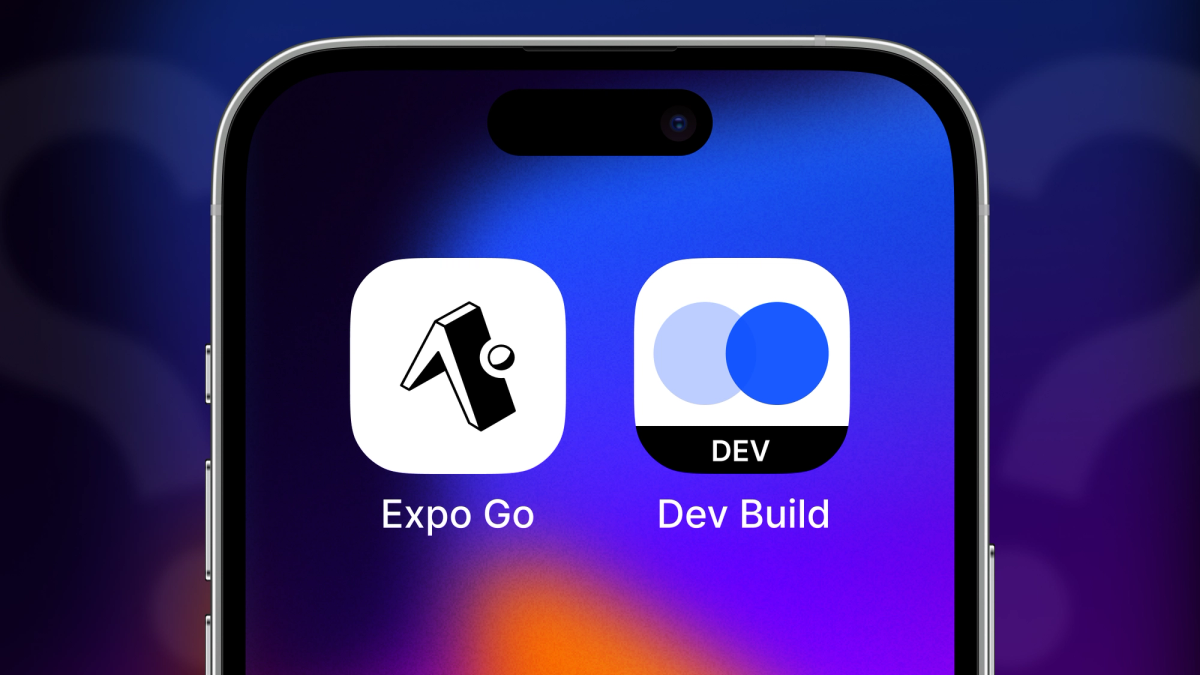
The following screenshot shows our development build. The main thing to note is that it doesn't live inside Expo Go. Instead, other than the app launcher interface that lets you run any compatible JS bundle, it's a lot like any other standalone app, giving you a more accurate sense of how your app will look and perform in production.
Typically, building a native app from scratch can take significant time, making it tedious to implement changes as you constantly rebuild. Thankfully, that's not the case with development builds. You can enjoy the benefits of live reloading, so you don't have to rebuild the app unless you modify the underlying native code or install a new dependency that requires native code.
When to use Expo Go vs a development build
If you are building a real-world app, you should use a development build even if you are not using any native libraries. A development build provides the look and feel of what users will experience once you publish your app. That said, Expo Go is an excellent starting point for both beginners and more experienced developers transitioning to cross-platform mobile development. You can confidently start your project with Expo Go and switch to a development build as needed.
Where to go from here?
- Coming from web? From Web to Native with React
- New to Expo? Get started creating apps with Expo
- Need custom native code? Tutorial: Creating a native module