You have enough to think about when building and shipping with Expo—from delivering updates with EAS to maintaining fast release cycles. Hunting down issues in minified code, guessing at app state, or wondering which version an affected user was on only slow you down. With the right context on errors—and the ability to replay what users actually did—you can fix things faster without the urge to roll your face across your keyboard.
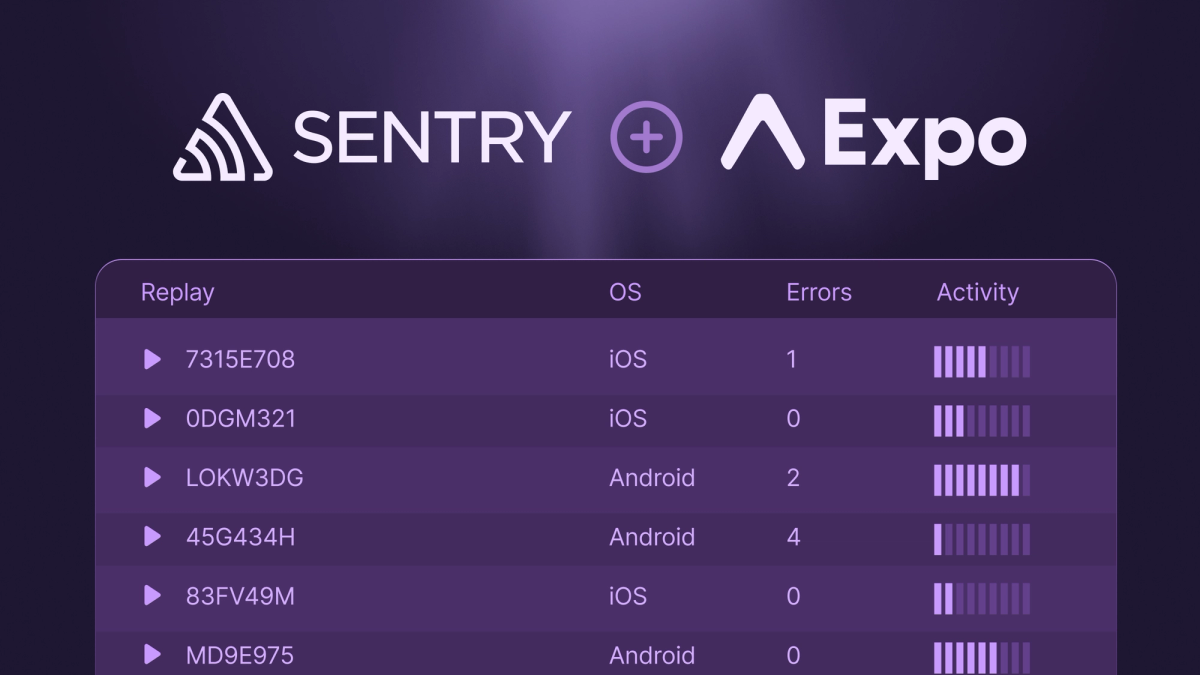
As of today, Expo allows you to pull in issue details and replays from Sentry for errors that are occurring in your EAS deployments (the first time Sentry mobile replays are easily viewable in a CI/CD deployment context). That means stack traces with full context, reproducible user sessions, and faster debugging—so you can ship confidently, even after the OTA dust settles.
What is Sentry?
Sentry helps you and your mobile dev team catch errors, track down bugs, and fix slow and broken code (whether you're working with native or cross-platform code). It gives you tools like error monitoring, session replay, tracing, and even UI profiling. So when something goes wrong, you can get the right context to dig into the specifics and actually understand what happened, without wasting hours chasing down the issue.
Easily see issues and session replays from Sentry in Expo
With this integration you get a full view of relevant issues and replays from Sentry relating to your Expo deployments, and can quickly navigate to the right context to diagnose and debug faster.
Sentry’s mobile crash reporting and app monitoring allows you to investigate issues by device type, OS, and release with actionable insights like screenshots, stack traces, breadcrumbs, and suspect commits.
Session replay for mobile helps teams get to the root cause of an issue faster by seeing exactly how users are impacted by errors, with replays connected to error events so teams don’t have to guess when reproducing issues. It makes it way easier to investigate and debug things like backend endpoint errors, debug mobile device-specific issues, and pinpoint the sequence of events with a specific UI flow that’s causing issues.
How do you set up the integration?
- Log into EAS and Open Account Settings > Overview in EAS. Example: https://expo.dev/accounts/krystofwoldrich/settings.
- Click Connect in the Connections sections next to Sentry.
- Login to Sentry and accept the Integration into your organization. You will be redirected back to Account Settings > Overview
- Link your EAS Project to your Sentry Project:
- Open Projects > {Your Project} > Configuration > Project settings
- Click Link and select Sentry Project in the dropdown.
- To see your Sentry data in EAS, Open Projects > {Your Project} > Updates > Deployments > {Deployment} for Sentry data from a Release
Learn more by reading the docs.
What’s next for Sentry?
You can see what we’re working on over on GitHub. Some of the highlights for mobile teams:
- The GA of Seer (now in open beta) is coming soon, giving you an AI agent that puts all of Sentry’s context to work—errors, stack traces, commit history, traces—to automatically debug the root cause of an issue and open a PR with a fix.
- We’ll be GAing the Trace Explorer, which gives you the ability to run real-time queries and aggregations on your span data to do things like easily identify your worst http client calls or analyze image loads based on CDN provider.
If you’re new to Sentry, you can get started by signing up for a free trial.