This is a guest post from Mehdi Davoodi - he builds React Native and Expo UI experiments and shares what I learns on 𝕏: @mehdi_made
...
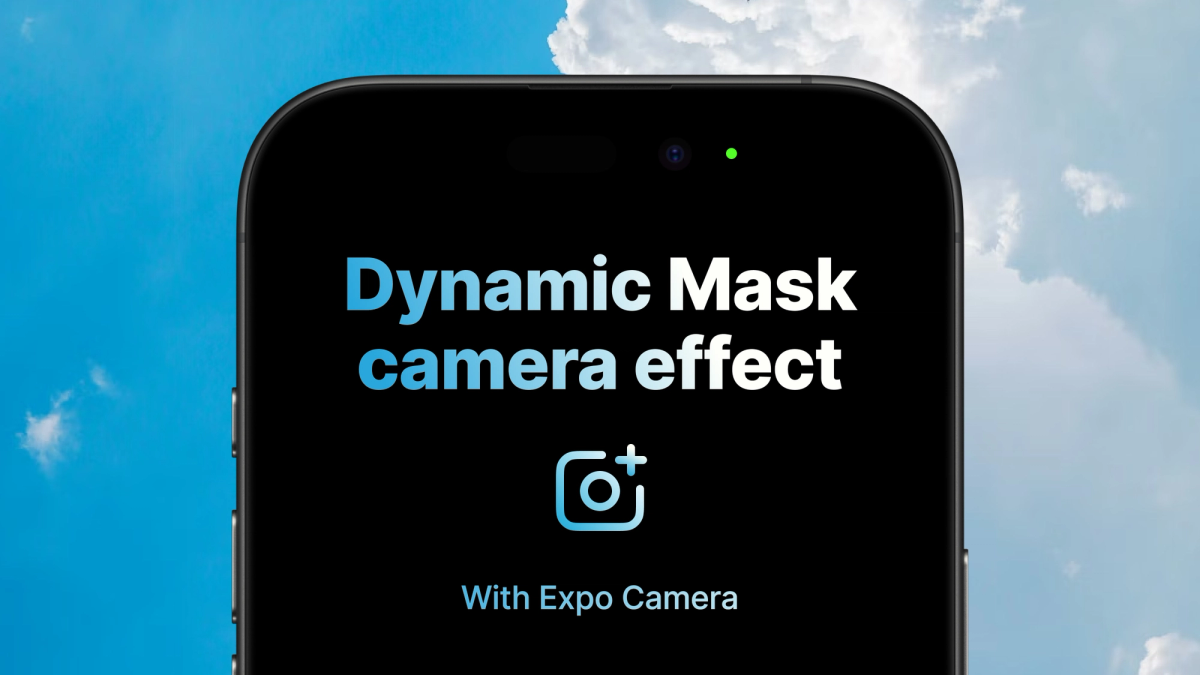
I wanted to build something where the camera feed shows through text and UI elements, like a cutout effect. The idea was simple: use the live camera as a dynamic background, but only reveal it through specific parts of the UI.
Here's how I did it with Expo Camera, MaskedView, and Expo Blur.
What we're building
Essentially it's screen that shows a user list. But instead of a solid background, the camera feed shows through the text and avatars. On top of that, there's a blur layer that gives it a frosted glass look. The overall effect is a UI that feels alive, unique, and memorable.
The key pieces:
expo-camerafor the live camera feed@react-native-masked-view/masked-viewto create the cutout effectexpo-blurfor the frosted glass layer
Setting up Expo Camera
First, install the package:
The expo-camera package gives you two main things: a CameraView component and a useCameraPermissions hook. The hook is the important part; you cannot just render the camera without asking for permission first.
Here's the basic setup:
That’s the minimum. But there’s a catch: the permission object has more states than just granted or not.
Understanding camera permissions
The permission object from useCameraPermissions has two important properties:
granted- whether you have permissioncanAskAgain- whether you can prompt the user again
This gives you four actual states:
permissionisnull→ still checkingpermission.grantedistrue→ camera is readypermission.grantedisfalseandcanAskAgainistrue→ user denied, but you can ask againpermission.grantedisfalseandcanAskAgainisfalse→ user blocked it in settings
That last one is important. If someone denies permission and checks "Don't ask again", you can't show the prompt anymore. You need to tell them to go to settings manually.
I wrapped this logic in a hook:
Now my component just checks isReady and doesn't worry about the details.
Combining with MaskedView
MaskedView is a component that lets you use another component as a mask. Think of it like a stencil—you cut shapes out, and whatever's behind shows through those shapes.
How it works:
MaskedView has two parts:
maskElement- the stencil (what defines the shape)children- what shows through the stencil
The mask works based on opacity. Anything fully opaque (like black) in the mask reveals the children. Anything transparent hides them. Gray values give you partial transparency.
Using it with the camera
Here's where it gets interesting. Instead of a solid color behind the mask, we use the live camera feed:
The camera only shows through the text. Everything else is transparent.
Adding the blur effect
I wanted a frosted glass look, not a raw camera feed. So I layered BlurView from expo-blur on top of the camera:
The blur sits on top of the camera (using zIndex or render order), and the mask cuts through both. So you see blurred camera through the mask shapes.
Here is the repo. I hope it's useful. If you do end up building something based on what you've learned in this blog I would love if you could share it with me.
Also, if there are other UI experiments you'd like to see me build and share please let me know in a DM. Thanks for reading!