Have you ever wished you could ship a change directly to a specific user for their immediate review and feedback - without asking them to download and install a new build of your app from TestFlight? Me too.
I’ve had customers request improvements that I was able to quickly implement, but getting the results into their hands to validate meant shipping an update to all users (risky for an experimental change, and a mediocre use of bandwidth) or creating a one-off build specifically for the customer (a chore for both of us).
What was missing was flexibility. Developers wanted to be able to serve different updates to different groups of users, such as non-technical stakeholders, QA or the entire user base when appropriate.
There was no way for a production build to switch to a work-in-progress version, gather feedback, and then return to production.
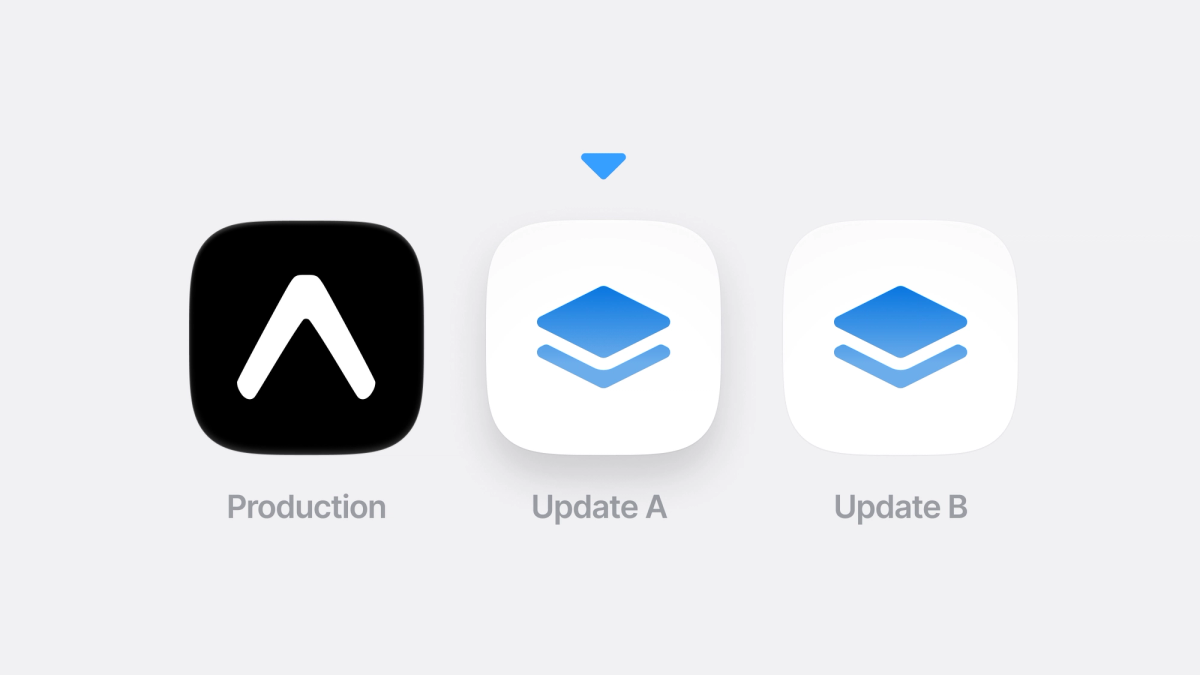
That’s what “channel surfing” enables. An app installed on a users device can switch update channels at runtime, turning a production app into a flexible space for review and iteration rather than a fixed endpoint. This is especially useful for non-technical stakeholders working with production apps, allowing them to test changes and give feedback directly in the app they already have installed.
Understanding update channels
Update channels are how EAS Update targets updates to specific builds. Each build is associated with a channel, and that channel determines which updates it will receive.
For example, you can publish updates to a preview channel without affecting users on production. In the past, switching channels required installing a different native build.
If you’re not familiar with update channels, the EAS Update documentation covers them in more detail.
What is channel surfing?
Channel surfing lets an installed app pull from different update streams without reinstalling. An installed app can switch update channels at runtime and it will continue receiving updates from the newly selected channel until the app is uninstalled or switched to another channel.
In practice, this means a product owner or QA can switch a production build to, for example, a preview channel, try out the latest changes. When they are done testing, they switch back to production again. There’s no need for a reinstall or a separate preview build.
Under the hood, channel surfing works by letting the app tell the updates client which channel to use. That choice can be changed at runtime and stays in effect until it’s cleared or replaced.
How to implement channel surfing
Before you can try channel surfing, your project needs to be configured with EAS Update. To set that up, follow the EAS Update getting started guide.
At its core, channel surfing is driven by a single API call:
This sets the channel header that is used when querying EAS Update. Learn more about the setUpdateRequestHeadersOverride API.
For a better user experience, you’ll usually want to do more than just switch the channel and wait for the next app restart. A common approach is to immediately check for updates, download them if available, and reload the app so the user lands directly on the selected channel’s update.
A typical flow looks like this:
- Change the channel (setUpdateRequestHeadersOverride)
- Check for an update (checkForUpdateAsync)
- Fetch and apply the update (fetchUpdateAsync)
- Reload the app (reloadAsync)
A simple example putting these pieces together might look like this:
How you structure this flow is up to you. You might split these steps across multiple interactions or run them all at once. Regardless of how you structure the flow, make sure to account for failures. For example, network issues or an invalid channel can all prevent an update from being applied.
Channel surfing is usually something you want to expose to a limited set of users, not to everyone using your app. For example, you might have a button available to authenticated employees only that switches the app to the preview channel. The list of available channels needs to be defined in your app. There is no public HTTP API to fetch existing update channels (it’s on the roadmap), so your channel switcher UI should work against a known set of channel names, or you can build your own endpoint that calls into eas channel:list.
Once the channel override is set, that channel is what the EAS Updates API will use for all subsequent update-related operations on that device until the app is uninstalled or the override itself is overridden.
As a side note, with SDK 54, reloadAsync offers more control over the reload experience. You can now customize the UI shown while the app is reloading, which avoids the brief flash of empty content that used to happen. This makes applying an update feel more intentional and smooth.
How to test if channel surfing is working
To actually see channel surfing in action, you’ll need a release build - most of the expo-updates API is only available in release builds (unless you build with EX_UPDATES_NATIVE_DEBUG enabled). In debug builds, the app typically loads JavaScript from a development server instead, which bypasses the normal update flow.
For convenience, we can use EAS Build to create a release build for testing. If you haven’t set up EAS Build yet, follow the EAS Build getting started guide.
In EAS Build, builds use release defaults unless you explicitly opt into a development build (for example with developmentClient: true) or explicitly override the native build configuration. In this profile we don’t change the release configuration - we only change the output format: an iOS simulator app (ios.simulator: true) and a directly installable Android APK (android.buildType: "apk"), which makes it easy to this out locally.
Then go ahead and build the project.
Once the build finishes, download and install it on your simulator or emulator.
Publish an update and switch channels
Once the app is installed, publish an update to a different channel:
From there, navigate to your channel surfing UI in the app and trigger the channel switch. For example, you might expose buttons that let you toggle between the production and preview channels. Once you trigger the channel change, the app should fetch the update from the selected channel and reload into the new update.
Expo OTA Update gotchas
None of these are specific to channel surfing, but they tend to become apparent quickly once you start switching channels at runtime.
Runtime version mismatches
If the runtime version of an update doesn’t match the runtime version of the installed app, the update won’t be downloaded or applied. When channel surfing, this typically shows up as the app switching channels but no update being applied, even though one exists on that channel.
This usually means the update was published from a different native version of the app.
Removing or undoing updates
Another often overlooked behavior is how updates are removed or undone. If an app has already downloaded an update for a channel, deleting that update from the EAS dashboard (or with eas update:delete) does not remove it from devices that already have it. Deletion only stops future downloads.
The most reliable way to undo a bad update is to republish a known-good update to the same channel. This creates a new update at the top of the channel’s history, which clients will treat as the latest version and apply instead.
Alternatively, EAS Update provides a rollback mechanism (eas update:rollback) that can instruct clients to re-apply a previous stable update or fall back to the update embedded in the build.
Why channel surfing improves mobile iteration
Channel surfing is especially useful when you need to review changes quickly in a production environment.
For example, imagine an urgent bug fix that needs validation before being rolled out broadly. With channel surfing, the change can be isolated to a small set of designated users who can review it before it reaches production.
A product owner or QA can switch their installed production build to another update channel, verify the fix or feature, and then switch back again once they’re done.
This makes it easier to involve non-technical stakeholders in review and decision-making, while keeping the workflow smooth. A single production build becomes a flexible tool for testing, feedback, and validation.
Risks and considerations when switching channels
Switching channels changes the JavaScript bundle the app runs. If your app depends on migrations or data shapes that are not compatible across channels, switching back and forth may cause issues.
For example, if a beta update applies a database migration, the production version might not understand the new schema. Developers should ensure their updates remain safe to switch between or restrict switching to one direction when needed.