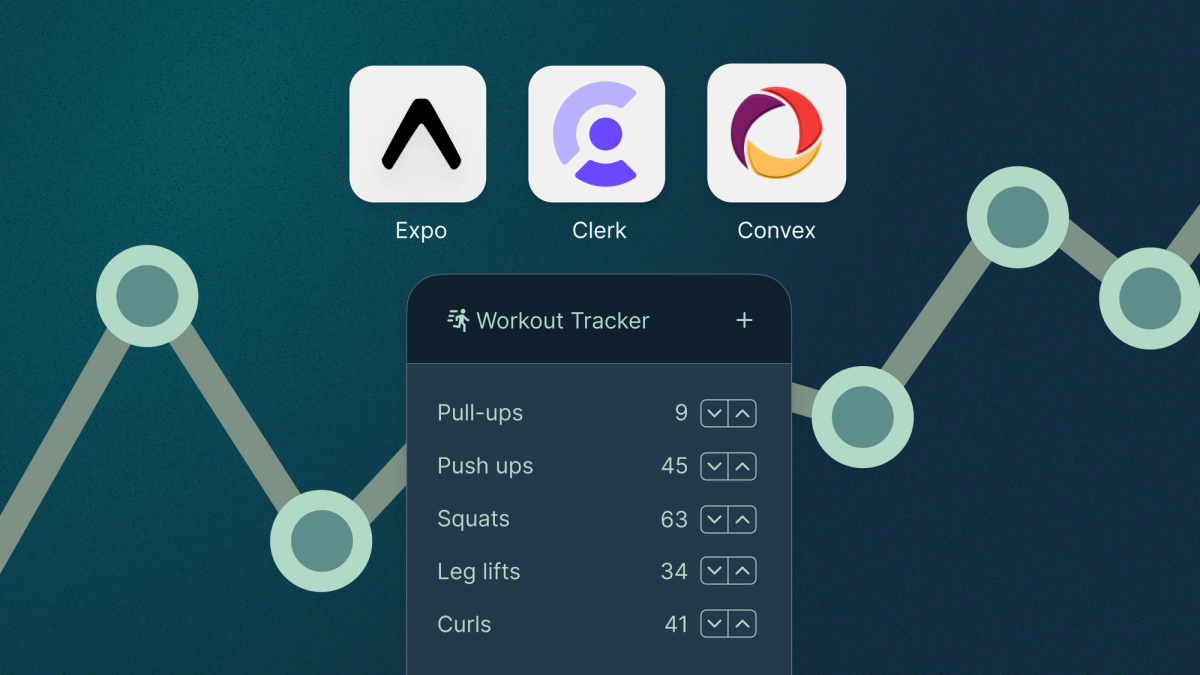
Build a daily workout tracker with Clerk, Convex, and Expo
Development••25 minutes read
Brian Morrison II
Guest Author
Learn how to build a full stack application using React Native, Expo, Convex, and Clerk.

This is a guest post from Brian Morrison II - he is a tech enthusiast with over 15 years experience in the industry who loves sharing knowledge to help others. Currently Brian is a Sr Developer Educator at Clerk.
...
React Native and Expo empower developers to build cross-platform applications with a single codebase, but building a backend to support those applications is still up to the developer.
Clerk and Convex is an excellent combination that empower developers to build a secure, responsive backend system in record time. By combining the authentication and user management services from Clerk with the real-time data services from Convex, you can eliminate the complexities involved with architecting a secure backend system and focus more on building your app.
In this article, you’ll learn how to build a full stack application using React Native, Expo, Convex, and Clerk.
About the project
The project, aptly named "Daily Reps", is a simple workout tracker designed to track the number of repetitions (reps) that users perform on a daily basis. The inspiration for this app came from my desire to work towards 100 pushups per day. I wanted an app where I could set a daily goal for a given workout, and track progress towards those workouts throughout the day, but not necessarily in a single session. At the end of the day, the progress would reset and provide a clean slate for the following day.
Users will be able to add new workouts, set a daily rep target, and quickly track the number of reps they do for that workout. As log entries are added, a progress bar will fill to visually indicate how the user is doing each day, and will reset at the end of the day.
You’ll also build a screen allowing users to navigate back through historical data and edit or delete their entries to keep the data accurate.
A settings screen will be built to allow the user to log out, as well as edit workouts and targets as needed.
Finally, we’ll build all of the necessary authentication screens to allow users to sign in using a traditional username and password, or one of the many social providers supported by Clerk.
This application is fully open source as well, so you’re welcome to view the completed project on GitHub.
The tech stack
Before we start building, let’s explore the different technologies used to create this project and how they all interact with one another.
React Native & Expo
React Native is a framework that allows developers to build native applications for mobile, desktop, and the web with a single code-base using JavaScript and React. This helps avoid the need for building separate projects for different platforms and empowers teams to build more rapidly using the language they are already familiar with.
Expo is a platform that helps facilitate the development of React Native applications by providing an ecosystem of tools to help with tasks like building and testing the project, updating your applications, and submitting to the various app stores.
Clerk
Clerk is a user management platform designed to help developers add authentication into their applications as quickly as possible. Clerk supports traditional authentication strategies like usernames and passwords, but also supports more advanced strategies like social sign on and passkeys, often with a simple toggle in the Clerk dashboard.
Clerk also gives your users the ability to manage their own user profile data, revoke sessions across devices, and provides a suite of B2B tools for building multi-tenant applications.
Convex
Convex is an open-source, all inclusive backend service that combines concepts like API, database, and server functions. Convex libraries support real-time updates across sessions, streamlining the general development process as it relates to backend connectivity.
Convex uses queries to request data from the database, and mutations to modify data in the database. Using the Convex React SDK, you also get real-time updates across devices as data is modified.
How they all work together
The project will be a cross-platform application that’s tested on the web, on iOS, and on Android. React Native and Expo will be used to build the application that the user will interact with. Users will authenticate with Clerk and the user’s authentication token will be sent to Convex whenever the app is performing data operations. Convex will coordinate with Clerk to ensure the user is properly authenticated before they can access any of the data.
Prerequisites
Building this project and testing it on the web requires Node.js be installed at a minimum. Other environments, which will be covered later in this article, will require additional software to be installed.
Initialize the project
We’re going to start by using the standard Expo template as a starting point so we can use a few of the prebuilt components and tab layouts that are already configured.
Open a terminal and run the following command to bootstrap the application:
npx create-expo-app dailyrepsNow run the following commands to move into the dailyreps folder and launching the project in your browser.
cd dailyreps
npm run webYou should see the following in the browser if everything initialized properly.
Adding shared styles and components
In order to keep both the code and UI clean, there are a few reusable components that need to be created. Let’s knock those out now before moving further.
Start by creating constants/styles.ts and paste in the following:
import { StyleSheet } from "react-native";export const styles = StyleSheet.create({input: {height: 40,borderWidth: 1,padding: 10,borderRadius: 6,borderColor: "rgba(0, 0, 0, 0.11)"},screen: {padding: 10,display: "flex",gap: 8,},authScreen: {position: 'absolute',top: 0,left: 0,right: 0,bottom: 0,justifyContent: 'center',alignItems: 'center'},authForm: {padding: 18,display: "flex",gap: 8,width: "100%"},stepContainer: {gap: 8,marginBottom: 8,}})
Next, create components/ListItem.tsx that’s used to render items in a list:
import React from 'react'import { Pressable, StyleSheet, View } from 'react-native'import { Ionicons } from '@expo/vector-icons'type Props = {children: React.ReactNodeonPress: () => void}function ListItem({ children, onPress }: Props) {return (<Pressablestyle={styles.pressable}onPress={onPress}><View style={styles.outer}><View style={styles.inner}>{ children }</View><Ionicons size={22} name='chevron-forward' style={styles.icon} /></View></Pressable>)}export default ListItemconst styles = StyleSheet.create({pressable: {borderRadius: 6,padding: 12,borderColor: "#ddd",borderWidth: 1,color: "#111",fontSize: 14,fontWeight: "bold"},outer: {display: "flex",flexDirection: "row",alignItems: "center",gap: 8},inner: {display: "flex",gap: 3,flexDirection: "column",flex: 1},icon: {color: "#aaa"}})
Finally, create components/Button.tsx which will be the main Button component used throughout the application:
import React from 'react'import { StyleProp, TouchableOpacity, ViewStyle, StyleSheet, Text } from 'react-native';type Props = {onPress: () => voidchildren: React.ReactNode | string,disabled?: booleanstyle?: StyleProp<ViewStyle>}function Button({ onPress, children, disabled }: Props) {return (<TouchableOpacitystyle={!disabled ? styles.button : {...styles.button,...styles.disabled}}onPress={onPress}disabled={disabled}><Text style={styles.text}>{ children }</Text></TouchableOpacity>)}export default Buttonconst styles = StyleSheet.create({button: {borderRadius: 6,padding: 8,backgroundColor: "rgb(47, 48, 55)",borderColor: "rgb(47, 48, 55)",borderWidth: 1,fontSize: 14,fontWeight: "bold",display: "flex",alignItems: "center",justifyContent: "center",shadowColor: "rgba(0, 0, 0, 0.07)",shadowOffset: {height: 1,width: 1},shadowRadius: 5},disabled: {opacity: 0.4,borderColor: "rgba(47, 48, 55, 0.5)",},text: {color: "white",fontWeight: "bold",display: "flex",gap: 2,justifyContent: "center",alignContent: "center",alignItems: "center",}});
Adding authentication with Clerk
With the app up and running, let’s move into adding user authentication with Clerk. In this section of the guide, we’re going to:
- Create a Clerk application.
- Configure Sign-up and Sign-in pages, including Google SSO.
- Redirect between auth pages and the rest of the app depending on authentication status.
- Create a Settings page to hold the Sign-out button.
Create the Clerk application
A Clerk application is a distinct collection of users and settings.
Sign into the Clerk dashboard and create a new application. If you don’t already have a Clerk account, you’ll be prompted to create one. Give the application a name and leave the Sign in options as they are (Email and Google). Click Create application when you are done.
You’ll be presented with a number of Quickstart guides in the next screen. Select Expo from the list and scroll down until you see the sample .env file. This is used to connect your React Native code to this Clerk application. Create the .env file in your project and paste in that snippet. You may ignore the rest of the steps for now as we’ll be stepping through the necessary instructions next.
Configure Clerk in your React Native app
If you still have the Expo development server running, kill it and run the following commands in your terminal to install the Clerk Expo SDK and the expo-secure-store package which is used to cache the user’s authentication token:
npm install @clerk/clerk-expo expo-secure-storeNext we need to create an instance of the TokenCache that will be used by Clerk and wrap the entire application in the <ClerkProvider> component.
Replace the code in app/_layout.tsx with the following snippet:
import { DarkTheme, DefaultTheme, ThemeProvider } from '@react-navigation/native';import { useFonts } from 'expo-font';import { Stack } from 'expo-router';import * as SplashScreen from 'expo-splash-screen';import React from 'react';import 'react-native-reanimated';import { useColorScheme } from '@/hooks/useColorScheme';import { ClerkLoaded, ClerkProvider, useAuth } from '@clerk/clerk-expo';import * as SecureStore from 'expo-secure-store'const publishableKey = process.env.EXPO_PUBLIC_CLERK_PUBLISHABLE_KEY!if (!publishableKey) {throw new Error('Missing Publishable Key. Please set EXPO_PUBLIC_CLERK_PUBLISHABLE_KEY in your .env',)}const tokenCache = {async getToken(key: string) {try {const item = await SecureStore.getItemAsync(key)if (item) {console.log(`${key} was used 🔐 \n`)} else {console.log('No values stored under key: ' + key)}return item} catch (error) {console.error('SecureStore get item error: ', error)await SecureStore.deleteItemAsync(key)return null}},async saveToken(key: string, value: string) {try {return SecureStore.setItemAsync(key, value)} catch (err) {return}},}// Prevent the splash screen from auto-hiding before asset loading is complete.SplashScreen.preventAutoHideAsync();export default function RootLayout() {const colorScheme = useColorScheme();const [loaded] = useFonts({SpaceMono: require('../assets/fonts/SpaceMono-Regular.ttf'),});React.useEffect(() => {if (loaded) {SplashScreen.hideAsync();}}, [loaded]);if (!loaded) {return null;}return (<ClerkProvider tokenCache={tokenCache} publishableKey={publishableKey}><ClerkLoaded><ThemeProvider value={colorScheme === 'dark' ? DarkTheme : DefaultTheme}><Stack><Stack.Screen name="(tabs)" options={{ headerShown: false }} /><Stack.Screen name="+not-found" /></Stack></ThemeProvider></ClerkLoaded></ClerkProvider>);}
Configure the Sign-up and Sign-in pages
Before creating the pages, let’s create a button that will help with using social sign on providers like Google. The button will have a single prop that coordinates with one of the many Clerk OAuth providers, but the contents of the button itself is configurable when the component is used.
Create a new file named components/OAuthButton.tsx and paste in the following:
import React from "react";import * as WebBrowser from "expo-web-browser";import { useOAuth } from "@clerk/clerk-expo";import { Platform } from "react-native";import * as Linking from "expo-linking";import Button from "./Button";type Props = {strategy: string,children: React.ReactNode}WebBrowser.maybeCompleteAuthSession();export default function OAuthButton({ strategy, children }: Props) {React.useEffect(() => {if (Platform.OS !== "android") return;void WebBrowser.warmUpAsync();return () => {if (Platform.OS !== "android") return;void WebBrowser.coolDownAsync();};}, []);const { startOAuthFlow } = useOAuth({ strategy });const onPress = React.useCallback(async () => {try {const { createdSessionId, setActive } = await startOAuthFlow({redirectUrl: Linking.createURL("/dashboard", { scheme: "myapp" }),});if (createdSessionId && setActive) {await setActive({ session: createdSessionId });}} catch (err) {console.error("OAuth error", err);}}, []);return (<Button onPress={onPress}>{ children }</Button>);}
Next, create a new file at app/(auth)/_layout.tsx which will render a separate tabbed interface for the sign-up and sign-in pages. This file will also redirect any authenticated users back to the root of the application, using the useAuth hook from Clerk to determine the users’ state.
Paste the following code into the file:
import { Redirect } from 'expo-router'import { useAuth } from '@clerk/clerk-expo'import { Tabs } from 'expo-router';import React from 'react';import { TabBarIcon } from '@/components/navigation/TabBarIcon';import { Colors } from '@/constants/Colors';import { useColorScheme } from '@/hooks/useColorScheme';export default function AuthRoutesLayout() {const colorScheme = useColorScheme();const { isSignedIn } = useAuth()if (isSignedIn) {return <Redirect href={'/'} />}return (<TabsscreenOptions={{tabBarActiveTintColor: Colors[colorScheme ?? 'light'].tint,headerShown: false}}sceneContainerStyle={{backgroundColor: "white"}}><Tabs.Screenname="sign-in"options={{title: 'Sign in',tabBarIcon: ({ color, focused }) => (<TabBarIcon name={focused ? 'person' : 'person-outline'} color={color} />),}}/><Tabs.Screenname="sign-up"options={{title: 'Sign up',tabBarIcon: ({ color, focused }) => (<TabBarIcon name={focused ? 'person-add' : 'person-add-outline'} color={color} />),}}/></Tabs>)}
With the layout created, we can now create the actual sign-in and sign-up pages. The sign-in page will contain the <OAuthButton> component we created earlier thats configured with the oauth_google strategy, allowing users who tap it to log in using a Google account. The page will also contain email and password inputs for users who used a more traditional set of credentials.
When a user populates the username and password, the Sign in button will contact your application on Clerk and verify the credentials are accurate before creating a session for that user.
Create the app/(auth)/sign-in.tsx file and paste in the following code:
import { useSignIn } from '@clerk/clerk-expo'import { Link, useRouter } from 'expo-router'import { Text, View, ActivityIndicator, TextInput } from 'react-native'import React from 'react'import Button from '@/components/Button'import OAuthButton from '@/components/OAuthButton'import MaterialCommunityIcons from '@expo/vector-icons/build/MaterialCommunityIcons'import { ThemedText } from '@/components/ThemedText'import { ThemedView } from '@/components/ThemedView'import { styles } from "@/constants/styles"import { Ionicons } from '@expo/vector-icons'export default function SignInScreen() {const { signIn, setActive, isLoaded } = useSignIn()const router = useRouter()const [emailAddress, setEmailAddress] = React.useState('')const [password, setPassword] = React.useState('')const onSignInPress = React.useCallback(async () => {if (!isLoaded) {return}try {const signInAttempt = await signIn.create({identifier: emailAddress,password,})if (signInAttempt.status === 'complete') {await setActive({session: signInAttempt.createdSessionId})router.replace('/')} else {console.error(JSON.stringify(signInAttempt, null, 2))}} catch (err: any) {console.error(JSON.stringify(err, null, 2))}}, [isLoaded, emailAddress, password])if(!isLoaded) {return <ActivityIndicator size="large" />}return (<View style={styles.authScreen}><View style={styles.authForm}>{/* Header text */}<ThemedView style={{ marginVertical: 16, alignItems: "center" }}><ThemedText type='title'>Sign into Daily Reps</ThemedText><ThemedText type='default'>Welcome back! Please sign in to continue</ThemedText></ThemedView>{/* OAuth buttons */}<View style={{display: "flex",flexDirection: "row",gap: 8}}><View style={{ flex: 1 }}><OAuthButton strategy="oauth_google"><MaterialCommunityIcons name="google" size={18} />{" "}</OAuthButton></View></View>{/* Form separator */}<View style={{flexDirection: 'row', alignItems: 'center'}}><View style={{flex: 1, height: 1, backgroundColor: '#eee'}} /><View><Text style={{width: 50, textAlign: 'center', color: "#555"}}>or</Text></View><View style={{flex: 1, height: 1, backgroundColor: '#eee'}} /></View>{/* Input fields */}<View style={{ gap: 8, marginBottom: 24 }}><Text>Email address</Text><TextInputstyle={styles.input}autoCapitalize="none"value={emailAddress}onChangeText={(emailAddress) => setEmailAddress(emailAddress)}/><Text>Password</Text><TextInputstyle={styles.input}value={password}secureTextEntry={true}onChangeText={(password) => setPassword(password)}/></View>{/* Sign in button */}<Button onPress={onSignInPress}><Text>Sign in</Text> <Ionicons name='caret-forward' /></Button>{/* Suggest new users create an account */}<View style={{display: "flex",flexDirection: "row",gap: 4,justifyContent: "center",marginVertical: 18}}><Text>Don't have an account?</Text><Link href="/sign-up"><Text style={{ fontWeight: "bold" }}>Sign up</Text></Link></View></View></View>)}
The sign-up page is very similar to the sign-in page, except when a user enters their email address and password, they will be prompted to verify their email using a code that was sent to it.
Create the file app/(auth)/sign-up.tsx and paste in the following code:
import React from 'react'import { View, Text } from 'react-native'import { useSignUp } from '@clerk/clerk-expo'import { Link, useRouter } from 'expo-router'import { styles } from '@/constants/styles'import Button from '@/components/Button'import { Ionicons, MaterialCommunityIcons } from '@expo/vector-icons'import { ThemedView } from '@/components/ThemedView'import { ThemedText } from '@/components/ThemedText'import OAuthButton from '@/components/OAuthButton'import { TextInput } from 'react-native-gesture-handler'export default function SignUpScreen() {const { isLoaded, signUp, setActive } = useSignUp()const router = useRouter()const [emailAddress, setEmailAddress] = React.useState('')const [password, setPassword] = React.useState('')const [pendingVerification, setPendingVerification] = React.useState(false)const [code, setCode] = React.useState('')const onSignUpPress = async () => {if (!isLoaded) {return}try {await signUp.create({emailAddress,password,})await signUp.prepareEmailAddressVerification({strategy: 'email_code'})setPendingVerification(true)} catch (err: any) {console.error(JSON.stringify(err, null, 2))}}const onPressVerify = async () => {if (!isLoaded) {return}try {const completeSignUp = await signUp.attemptEmailAddressVerification({code,})if (completeSignUp.status === 'complete') {await setActive({ session: completeSignUp.createdSessionId })router.replace('/')} else {console.error(JSON.stringify(completeSignUp, null, 2))}} catch (err: any) {console.error(JSON.stringify(err, null, 2))}}return (<View style={styles.authScreen}><View style={styles.authForm}>{!pendingVerification && (<><ThemedView style={{ marginVertical: 16, alignItems: "center" }}><ThemedText type='title'>Create your account</ThemedText><ThemedText type='default'>Welcome! Please fill in the details to get started.</ThemedText></ThemedView><View style={{display: "flex",flexDirection: "row",gap: 8}}><View style={{ flex: 1 }}><OAuthButton strategy="oauth_google"><MaterialCommunityIcons name="google" size={18} />{" "}</OAuthButton></View><View style={{ flex: 1 }}><OAuthButton strategy="oauth_github"><MaterialCommunityIcons name="github" size={18} />{" "}GitHub</OAuthButton></View></View><View style={{flexDirection: 'row', alignItems: 'center'}}><View style={{flex: 1, height: 1, backgroundColor: '#eee'}} /><View><Text style={{width: 50, textAlign: 'center'}}>or</Text></View><View style={{flex: 1, height: 1, backgroundColor: '#eee'}} /></View><Text>Email address</Text><TextInputstyle={styles.input}autoCapitalize="none"value={emailAddress}onChangeText={(email) => setEmailAddress(email)}/><Text>Password</Text><TextInputstyle={styles.input}value={password}secureTextEntry={true}onChangeText={(password) => setPassword(password)}/><Button onPress={onSignUpPress}><Text>Continue</Text> <Ionicons name='caret-forward' /></Button><View style={{display: "flex",flexDirection: "row",gap: 4,justifyContent: "center",marginVertical: 18}}><Text>Already have an account?</Text><Link href="/sign-in"><Text style={{ fontWeight: "bold" }}>Sign in</Text></Link></View></>)}{/* If the user has submitted credentials, render a verification form instead */}{pendingVerification && (<><TextInputstyle={styles.input}value={code}placeholder="Code..."onChangeText={(code) => setCode(code)} /><Button onPress={onPressVerify}>Verify code</Button></>)}</View></View>)}
Testing authentication
Now that Clerk authentication is configured, let’s add a similar redirect to app/(tabs)/_layout.tsx so that unauthenticated users are redirected to the /sign-in screen.
The below file shows the app/(tabs)/_layout.tsx file with comments near the changes made to the file:
// Update this import to include the `Redirect` componentimport { Redirect, Tabs } from 'expo-router';import React from 'react';import { TabBarIcon } from '@/components/navigation/TabBarIcon';import { Colors } from '@/constants/Colors';import { useColorScheme } from '@/hooks/useColorScheme';// Import the `useAuth` hook from Clerkimport { useAuth } from '@clerk/clerk-expo';export default function TabLayout() {const colorScheme = useColorScheme();// Redirect if the user is not signed inconst { isSignedIn } = useAuth()if(!isSignedIn) {return (<Redirect href={'/sign-in'} />)}return (<TabsscreenOptions={{tabBarActiveTintColor: Colors[colorScheme ?? 'light'].tint,headerShown: false,}}><Tabs.Screenname="index"options={{title: 'Home',tabBarIcon: ({ color, focused }) => (<TabBarIcon name={focused ? 'home' : 'home-outline'} color={color} />),}}/><Tabs.Screenname="explore"options={{title: 'Explore',tabBarIcon: ({ color, focused }) => (<TabBarIcon name={focused ? 'code-slash' : 'code-slash-outline'} color={color} />),}}/></Tabs>);}
With all these changes, let’s start up the app again and test that authentication works as it should. Run the following command in the terminal and the app should appear in your browser:
npm run webThe expected behavior is that if you are not logged in, you should be presented with the sign-in page, and once you sign in you should be redirected back to the home page.
Creating the Settings screen and logout button
Now that you can sign into the application, you’ll need a way to sign out. This will be rendered in a new Settings screen that will use the useUser hook from Clerk to display the email address of the currently logged in user.
A sign out button will also be rendered that, when tapped, will use the signOut function of the useAuth hook to remove the session and sign you out.
Create a new file at app/(tabs)/settings.tsx and paste in the following code:
import Ionicons from '@expo/vector-icons/Ionicons';import { StyleSheet } from 'react-native';import ParallaxScrollView from '@/components/ParallaxScrollView';import { ThemedText } from '@/components/ThemedText';import { ThemedView } from '@/components/ThemedView';import React from 'react';import { useAuth, useUser } from '@clerk/clerk-expo';import Button from '@/components/Button';export default function Settings() {const { user } = useUser()const { signOut } = useAuth();const onSignOutPress = async () => {try {await signOut({ redirectUrl: "/" });} catch (err: any) {}};return (<ParallaxScrollViewheaderBackgroundColor={{ light: '#D0D0D0', dark: '#353636' }}headerImage={<Ionicons size={310} name="cog" style={styles.headerImage} />}><ThemedView style={styles.titleContainer}><ThemedText type="title">Settings</ThemedText><ThemedText type="defaultSemiBold">Signed in as {user?.emailAddresses[0].emailAddress}.</ThemedText></ThemedView><Button onPress={onSignOutPress}>Sign out</Button></ParallaxScrollView>);}const styles = StyleSheet.create({headerImage: {color: '#808080',bottom: -90,left: -35,position: 'absolute',},titleContainer: {flexDirection: 'column',gap: 8,}});
You should now see “settings” as an option in the tab bar. Select that tab and tap the Sign out button to sign out of the app!
Adding Convex as the backend
With authentication configured, we now need to add in Convex to store the user data. Convex is set up by running a single command in the terminal which will:
- Prompt you to create an account if you haven’t already.
- Create a Convex project.
- Create a directory to store Convex queries and mutations.
The Convex CLI will automatically apply configuration changes to the project as long as it is running, so it’s suggested to run the command in a separate window so it stays running.
If your project is still running, kill it and run the following command in your terminal to install the convex NPM package and bootstrap the project:
npm install convex
npx convex devIntegrating Convex and Clerk
Convex and Clerk have a similar setup approach in that the entire application is typically wrapped in a provider. Convex also has a dedicated provider that utilizes Clerk for authentication which we’ll configure now.
Modify app/_layout.tsx to create a Convex client, and wrap the app in the Convex provider. Its important to note that the <ConvexProviderWithClerk> component needs to be inside the <ClerkProvider> to function properly.
The code in app/_layout.tsx should look like so:
import { DarkTheme, DefaultTheme, ThemeProvider } from '@react-navigation/native';import { useFonts } from 'expo-font';import { Stack } from 'expo-router';import * as SplashScreen from 'expo-splash-screen';import React from 'react';import 'react-native-reanimated';import { useColorScheme } from '@/hooks/useColorScheme';import { ClerkLoaded, ClerkProvider, useAuth } from '@clerk/clerk-expo';import * as SecureStore from 'expo-secure-store'// Import the necessary Convex componentsimport { ConvexReactClient } from 'convex/react';import { ConvexProviderWithClerk } from "convex/react-clerk";// Create a Convex clientconst convex = new ConvexReactClient(process.env.EXPO_PUBLIC_CONVEX_URL!, {unsavedChangesWarning: false,});const publishableKey = process.env.EXPO_PUBLIC_CLERK_PUBLISHABLE_KEY!if (!publishableKey) {throw new Error('Missing Publishable Key. Please set EXPO_PUBLIC_CLERK_PUBLISHABLE_KEY in your .env',)}const tokenCache = {async getToken(key: string) {try {const item = await SecureStore.getItemAsync(key)if (item) {console.log(`${key} was used 🔐 \n`)} else {console.log('No values stored under key: ' + key)}return item} catch (error) {console.error('SecureStore get item error: ', error)await SecureStore.deleteItemAsync(key)return null}},async saveToken(key: string, value: string) {try {return SecureStore.setItemAsync(key, value)} catch (err) {return}},}SplashScreen.preventAutoHideAsync();export default function RootLayout() {const colorScheme = useColorScheme();const [loaded] = useFonts({SpaceMono: require('../assets/fonts/SpaceMono-Regular.ttf'),});React.useEffect(() => {if (loaded) {SplashScreen.hideAsync();}}, [loaded]);if (!loaded) {return null;}return (<ClerkProvider tokenCache={tokenCache} publishableKey={publishableKey}>{/* Wrap the app with the Convex/Clerk provider, using `useAuth` from Clerk for authentication */}<ConvexProviderWithClerk client={convex} useAuth={useAuth}><ClerkLoaded><ThemeProvider value={colorScheme === 'dark' ? DarkTheme : DefaultTheme}><Stack><Stack.Screen name="(tabs)" options={{ headerShown: false }} /><Stack.Screen name="(auth)" options={{ headerShown: false }} /><Stack.Screen name="+not-found" /></Stack></ThemeProvider></ClerkLoaded></ConvexProviderWithClerk></ClerkProvider>);}
Next you’ll need to create a JWT template in the Clerk dashboard that has the specific claims structure that Convex expects. Sign in to the Clerk dashboard and perform the following steps:
- Navigate to the Configure tab of your application.
- Select JWT Templates from the sidebar.
- Click New and select Convex from the modal.
- Click Save in the bubble that appears at the bottom of the screen, accepting the default settings.
With the JWT template created, you’ll also need to get the domain for your Clerk application. This can be found in the Clerk dashboard by selecting Domains from the sidebar. Your specific domain name will be the title of the page.
This domain is used to inform Convex where it should verify the user’s tokens. To complete the Convex integration with Clerk, create a file at convex/auth.config.ts and paste in the following, replacing the placeholder domain with your Clerk application domain:
export default {providers: [{domain: "https://{YOUR_CLERK_APP_DOMAIN}/",applicationID: "convex"}]}
From this point forward, we will be able to access details about the user in our Convex queries and mutations, enforcing that the data the user is accessing is indeed theirs.
Building the app
With Clerk and Convex configured, it’s time to start building the functionality of the application and the associated screens.
Adding and listing workouts
Start by creating a file named convex/workouts.ts to store the queries and mutations associated with workouts. This fill will grow throughout the guide, but start by adding a query to select all workouts the user has created and a mutation that lets users add a single workout.
Also note that we’re able to parse the user info from ctx.auth.getUserIdentity() which is populated if the request is made with an authenticated Clerk user. If this object is empty, we can throw an error stating the request is not authorized. Otherwise we can use the subject which will be the Clerk user record ID.
Create convex/workouts.ts and add the following code:
import { v } from "convex/values";import { mutation, query } from "./_generated/server";import { Id } from "./_generated/dataModel";export const list = query({args: {},handler: async (ctx) => {// This code is what parses the Clerk user ID from the tokenconst auth = await ctx.auth.getUserIdentity()if(!auth) {throw new Error("Not authorized")}// Return only workouts that match the userId// that are NOT deletedreturn await ctx.db.query("workouts").filter(q => q.and(q.eq(q.field("userId"), auth?.subject),q.neq(q.field("isDeleted"), true))).collect();},});
Now we’ll update the main screen of the application to query the database using the useQuery hook. The data returned will be rendered in a list.
Remove any existing code from app/(tabs)/index.tsx and paste in the following:
import { ActivityIndicator, Image, StyleSheet } from 'react-native';import ParallaxScrollView from '@/components/ParallaxScrollView';import { useQuery } from 'convex/react';import { api } from '@/convex/_generated/api';import { ThemedView } from '@/components/ThemedView';import React from 'react';import ListItem from '@/components/ListItem';import Ionicons from "@expo/vector-icons/Ionicons";import Button from "@/components/Button";import { router } from 'expo-router';export default function HomeScreen() {const workouts = useQuery(api.workouts.list)return (<ParallaxScrollViewheaderBackgroundColor={{ light: '#A1CEDC', dark: '#1D3D47' }}headerImage={<Imagesource={require('@/assets/images/partial-react-logo.png')}style={styles.reactLogo}/>}><ThemedView style={styles.stepContainer}>{!workouts ? <ActivityIndicator size="large" /> : (<><Button onPress={() => router.push("/new-workout")}><Ionicons size={16} name="add-outline" /> New workout</Button>{workouts.map(({ _id, name }) => (<ListItem key={_id} onPress={() => {}}>{ name }</ListItem>))}</>)}</ThemedView></ParallaxScrollView>);}const styles = StyleSheet.create({titleContainer: {flexDirection: 'row',alignItems: 'center',gap: 8,},stepContainer: {gap: 8,marginBottom: 8,},reactLogo: {height: 178,width: 290,bottom: 0,left: 0,position: 'absolute',},});
No workouts exist yet which is why the list is empty, and selecting the New workout button will display a message that the screen does not yet exist. Let’s configure the app to allow new workouts to be created.
Next, add the following mutation to convex/workouts.ts which will allow users to add workouts to the Convex database:
export const insert = mutation({args: {name: v.string(),targetReps: v.number()},handler: async (ctx, args) => {const auth = await ctx.auth.getUserIdentity()if(!auth) {throw new Error("Not authorized")}// Use the user's ID to insert the workout into the Convex databasereturn await ctx.db.insert("workouts", {name: args.name,targetReps: args.targetReps,userId: auth.subject})}})
Next, create a new file at app/(screens)/new-workout.tsx and paste in the following:
import { View } from 'react-native';import { ThemedView } from '@/components/ThemedView';import { SignedIn } from '@clerk/clerk-expo';import { Text } from 'react-native'import { useMutation } from 'convex/react';import { api } from '@/convex/_generated/api';import React from 'react';import { router } from 'expo-router';import Button from '@/components/Button';import { styles } from '@/constants/styles'import { TextInput } from 'react-native-gesture-handler';function NewWorkout() {const [name, setName] = React.useState('');const [targetReps, setTargetReps] = React.useState('10')// useMutation references the new `insert` mutation in workouts.tsconst addWorkout = useMutation(api.workouts.insert)async function onAddNewWorkoutPressed() {await addWorkout({name,targetReps: Number(targetReps)})router.back()}return (<View style={styles.screen}><SignedIn><ThemedView style={styles.stepContainer}><Text>Name</Text><TextInputstyle={styles.input}value={name}onChangeText={setName} /><Text>Target reps</Text><TextInputstyle={styles.input}keyboardType='numeric'value={targetReps}onChangeText={setTargetReps} /><Button onPress={onAddNewWorkoutPressed}>Save</Button></ThemedView></SignedIn></View>)}export default NewWorkout
Now in your browser, tab New workout and you should be presented with a form to add a workout name and a target rep count for the day. Tap Save once you type in a name and you’ll go back to the home screen where the workout is now displayed!
Logging reps
Let’s add in the logic to log reps for the various workouts in our app. Create a new file named convex/logged_reps.ts and paste in the following mutation which will be used to store the count in the database:
import { v } from "convex/values";import { mutation, query } from "./_generated/server";import { Id } from "./_generated/dataModel";export const logReps = mutation({args: {workoutId: v.string(),reps: v.number(),},handler: async (ctx, args) => {const auth = await ctx.auth.getUserIdentity()if(!auth) {throw new Error("Not authorized")}// First check that the user can access the workoutconst wo = await ctx.db.query("workouts").filter(q => q.and(q.eq(q.field("userId"), auth?.subject),q.eq(q.field("_id"), args.workoutId))).first();if(wo) {await ctx.db.insert("logged_reps", {workoutId: args.workoutId,reps: args.reps,timestamp: Date.now()})}}})
Next we’ll need a query added to workouts.ts allowing the application to request a single workout to be returned from Convex. This query will check that the workout being requested contains a userId that matches the current users ID in Clerk.
Add the following to the end of convex/workouts.ts:
export const getWorkout = query({args: {id: v.string()},handler: async (ctx, args) => {const auth = await ctx.auth.getUserIdentity()if(!auth) {throw new Error("Not authorized")}return await ctx.db.query("workouts").filter(q => q.and(q.eq(q.field("userId"), auth?.subject),q.eq(q.field("_id"), args.id))).first();}})
Now you’ll create another screen where users will be able to simply input a number and save it, which in turn will call the Convex mutation above to commit it to the database. You’ll use bracket notation in the name of the file, indicating that a path parameter is expected.
When accessed, the path parameter will be the _id of the workout so that the app can reference it when saving the rep count to the database.
Create app/(screens)/log-reps/[workoutId].tsx and paste in the following:
import { TextInput, View } from 'react-native';import { ThemedView } from '@/components/ThemedView';import { useLocalSearchParams } from 'expo-router';import { useMutation, useQuery } from 'convex/react';import { api } from '@/convex/_generated/api';import React from 'react';import { router } from 'expo-router';import Button from '@/components/Button';import { ThemedText } from '@/components/ThemedText';import { styles } from '@/constants/styles'function LogReps() {const local = useLocalSearchParams();const [reps, setReps] = React.useState('10')const workout = useQuery(api.workouts.getWorkout, {id: local.workoutId as string})const logReps = useMutation(api.logged_reps.logReps)async function onAddNewWorkoutPressed() {await logReps({workoutId: local.workoutId as string,reps: Number(reps)})router.back()}return (<View style={styles.screen}><ThemedView style={styles.stepContainer}><ThemedText type="title">{workout?.name}</ThemedText><TextInputstyle={styles.input}keyboardType='numeric'value={reps}onChangeText={setReps} /><Button onPress={onAddNewWorkoutPressed}>Save</Button></ThemedView></View>)}export default LogReps
Finally, update the ListItem component in app/(tabs)/index.tsx to navigate to the new screen that was just created when the user taps on one of the list items:
<ListItem key={_id} onPress={() => router.push(`/log-reps/${_id}`)}>{ name }</ListItem>
Viewing logged reps for the day
At this point, you can log reps into a workout by tapping one of them on the home screen and adding the count for your current working session. The problem now is that once reps are logged, there is no way for the user to see their progress for the day!
The reason for this is that the query driving the home screen simply requests a list of workouts and nothing more. What we expect to see instead is the name of the workout, the daily rep target set when the workout was created, and the aggregate number of reps logged today.
Start by adding the following query to the bottom of convex/workouts.ts that will return the data we need within a date range using epoch timestamps:
export const listWithReps = query({args: {start: v.number(),end: v.number()},handler: async (ctx, args) => {const auth = await ctx.auth.getUserIdentity()let workouts = await ctx.db.query("workouts").filter(q => q.and(q.eq(q.field("userId"), auth?.subject),q.neq(q.field("isDeleted"), true))).collect();let reps = await Promise.all((workouts ?? []).map(wo => ctx.db.query("logged_reps").filter(q => q.and(q.eq(q.field("workoutId"), wo._id),q.gt(q.field("timestamp"), args.start),q.lte(q.field("timestamp"), args.end),)).collect()))reps.flat().forEach(r => {let workout = workouts.find(w => w._id === r.workoutId)if(workout) {if(workout.currentReps === undefined) workout.currentReps = 0workout.currentReps += r.reps}})return workouts},});
Now update app/(tabs)/index.tsx to grab the epoch timestamps that define the current day at midnight (start) and at 23:59:59 (end) by adding the following lines at the beginning of the function:
const start = new Date()start.setHours(0,0,0,0)const end = new Date()end.setHours(23, 59, 59, 999)
Next, update the useQuery parameters to instead use the new query we defined earlier in this section, passing in start and end as parameters for the query:
// Oldconst workouts = useQuery(api.workouts.list)// Newconst workouts = useQuery(api.workouts.listWithReps, {start: start.getTime(),end: end.getTime()});
Finally, update the function that maps the workouts into <ListItem> to show the aggregate rep count and target reps:
// Old:{workouts.map(({ _id, name }) => (<ListItem key={_id} onPress={() => router.push(`/log-reps/${_id}`)}>{ name }</ListItem>))}// New:{workouts.map(({ _id, name, currentReps, targetReps }) => (<ListItem key={_id} onPress={() => router.push(`/log-reps/${_id}`)}>{ name } ({currentReps ?? 0}/{targetReps})</ListItem>))}
These changes will allow users to log reps and view the progress of the current day on the home screen!
Viewing historical data
Tracking progress over time is important to any workout app, so we’re going to add another series of screens that lets users view their historical data and edit or delete entries as needed.
The layout will be relatively simple, consisting of the selected date, a button on either side allowing the user to back and forth between dates, and a segmented list of rep entries that fall within that time range.
Start by adding another query to convex/workouts.ts that returns the data formatted as needed for this view. It’s similar to listWithReps but doesn’t aggregate the rep count and instead just returns the entires as an array:
export const listWithRepsForHistory = query({args: {start: v.number(),end: v.number()},handler: async (ctx, args) => {const auth = await ctx.auth.getUserIdentity()let workouts = await ctx.db.query("workouts").filter(q => q.eq(q.field("userId"), auth?.subject)).collect();let reps = await Promise.all((workouts ?? []).map(wo => ctx.db.query("logged_reps").filter(q => q.and(q.eq(q.field("workoutId"), wo._id),q.gt(q.field("timestamp"), args.start),q.lte(q.field("timestamp"), args.end),)).collect()))reps.flat().forEach(r => {let workout = workouts.find(w => w._id === r.workoutId)if(workout) {if(workout.loggedRepEntries === undefined) workout.loggedRepEntries = []workout.loggedRepEntries.push(r)}})workouts = workouts.filter(w => w.isDeleted !== true || w.loggedRepEntries !== undefined);return workouts},});
Now because the main screen allows the user to change the date field, we’ll need to store the majority of the query logic in a component used to render the list, separate from the main screen file. This will instruct React to re-render the list (and subsequently re-querying data from Convex) whenever the prop value passed into the list component changes.
Create a new file at components/WorkoutHistoryList.tsx and paste in the following:
import React from 'react'import { useQuery } from 'convex/react'import { api } from '@/convex/_generated/api';import { ThemedView } from "@/components/ThemedView"import { ThemedText } from "@/components/ThemedText"import { ActivityIndicator, StyleSheet, Text, View } from 'react-native';import { router } from 'expo-router';import ListItem from './ListItem';type Props = {date: Date}function WorkoutHistoryList({ date }: Props) {const start = new Date(date)start.setHours(0,0,0,0)const end = new Date(date)end.setHours(23, 59, 59, 999)const workouts = useQuery(api.workouts.listWithRepsForHistory, {start: start.getTime(),end: end.getTime()});function onRepEntryPressed(entryId: string) {router.push(`/edit-entry/${entryId}`)}if(!workouts) {return <ActivityIndicator size="large" />}return (<>{workouts.map(wo =><ThemedView key={wo._id} style={styles.stepContainer}><ThemedText type="subtitle">{wo.name}</ThemedText>{!wo.loggedRepEntries ? <ThemedText> No reps logged. </ThemedText> : (<View style={styles.entryListWrapper}>{wo.loggedRepEntries.map((lre: any) => (<ListItem key={lre._id} onPress={() => onRepEntryPressed(lre._id)}><Text>{lre.reps} at {new Date(lre.timestamp).toLocaleTimeString()}</Text></ListItem>))}</View>)}</ThemedView>)}</>)}export default WorkoutHistoryListconst styles = StyleSheet.create({headerImage: {color: '#808080',bottom: -90,left: -35,position: 'absolute',},dateNavRow: {gap: 8,marginBottom: 8,display: "flex",flexDirection: "row",},date: {flex: 1,alignItems: "center",},stepContainer: {gap: 8,marginBottom: 8,},titleContainer: {flexDirection: 'row',gap: 8,},entryListWrapper: {display: "flex",flexDirection: "column",gap: 8}});
Now we can create the screen to show the date scrubber and show the list of workouts using the component above.
Create a new file at app/(tabs)/history.tsx and paste in the following:
import Ionicons from '@expo/vector-icons/Ionicons';import { StyleSheet, Text } from 'react-native';import ParallaxScrollView from '@/components/ParallaxScrollView';import { ThemedText } from '@/components/ThemedText';import { ThemedView } from '@/components/ThemedView';import React from 'react';import Button from '@/components/Button';import WorkoutHistoryList from '@/components/WorkoutHistoryList';export default function History() {const [date, setDate] = React.useState(new Date())function onPreviousDatePressed() {const d = new Date(date);d.setDate(d.getDate() - 1);setDate(d)}function onNextDatePressed() {const d = new Date(date);d.setDate(d.getDate() + 1);setDate(d)}return (<ParallaxScrollViewheaderBackgroundColor={{ light: '#D0D0D0', dark: '#353636' }}headerImage={<Ionicons size={310} name="calendar-outline" style={styles.headerImage} />}><ThemedView style={styles.titleContainer}><ThemedText type="title">Workout history</ThemedText></ThemedView><ThemedView style={styles.dateNavRow}><Button onPress={onPreviousDatePressed}><Ionicons size={18} name="caret-back" /></Button><Text style={styles.date}>{date.toLocaleDateString()}</Text><ButtononPress={onNextDatePressed}disabled={date.toLocaleDateString() === (new Date()).toLocaleDateString()}><Ionicons size={18} name="caret-forward" /></Button></ThemedView><ThemedView style={styles.stepContainer}><WorkoutHistoryList date={date} /></ThemedView></ParallaxScrollView>);}const styles = StyleSheet.create({headerImage: {color: '#808080',bottom: -90,left: -35,position: 'absolute',},dateNavRow: {gap: 8,marginBottom: 8,display: "flex",flexDirection: "row",alignItems: "center"},date: {flex: 1,alignItems: "center",display: "flex",fontSize: 18,fontWeight: "bold",padding: 4},stepContainer: {gap: 8,marginBottom: 8,},titleContainer: {flexDirection: 'row',gap: 8},});
Selecting History from the tabs will show a list of broken down by workout and let you scrub through dates and select the reps shown, but the screen to edit logged reps doesn’t yet exist. This screen, like the Log reps screen, will accept an _id of the specific rep entry. As such, we’ll need a query to support that, and mutations to update or delete the record.
Add the following code to the end of convex/logged_reps.ts:
export const getEntry = query({args: {entryId: v.string(),},handler: async (ctx, args) => {const auth = await ctx.auth.getUserIdentity()if(!auth) {throw new Error("Not authorized")}const entry = await ctx.db.get(args.entryId as Id)if(!entry) {throw new Error("Not found")}const wo = await ctx.db.query("workouts").filter(q => q.and(q.eq(q.field("_id"), entry.workoutId as Id),q.eq(q.field("userId"), auth.subject))).first()if(!wo) {throw new Error("Not authorized");}return entry}})export const update = mutation({args: {entryId: v.string(),reps: v.number()},handler: async (ctx, args) => {const auth = await ctx.auth.getUserIdentity()if(!auth) {throw new Error("Not authorized")}const entry = await ctx.db.get(args.entryId as Id)if(!entry) {throw new Error("Not found")}const wo = await ctx.db.query("workouts").filter(q => q.and(q.eq(q.field("_id"), entry.workoutId as Id),q.eq(q.field("userId"), auth.subject))).first()if(!wo) {throw new Error("Not authorized");}await ctx.db.patch(args.entryId as Id, {reps: args.reps})}})export const remove = mutation({args: {entryId: v.string()},handler: async (ctx, args) => {const auth = await ctx.auth.getUserIdentity()if(!auth) {throw new Error("Not authorized")}const entry = await ctx.db.get(args.entryId as Id)if(!entry) {throw new Error("Not found")}const wo = await ctx.db.query("workouts").filter(q => q.and(q.eq(q.field("_id"), entry.workoutId as Id),q.eq(q.field("userId"), auth.subject))).first()if(!wo) {throw new Error("Not authorized");}await ctx.db.delete(args.entryId as Id)}})
Finally, create a new file at app/(screens)/edit-entry/[entryId].tsx and paste in the following:
import { styles } from '@/constants/styles'import Button from '@/components/Button'import { api } from '@/convex/_generated/api'import { useMutation, useQuery } from 'convex/react'import { router, useLocalSearchParams } from 'expo-router'import React from 'react'import { Alert, Text, View } from 'react-native'import { TextInput } from 'react-native-gesture-handler'function EditEntry() {const local = useLocalSearchParams()const [reps, setReps] = React.useState("")const entry = useQuery(api.logged_reps.getEntry, {entryId: local.entryId as string})const updateMutation = useMutation(api.logged_reps.update)const removeMutation = useMutation(api.logged_reps.remove)React.useEffect(() => {if(entry) {setReps(entry.reps.toString())}}, [entry])async function onSavePressed() {await updateMutation({entryId: local.entryId as string,reps: Number(reps)})router.back()}function onDeletePressed() {Alert.alert('Confirm', 'Are you sure you want to delete this entry?', [{text: 'Cancel',onPress: () => console.log('Cancel Pressed'),style: 'cancel',},{text: 'Delete',onPress: onConfirmDeletePressed,style: 'destructive'},]);}async function onConfirmDeletePressed() {router.back()await removeMutation({ entryId: local.entryId as string })}return (<View style={styles.screen}><Text>Reps</Text><TextInputstyle={styles.input}keyboardType="numeric"value={reps}onChangeText={val => setReps(val)} /><Button onPress={onSavePressed}><Text>Save</Text></Button><Button onPress={onDeletePressed}><Text>Delete</Text></Button></View>)}export default EditEntry
You are now able to edit previous logged rep entries which, due to Convex’s real-time nature, automatically updates everywhere the data is being used!
Editing and deleting workouts
The last thing we need to do to complete the functionality of the app is add a way for workouts to be edited or deleted. We’ll use the Settings screen we created to sign out of the app to also show a list of workouts and allow us to modify them.
Start by adding mutations to update and delete workouts into convex/workouts.ts:
export const update = mutation({args: {id: v.string(),name: v.string(),targetReps: v.number()},handler: async (ctx, args) => {const auth = await ctx.auth.getUserIdentity()if(!auth) {throw new Error("Not authorized")}const wo = await ctx.db.query("workouts").filter(q => q.and(q.eq(q.field("userId"), auth?.subject),q.eq(q.field("_id"), args.id))).first();if(!wo) {throw new Error("Not authorized")}await ctx.db.patch(args.id as Id, {name: args.name,targetReps: args.targetReps})}})export const setIsDeleted = mutation({args: {id: v.string(),isDeleted: v.boolean()},handler: async (ctx, args) => {const auth = await ctx.auth.getUserIdentity()if(!auth) {throw new Error("Not authorized")}const wo = await ctx.db.query("workouts").filter(q => q.and(q.eq(q.field("userId"), auth?.subject),q.eq(q.field("_id"), args.id))).first();if(!wo) {throw new Error("Not authorized");}await ctx.db.patch(args.id as Id, {isDeleted: args.isDeleted})}})
Now let’s edit the screens. The following three edits will be applied to app/(tabs)/settings.tsx. The imports will need to be updated as follows, note the comments to explain the changes and what each import is used for:
import Ionicons from '@expo/vector-icons/Ionicons';// ActivityIndicator is used to display a loadingimport { ActivityIndicator, StyleSheet } from 'react-native';import ParallaxScrollView from '@/components/ParallaxScrollView';import { ThemedText } from '@/components/ThemedText';import { ThemedView } from '@/components/ThemedView';import React from 'react';import { useAuth, useUser } from '@clerk/clerk-expo';import Button from '@/components/Button';// Import the `useQuery` hook to access the Convex dataimport { useQuery } from 'convex/react';// Import the API which is generated from the Convex model codeimport { api } from '@/convex/_generated/api';// `ListItem` displays the list of workoutsimport ListItem from '@/components/ListItem';// `router` is used to navigate between screensimport { router } from 'expo-router';
Add the following line inside the Settings() component to query the database:
const workouts = useQuery(api.workouts.list)Next, add the following below the <Button> closing to add a title to the section and render <ListItem> components for each workout:
<ThemedText type="subtitle">Edit workouts</ThemedText>{!workouts ? <ActivityIndicator size="large" /> : (<ThemedView>{workouts.map(w => (<ListItemkey={w._id}onPress={() => router.push(`/edit-workout/${w._id}`)}><ThemedText>{w.name}</ThemedText></ListItem>))}</ThemedView>)}
Create the app/(screens)/edit-workout/[workoutId].tsx file as the screen to edit and delete workouts. Paste in the following:
import React from 'react'import { router, useLocalSearchParams } from 'expo-router';import { useMutation, useQuery } from 'convex/react';import { api } from '@/convex/_generated/api';import { ActivityIndicator, Alert, Text, TextInput, View } from 'react-native';import { ThemedView } from '@/components/ThemedView';import { ThemedText } from '@/components/ThemedText';import Button from '@/components/Button';import { styles } from '@/constants/styles';function EditWorkout() {const local = useLocalSearchParams();const [name, setName] = React.useState("")const [targetReps, setTargetReps] = React.useState("10")const workout = useQuery(api.workouts.getWorkout, {id: local.workoutId as string})const updateWorkout = useMutation(api.workouts.update)const setIsDeleted = useMutation(api.workouts.setIsDeleted)React.useEffect(() => {if(workout) {setName(workout.name)setTargetReps(workout.targetReps.toString())}}, [workout])async function onSavePressed() {await updateWorkout({id: local.workoutId as string,name,targetReps: Number(targetReps)})router.back()}function onDeletePressed() {Alert.alert('Confirm', 'Are you sure you want to delete this workout?', [{text: 'Cancel',onPress: () => console.log('Cancel Pressed'),style: 'cancel',},{text: 'Delete',onPress: onConfirmDeletePressed,style: 'destructive'},]);}async function onConfirmDeletePressed() {router.back()await setIsDeleted({id: local.workoutId as string,isDeleted: true})}return (<View style={styles.screen}>{!workout ? <ActivityIndicator size="large" /> : (<ThemedView><ThemedView style={{ marginBottom: 8 }}><ThemedText type="title">{workout.name}</ThemedText></ThemedView><ThemedView style={{display: "flex",flexDirection: "column",gap: 8}}><Text>Name</Text><TextInputstyle={styles.input}value={name}onChangeText={val => setName(val)} /><Text>Target reps</Text><TextInputstyle={styles.input}keyboardType='numeric'value={targetReps}onChangeText={val => setTargetReps(val)} /><Button onPress={onSavePressed}><Text>Save</Text></Button><Button onPress={onDeletePressed}><Text>Delete</Text></Button></ThemedView></ThemedView>)}</View>)}export default EditWorkout
The app is now capable of both editing and deleting workouts. It is a soft-delete as to not remove historical data, but at this point the app is feature complete!
Cleaning things up
We’ve covered a lot of ground in this post so far, but there are still a few minor things that can be tweaked to make the app look cleaner. Let’s knock these out now.
Cleaning up the tabs
Using the Tabs component in React Native will automatically add any React Native screen in the immediate folder and all subfolders, which is why we placed a number of our screens in a (screens) folder, and why we were able to immediately see the History and Settings tabs.
Start by simply deleting app/(tabs)/explore.tsx. This should remove it from the tab. To swap the order of the tabs and to give the Settings tab a proper name and icon, edit app/(tabs)/_layout.tsx by removing the entry to the Explore tab and replacing it with an entry for the History tag:
// Old:<Tabs.Screenname="explore"options={{title: 'Explore',tabBarIcon: ({ color, focused }) => (<TabBarIcon name={focused ? 'code-slash' : 'code-slash-outline'} color={color} />),}}/>// New:<Tabs.Screenname="history"options={{title: 'History',tabBarIcon: ({ color, focused }) => (<TabBarIcon name={focused ? 'calendar' : 'calendar-outline'} color={color} />),}}/><Tabs.Screenname="settings"options={{title: 'Settings',tabBarIcon: ({ color, focused }) => (<TabBarIcon name={focused ? 'cog' : 'cog-outline'} color={color} />),}}/>
Cleaning up non-tabbed screens
If you’ve opened any of the screens stored in the (screens) directory, you’ll notice that the background is slightly gray and the header simply has the filename. This can be fixed by adding proper entries to app/_layout.tsx by adding a <Stack.Screen> entry for each screen and providing title and contentStyle props like so:
<Stack.Screen name="(screens)/new-workout" options={{title: "New workout",contentStyle: {backgroundColor: "white"}}} /><Stack.Screen name="(screens)/log-reps/[workoutId]" options={{title: "Log reps",contentStyle: {backgroundColor: "white",paddingTop: 8}}} /><Stack.Screen name="(screens)/edit-workout/[workoutId]" options={{title: "Edit workout",contentStyle: {backgroundColor: "white",paddingTop: 8}}} /><Stack.Screen name="(screens)/edit-entry/[entryId]" options={{title: "Edit entry",contentStyle: {backgroundColor: "white",paddingTop: 8}}} />
Testing on other platforms
Throughout this article, we’ve tested using the web simply because it’s an accessible platform regardless of your development environment, however one of the huge benefits of coding with React Native and Expo is that apps built with them are cross platform.
Some applications may require modifications to make the them run on mobile platforms, but everything shown in this tutorial is runnable on both iOS and Android.
Here are some tips to get you started if you want to test on mobile platforms.
Testing on iOS
The first thing to know is that iOS apps must be run on Apple hardware, so if you use another operating system you unfortunately wont be able to follow these instructions.
To get started, you’ll need to do the following:
- Install Xcode.
- Set up an iOS Simulator.
Once those steps are done, you should be able to run the following command to start up your app within the Simulator.
npm run iosTesting on Android
Android does not have the same issue as the iOS simulator and can be run from most development environments. To get started testing on Android, you’ll need to do the following:
With those steps completed, run the following to fire up the app in the Android Emulator.
npm run androidA powerful tech stack for speedy development
React Native and Expo is a powerful combination for building cross platform, native applications using React. This is much simpler than learning several other languages and building dedicated applications across multiple codebases which largely accomplish the same tasks.
When combined with Clerk for addressing the complexities of user management with a simple approach, and Convex which easily integrates with both React Native and Clerk to provide real-time data storage, you’ll unlock a powerful tech stack to quickly build applications that can be deployed to today’s most popular platforms.
To learn more about building with Expo and Clerk check out our documentation.