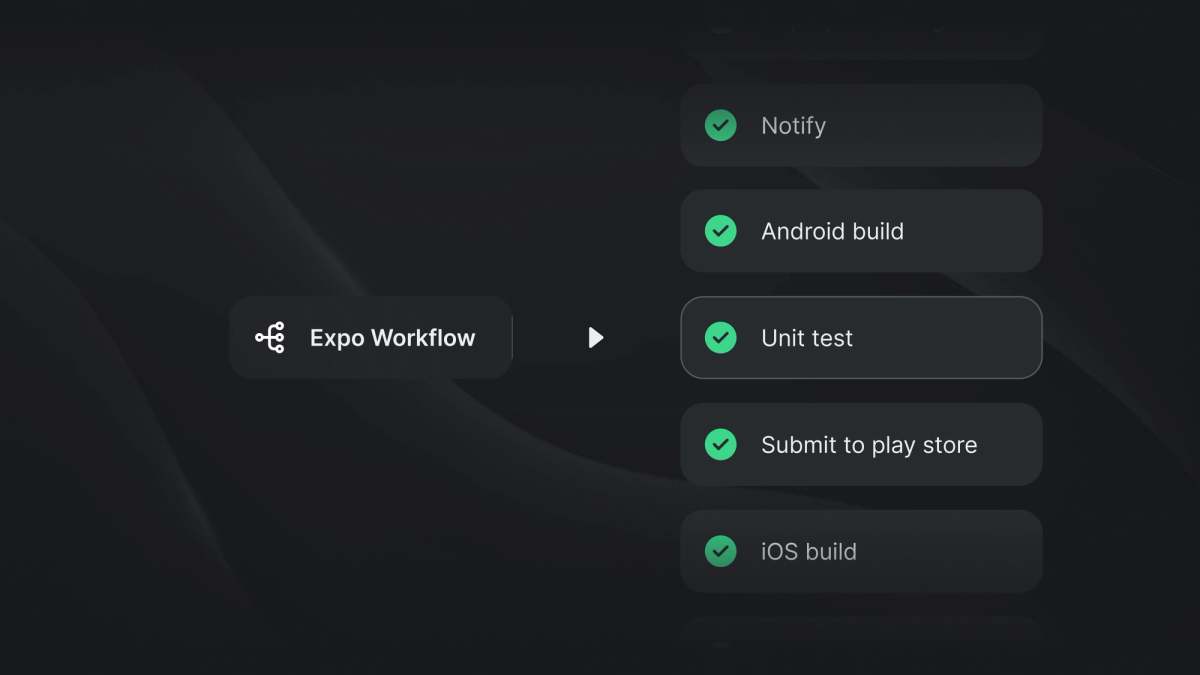
Since the beginning of EAS Build the build process' customizations were limited to what eas.json allowed. There was no way to skip or replace some of the steps with something specific to the project. Moreover, as helpful as build hooks were, they weren't the most convenient way to orchestrate advanced workflows before or after a build.
In 2023, we released a preview of a fully customizable build feature that allowed developers to replace parts of the build process or create entirely new build processes.
Today, these capabilities are part of EAS Workflows, Expo’s unified CI/CD orchestration system. EAS Workflows lets you define complete pipelines—including builds, tests, submissions, updates, and notifications—in a single YAML configuration.
Expo has deprecated GitHub build triggers in favor of EAS Workflows, which provides a more powerful and flexible orchestration platform.
Custom build job configurations in .eas/build define how individual build jobs execute. EAS Workflows configurations in .eas/workflows define how jobs—including build jobs—are orchestrated into complete pipelines.
Orchestrating mobile CI/CD pipelines with EAS Workflows
EAS Workflows is Expo’s CI/CD orchestration system that allows you to automate builds, testing, submissions, updates, and notifications using YAML-defined pipelines.
Workflows define when pipelines run and how jobs depend on each other. Build jobs—including custom build jobs—run as components within these pipelines.
Workflows are defined in .eas/workflows/*.yml and support triggers such as:
- push and pull request events
- scheduled runs
- manual execution
This allows teams to automate their entire mobile delivery pipeline in a single system.
Any workflow can also be run manually with eas workflow:run, regardless of the on: configuration. Path filtering and label-based triggers (pull_request_labeled) are also supported — see the triggers documentation.
Customizable build use cases
We’ve spent the last few months talking with users about what they run and we’re excited that they now can run those steps as a part of their EAS Workflows pipelines. Here are a few examples:
- Sending a Slack message to your team after a build completes to notify them that there’s a new build to download. (example, docs)
- Running Maestro end-to-end tests. (example, docs)
- Creating archives for multiple targets in a single pipeline. For example, building an Android production app (.aab) while also generating a preview build for testing
- Automatically submitting builds to TestFlight or Google Play after successful builds (Android example, iOS example)
- Publishing over-the-air updates after successful validation
These build jobs and automation steps can be composed into complete pipelines using EAS Workflows orchestration.
Pre-packaged jobs: what's available out-of-the-box
Beyond custom build jobs, EAS Workflows ships with pre-packaged job types for common mobile CI/CD tasks. These require no custom configuration — just declare the job type in your YAML:
submit— Submit builds to the App Store or Google Playtestflight— Distribute to TestFlight groups with changelogs and beta review controlupdate— Publish OTA updates via EAS Updatedeploy— Deploy web apps via EAS Hostingmaestro/maestro-cloud— Run Maestro E2E tests on emulators and simulatorsfingerprint— Hash your project's native characteristics to detect when full builds are neededget-build— Find an existing build matching a fingerprint, avoiding redundant buildsrepack— Repackage JS onto an existing build in ~2 minutes instead of a full native rebuildslack— Send Slack notifications via webhookgithub-comment— Auto-post build links and QR codes to pull requestsrequire-approval— Gate production deploys behind manual approvaldoc— Display Markdown notes in workflow logs
See the pre-packaged jobs documentation for full syntax and examples.
How to customize your builds
Initial Setup
Build profile configuration accepts a that specifies the custom build job configuration located under .eas/build. These custom build jobs can be executed independently or orchestrated as part of EAS Workflows pipelines.
Here’s an example:
Basic custom build workflow
The simplest Custom Builds workflow looks like this:
The eas/build function builds your app using the configured build profile. This step can also be orchestrated as part of a larger EAS Workflows pipeline alongside testing, submission, and deployment jobs.
Bash Steps
Let’s add another step that is going to send a message to Discord once a build succeeds.
For Slack specifically, EAS Workflows has a built-in slack job type — no custom scripting needed. The run step shown below is useful for services without built-in support, like Discord or Microsoft Teams.
First, configure a Discord webhook. You can follow this Discord tutorial.
Once you have the webhook URL, you can add a run step to the flow:
The run command executes as a Bash script. You can use tools like curl, Fastlane, Node.js scripts, or any custom automation logic.
These steps can also be integrated into full EAS Workflows pipelines alongside other jobs like submission, testing, and notifications.
Custom JavaScript functions
Bash scripts are great for simple tasks. For advanced tasks we recommend writing a JS function.
This provides:
- Typed access to build properties
- Better reuse across workflows
- Improved maintainability
Custom functions can be integrated into both custom build jobs and full EAS Workflows pipelines. Check out the “TypeScript functions” guide in our EAS Build docs to learn how to set it up.
Customizing eas/build
If you need deeper customization of the build process, you can replace the single eas/build function with its underlying steps.
This allows you to:
- Unlock encrypted secrets
- Modify build environments
- Install dependencies dynamically
- Run validation scripts before building
There are four main examples you can use as scaffold (2 platforms × absence/presence of credentials):
- Android with credentials (builds a signed AAB)
- Android without credentials (builds an Emulator APK)
- iOS with credentials (builds a distributable IPA)
- iOS without credentials (builds a Simulator APP)
Once copied, apply the necessary modifications.
For instance, you could unlock files encrypted with git-crypt. To do that you would first add a GIT_CRYPT_KEY secret to your EAS project containing base64-encoded key. You can get it copied to clipboard by running in an unlocked environment :
Then, ensure your project is set up for Full Git Workflow (cli.requireCommit should be set to true in eas.json). Then you’re ready to add the following Bash script after eas/checkout step.
Using custom build jobs within EAS Workflows
EAS Workflows allows you to orchestrate complete pipelines using build jobs as components.
Example:
needs means the job only runs if its dependency succeeded. after means the job runs regardless — useful for notifications and cleanup. This allows full automation of your mobile CI/CD process.
Migrating from legacy build orchestration
Existing custom build configurations continue to work and integrate directly into Workflows pipelines. Teams already using GitHub Actions or other CI systems don't need to abandon them — you can invoke EAS Workflows from your existing pipeline with eas workflow:run, letting Workflows handle mobile-specific jobs like iOS builds, code signing, and store submissions while your current CI handles linting, unit tests, and code review
What’s next for EAS services?
Building your project is just one step in delivering high-quality mobile applications. EAS Workflows provides a complete CI/CD orchestration system that enables teams to automate builds, testing, submissions, and updates in a single platform.
EAS Workflows handles the mobile-specific parts of your CI/CD pipeline — builds, code signing, submissions, and OTA updates, directly within your Expo project.
Custom build jobs continue to play an important role by enabling deep customization of build behavior within these pipelines.
We’re continuing to expand EAS Workflows with new job types, improved automation capabilities, and deeper integrations to help teams ship faster and more reliably.
We'd love your feedback as you build and automate your workflows. Here are some good next steps:
- Deploy to Production workflow — The full pipeline from fingerprint detection to store submission
- E2E testing with Maestro — Run tests on every PR
- Pre-packaged jobs reference — Full syntax for all job types
- Workflows syntax — Complete YAML specification