There's a moment every mobile developer knows: you've found a bug in production, the fix is ready, and now you're staring at a deploy button wondering what could go wrong.
Over-the-air updates change that equation. They let you ship JavaScript and asset changes directly to users' devices, no new binary, no store submission, no waiting. For React Native teams, they're one of the most powerful tools available. And most teams we talk to are already using them successfully. Updates go out, users receive them, the app keeps running.
But "it works" and "I trust it" are different things. The teams who ship multiple times a day without sweating aren't doing anything magical, they've just built habits around a few key patterns. They know how to test an update before it hits production. They know which changes are safe to push over the air and which ones need a new build. They know how to limit blast radius when something unexpected happens, and how to roll back in minutes instead of hours.
This post shares five of those patterns, not theoretical advice, but real workflows that let teams ship daily without breaking production.
Quick primer: How OTA updates work
Skip this if you're already familiar with Expo Update.
Expo Update lets your app's JavaScript bundle and assets update separately from native code. When your app starts, it checks a server for new updates. If one exists, it downloads in the background and applies on the next cold start.
Updates are organized by channels (what your builds point at) and runtime versions (which ensures JavaScript is compatible with the native binary). In Expo Update, channels map to branches behind the scenes, but you can mostly ignore branches and work directly with channels.
The expo-updates package lets you check for and apply updates on demand if you need users to see fixes immediately.
TL;DR: The OTA Update checklist
If you're skimming, here's what matters:
✓ Use preview and production channels; always test on a preview build before publishing to production
✓ Use fingerprint to detect native changes and know when to update your app version
✓ Know what requires a build vs. what can be updated OTA
✓ Use the expo-updates API to detect, download, and apply updates—so users get fixes faster than their next cold launch
✓ Use gradual rollouts and know how to roll back
Now let's dig into each one.
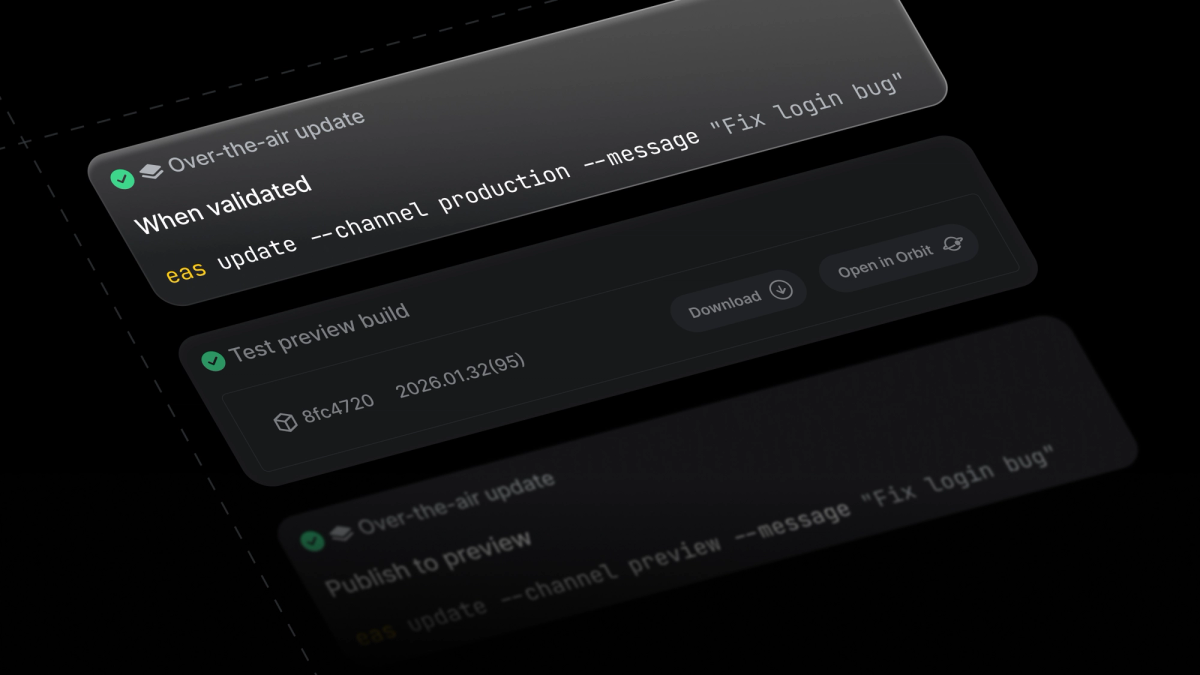
1. Test on preview before publishing to production
The simple flow: preview → production
Most teams start here, and it works well. You have two channels that matter:
- Preview: for internal testing (often pointing to staging APIs, TestFlight/internal track)
- Production: what your users get
The workflow is straightforward:
This publishes a new bundle to production rather than promoting the exact tested artifact. That's fine, you're publishing from the same commit, and the risk of meaningful drift is low. Most issues that would affect production (env vars, bundler quirks, asset problems) will surface during preview testing.
Why this matters in practice
- You catch problems before they reach users
- Preview builds can point to staging APIs without affecting production
- It's simple enough to become a habit
Going further: the staging promotion workflow
Some teams want an extra guarantee: the exact artifact that QA approved is the one users receive. "Same code" isn't always "same build output", bundling is another step where things can drift.
This requires a fourth environment: a staging channel that's configured identically to production (same API servers, same feature flags) but distributed only to internal testers.
When this makes sense:
- You have compliance or audit requirements around tested artifacts
- You've been bitten by subtle bundling differences before
- Your team is large enough that "publish again" introduces coordination risk
Setup required:
- Four app variants: development, preview, staging, production
- Staging must mirror production config exactly (API endpoints, feature flags, etc.)
For most teams starting out, the simple preview → production flow is enough. Add the staging promotion layer when you need the extra assurance.
2. Use fingerprint to know when you need a new build
The problem: Not all dependency updates are JavaScript-only. If you ship an OTA update that requires native changes to users on an older binary, the app crashes.
Why this matters: Runtime versioning is your compatibility firewall. It determines which binaries can load a given update. The most common production failure? Teams assume a dependency is JS-only when it actually changed native code.
The recommended approach: appVersion + fingerprint detection
Use appVersion as your runtime version policy. This ties your runtime version to your app version (1.0.0, 1.1.0, etc.), making it easy to reason about which builds can receive which updates.
The key question: How do you know when to bump your app version?
This is where fingerprinting comes in, not as a runtime policy, but as a detection tool. Expo's fingerprint compares your project's native surface area (dependencies, config, native code) between commits. If the fingerprint changed, native code changed, and you need a new build before you can ship an OTA update.
Use fingerprint to gate OTA updates:
If the fingerprints match, the update is safe to ship OTA. If they differ, you need a new build first.
Automate this with CI:
You can add a fingerprint check to your CI pipeline that automatically determines whether a change can go out as an OTA update or requires a new build. This eliminates manual guesswork and prevents incompatible updates from ever reaching users.
Real example: Hipcamp uses fingerprint to automatically check if changes are OTA-safe. If the fingerprint matches, it ships via OTA. If not, it waits for the next build. "This eliminates manual checks and potential human error," they said.
When to bump your app version:
- You update dependencies with native code
- You upgrade the Expo SDK
- You change app.json settings that affect native config (icons, splash, entitlements, scheme, etc.)
- You modify native project files (ios/, android/ directories)
The fingerprint tool catches all of these. Build it into your workflow, and you won't have to remember.
3. Understand what can be updated over-the-air
The question we hear most: "I shipped an update and the app broke. I thought you could update anything?"
Why this matters in practice
- It prevents "wishful OTA" where teams push changes that silently require a new binary.
- It gives product/engineering a clean release decision: "OTA now" vs "store release."
Updates CAN include:
- JavaScript code and business logic
- UI components, styles, and layouts
- Images, fonts, and other assets
- Bug fixes and copy changes
These REQUIRE a new build:
- Native module installations or upgrades (including expo-* packages with native code)
- Config changes that require native compile (app icons, splash screens, native entitlements, config plugins)
- New native permissions (camera, location, notifications, etc.)
- Expo SDK upgrades (even if you're only using managed workflow)
- app.json configuration changes that affect native code (scheme, associated domains, intent filters, etc.)
- Changes to native project files in bare workflow (ios/, android/ directories)
- Updates to React Native itself
From a technical standpoint, if it's JavaScript or an asset, it can be delivered via OTA. If it touches native code, it needs a new build.
Let fingerprint decide for you
You don't have to memorize these rules. Fingerprint detects native changes automatically by comparing your project's native surface area against your production build. If the fingerprint matches, you're safe to ship OTA. If it doesn't, you need a new build first.
Automate it with EAS Workflows:
The best setup removes the guesswork entirely. With EAS Workflows, you can run a fingerprint check on every push and automatically route changes to the right path, OTA update or new build.
This workflow checks the fingerprint on every push to main. If native code changed and no compatible build exists, it triggers a new build. If a compatible build already exists, it publishes an OTA update. No manual checks, no guesswork, updates and workflows work better together.
About compliance:
Both stores have guidelines for OTA updates, and it's important to read them directly. Here are the complete store policies: Apple's Developer Program License Agreement and Google Play's policies on downloading code.
4. Use the expo-updates API to deliver updates faster
What happens: A user installs your app after you've published an OTA update. They open it, the update downloads in the background, but it doesn't apply until the next cold start (force-quit and relaunch).
This is the default, and we recommend it, app startup performance is critical for engagement. Users get a fast first launch with the embedded bundle, and they'll have the latest version by their second session.
If you need more control, the expo-updates API lets you detect, download, and apply updates to help your users get the next update much faster than their next cold launch. You can inspect update checking and download progress, then decide when to apply based on criticality, what your user is doing, or other factors—with zero cold starts required.
Basic usage:
One thing to know: expo-updates is designed to be resilient. If your app is offline or can't connect to the update server, it just keeps using the latest update it has. Your app won't break—users simply won't get the new update until they have connectivity.
Handling critical vs. non-critical updates
If you ship both critical fixes and routine updates, you'll want a way to distinguish between them. The simple approach of checking the update message for a [CRITICAL] marker doesn't work reliably—if you publish a critical update and then a non-critical one, users will only see the latest (non-critical) update when they check.
Instead, use a pattern that tracks criticality separately from the update itself. The Updates API Demo shows how to implement this properly, including how to check for critical updates even when newer non-critical updates exist.
Gotchas:
- Don't check/reload in a loop. Use a flag to ensure you only check once per session.
- Show a loading state for forced updates. A brief "Updating..." screen is better than a jarring restart.
- Never block app launch on network. If the update check times out, users should still get into the app.
Real-world example:
The MTA mobile team serves 350,000 daily active users across critical transit apps. When a bug hits production, they hear about it within 90 seconds from riders or staff. For severe issues, they use the expo-updates API to push fixes that apply immediately, with zero cold starts required.
"We can identify, patch, and deploy an OTA fix in under 90 seconds from the first user report," they told us. Read their full story →
5. Use gradual rollouts and know how to roll back
The missing safety valve: Even with staging and testing, bad updates slip through. The question is whether you can contain blast radius and recover fast.
Why this matters in practice
- A 10% rollout turns "global outage" into "small incident"
- Rollbacks are only fast if the team already knows the commands and has the right IDs ready
Gradual rollouts
Start small, watch telemetry, then ramp.
To increase the rollout percentage for that update:
To stop a rollout and revert:
Rolling back
If something goes wrong, you can roll forward with a fix or roll back to the previous update. Rolling forward is often faster if you know the fix:
But if you need to revert immediately, use the rollback command:
One nice thing about rollback: users don't have to download an additional update if they already have the previous version. The device keeps the previous update cached, so rollbacks are fast.
Common pitfall: Not having update group IDs handy during an incident. Bookmark your Updates dashboard and document the last known good group ID as part of your release notes.
Pro tip: Set up monitoring that tracks update adoption rates and error rates by update group. You want to catch issues while they're still at 10% rollout, not after 100%.
If you implement only 3 things this week
You don't need to adopt all of this at once. Start here:
1. Set up preview and production channels
- Create two builds: one points at
preview, one atproduction - Always publish to preview first, test, then publish to production
- This alone prevents most production incidents
2. Use fingerprint to detect native changes
- Set
"runtimeVersion": { "policy": "appVersion" }in your config - Use
eas fingerprint:compareto check if native code changed before publishing - If the fingerprint matches your production build, ship OTA. If not, create a new build first.
3. Add gradual rollouts to your workflow
- Start every production update at 10% rollout
- Monitor for 30 minutes before ramping to 100%
- Keep your last few update group IDs handy for rollbacks
These three changes will make your deploys faster and safer. Once they're muscle memory, layer in the other patterns.
Bringing it together
The teams shipping OTA updates most confidently all follow similar patterns:
- They test on preview before publishing to production
- They use fingerprint to detect native changes and know when to bump their app version
- They understand what can and can't be updated
- They use the expo-updates API when they need precise control over update timing
- They use gradual rollouts and know how to roll back
None of these patterns require complex tooling or dramatic process changes. They're small adjustments that compound over time, fewer production incidents, faster iteration cycles, more confidence in your deployment pipeline.
The goal isn't perfect deploys. It's recoverable deploys. When something breaks (and it will), you want to contain the blast radius and fix it in minutes, not hours.
For more on how other teams structure their release cadences with OTA updates, check out our comprehensive guide on deployment patterns. And if you want to see these patterns in action, read how Hipcamp went from monthly releases to daily or how the MTA ships critical transit updates in under 90 seconds.